
Full Page Fetch
Full page, visible area, and region screenshots for Chrome. Watch a compact progress card while a full page is captured, then preview, edit, copy, and save.
Add to Chrome - FreeView screenshots
Screenshots
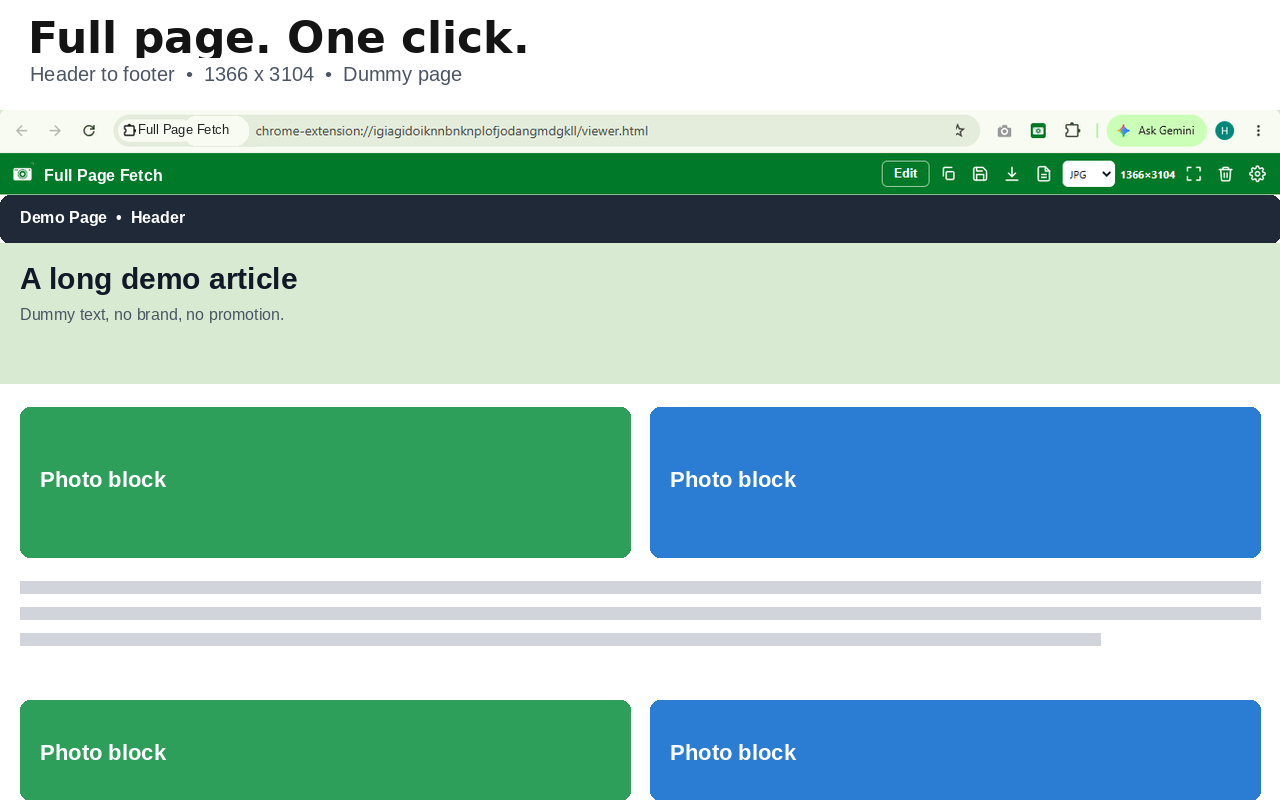
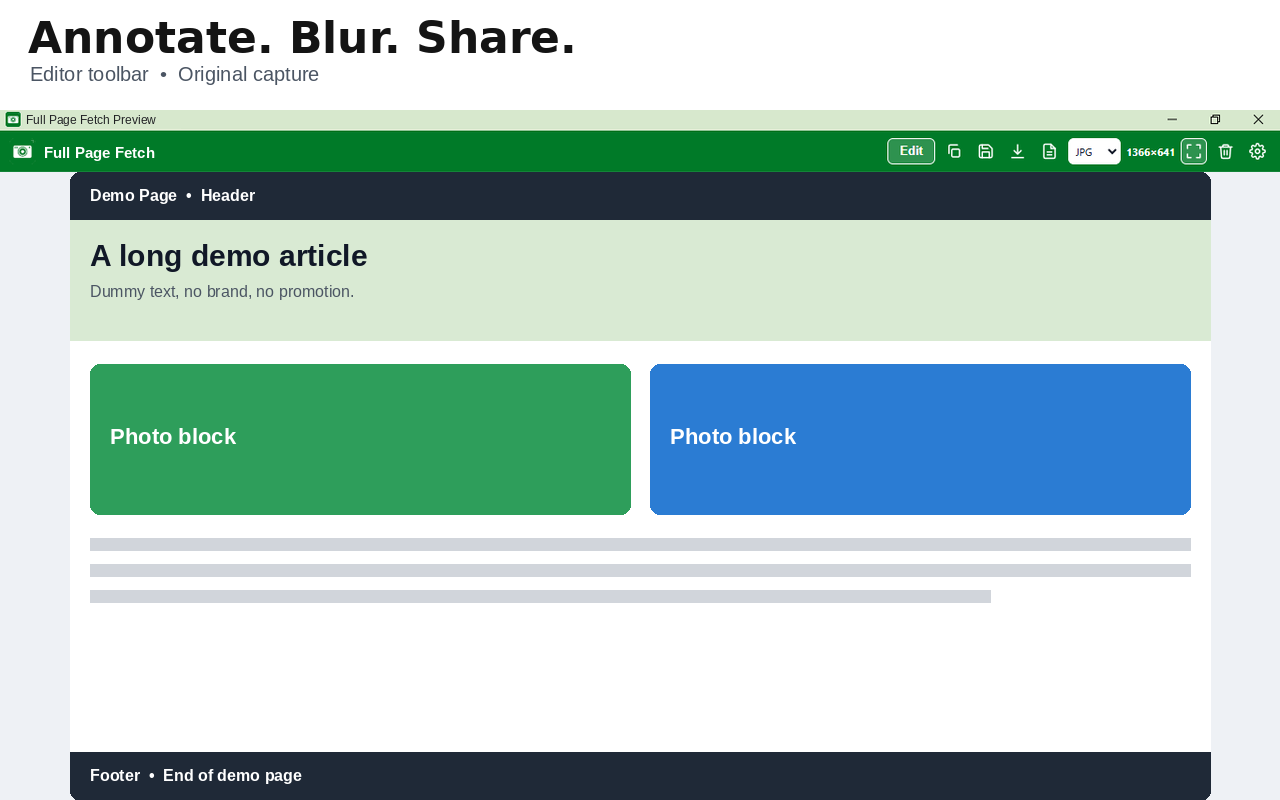
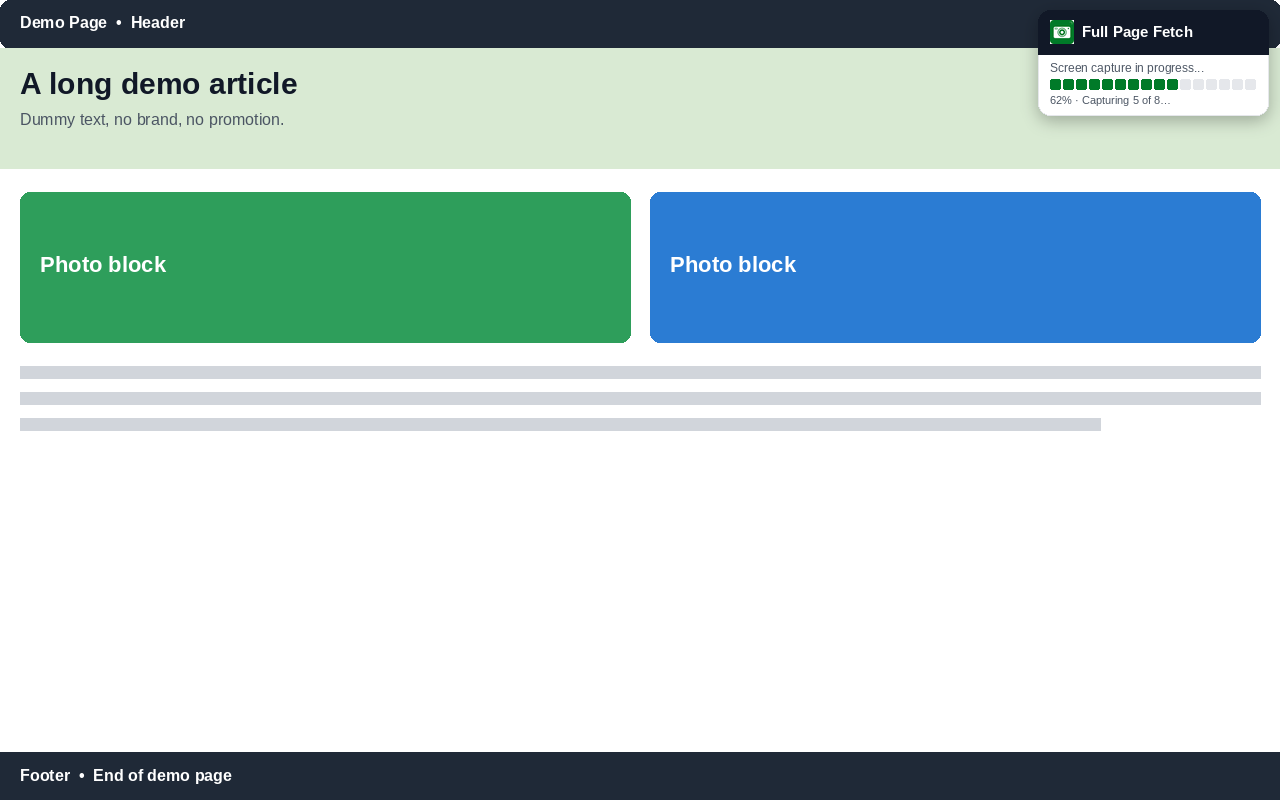
Extension UI is shown exactly as captured. Pages inside the shots are dummy pages — no real website, no brand, no promotion. The progress-card shot is a demonstration view on a dummy page, showing the card as it appears during a capture.
See progress while it captures
During a full-page capture, a compact card stays visible at the browser window's top-right corner, where the extension icons sit.
- Live squares and percent show how far the capture has gone.
- The card never hides during capture and never appears in the final screenshot.
- When the capture completes, the card shows Complete, closes, and the screenshot opens in a new tab.
How it works
Choose what to capture
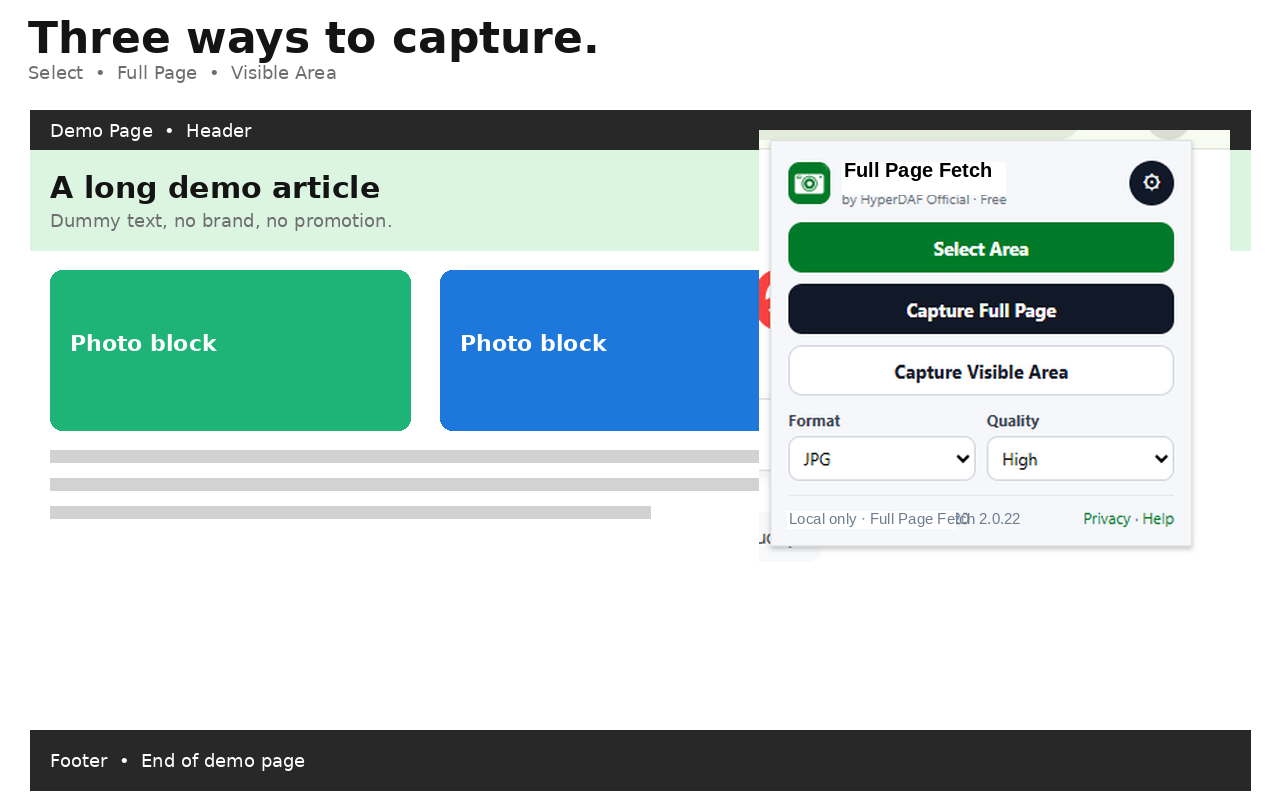
Full Page, Visible Area, or drag to Select Area from the small widget.
Watch the progress card
During a full-page capture, a compact card at the top-right corner shows live progress with squares and percent.
Preview, edit, and save
The result opens in a new tab at 100 percent actual size. Edit it, then copy, save, download, or export a PDF.
Features
Full page, in HD
Scrolls the whole page and stitches one complete, high-quality image.
Visible area
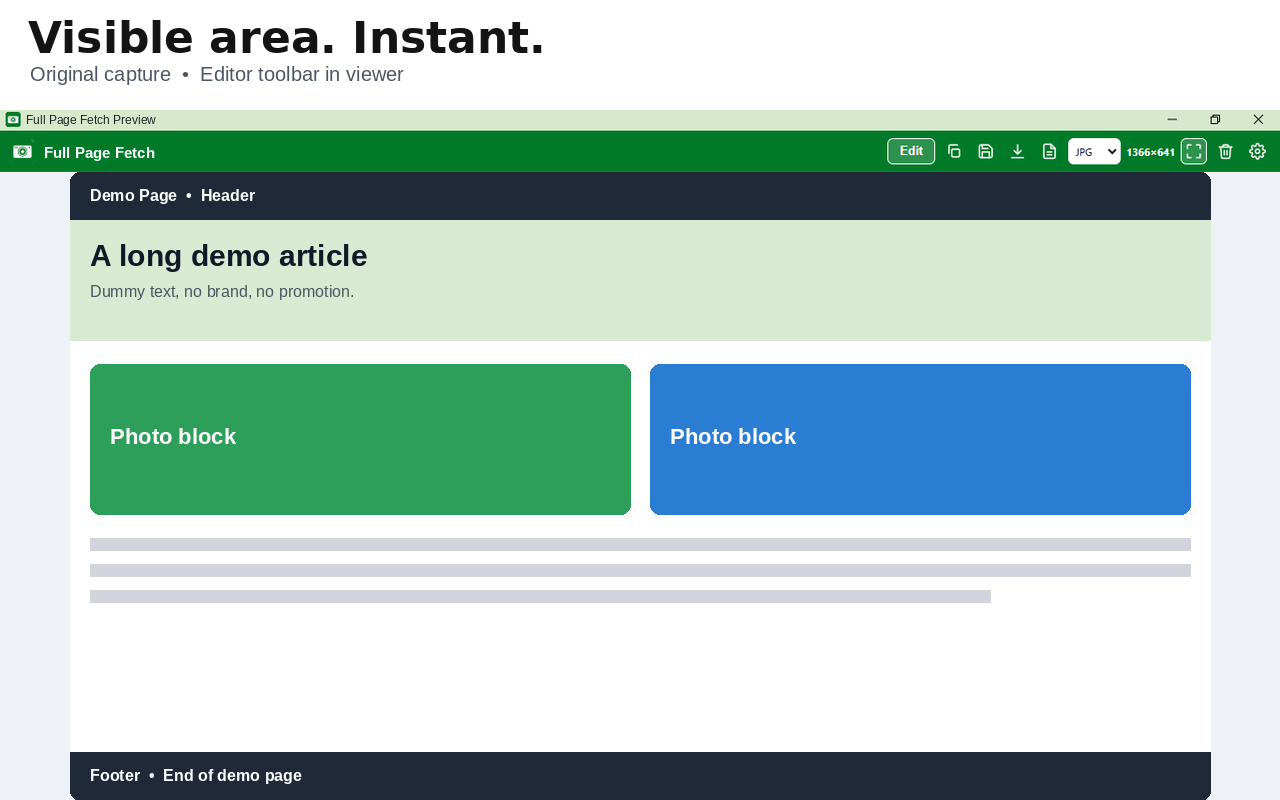
Captures exactly what is on screen, instantly.
Select area
Drag on the page and capture that exact region.
Built-in editor
Crop, Pencil, Rectangle, Arrow, Text, and Blur, with Undo and Reset.
Copy, save, download, PDF
Copy to clipboard, save where you choose, download instantly, or export a PDF.
Progress card
When the capture completes, the card shows Complete, closes, and the screenshot opens in a new tab.
Formats
Note: clipboard copy of BMP and TIFF pastes a high-quality PNG. Saved BMP and TIFF files are exact.
Private by design
Full Page Fetch runs entirely on your device. It does not upload your screenshots, does not require an account, and does not track you.
| Permission | Why it is needed |
|---|---|
| activeTab | Capture the tab you are viewing. |
| scripting | Scroll the page and select a region. |
| tabs | Open the preview in a new tab. |
| downloads | Save the screenshot file. |
| storage | Remember your settings and hold the preview image. |
| clipboardWrite | Copy the screenshot to the clipboard. |
| offscreen | Stitch slices and encode formats off screen. |
Full privacy policy: https://hyperdaf.com/fullpagefetch/privacy/ Support: dev1.hayatkhan@gmail.com
Frequently asked questions
Is Full Page Fetch really free?
Yes. Every capture, edit, and format is free. There is no paid version of the extension.
Do I need an account?
No. Install it and capture right away.
Where do my screenshots go?
Nowhere except where you choose. Captures stay on your device unless you save or share them yourself.
Can it capture Chrome pages like chrome://extensions or the Web Store?
No. Chrome does not allow any extension to capture its own protected pages.
Why does the progress card hide for a moment on some pages?
The card lives in its own window, so it never hides during capture and never appears in the final screenshot. If the window cannot open, a page card is used as a fallback and it hides only for each capture instant.
What if a page is extremely tall?
The image is completed within a 30000 pixel height and 60 million pixel limit. Very tall pages are downscaled to fit, never cut off.