Table of contents9
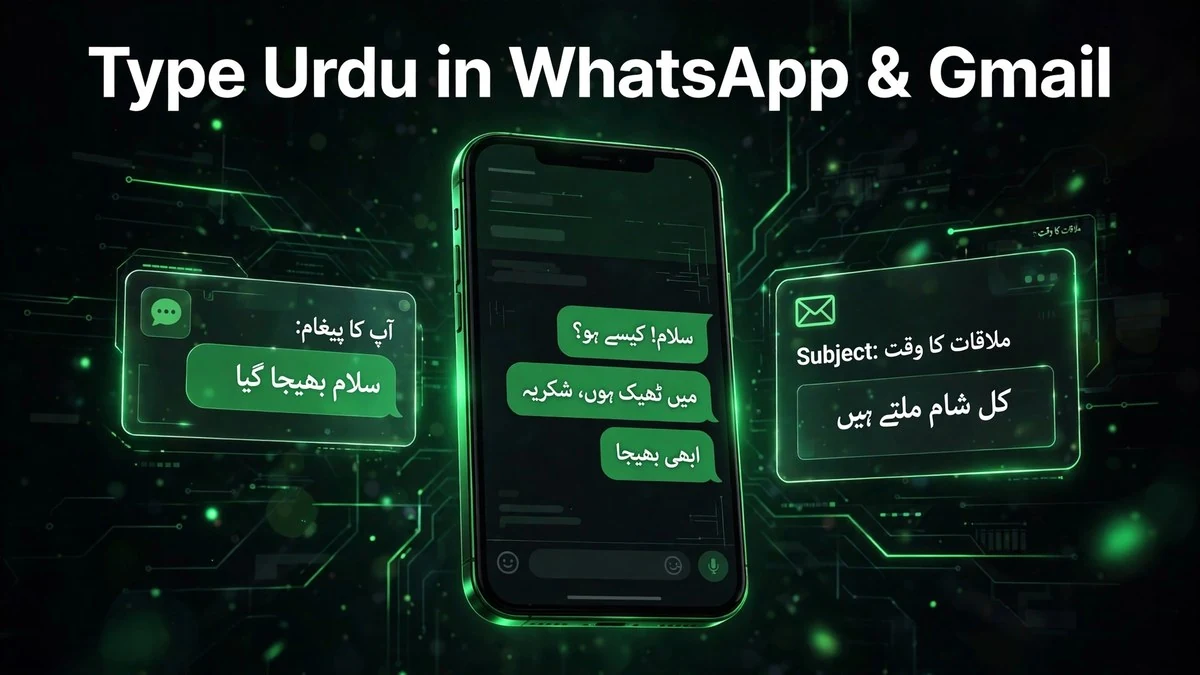
You already know how to type Roman Urdu — “salam, kya haal hai” flows from your fingers without thinking. What you want is for that same typing to appear as proper Urdu script — سلام، کیا حال ہے — inside WhatsApp and Gmail, without learning a new keyboard layout and without switching apps.
That is exactly what a Roman Urdu input tool does: you type in Roman letters, and the text changes into Urdu script as you type, right inside the page you are already on. This guide shows you how to set it up in your browser and use it in WhatsApp Web and Gmail, step by step.
How Roman Urdu Typing Works
Roman Urdu typing is based on sound, not on key positions. You type the word the way it sounds — “mohabbat”, “dost”, “shukriya” — and the tool converts it into Urdu script — محبت، دوست، شکریہ. You do not memorise where each Urdu letter sits on the keyboard, because you are still using the same English letters you already know.
The conversion happens as you type, word by word. Type “salam” and a space, and the word becomes سلام. Type a sentence, and the whole sentence converts. If a word has more than one possible spelling, the tool usually offers the closest match first, and you can pick a different one if it guessed wrong.
This works anywhere you can type in your browser — a chat box, an email, a document, a comment. The tool lives in the browser, not in one website, so you do not need a separate app for WhatsApp and another for Gmail.
Step 1: Set Up Roman Urdu Typing in Your Browser
First, add a Roman Urdu input extension to your browser. DAF Urdu for Chrome is one such extension: it adds Roman Urdu to Urdu conversion to any website you open in Chrome.
Install it from the browser’s extension store, then open any page and press the shortcut to turn it on — usually Alt and Space together. A small indicator shows that Urdu typing is active. Press the same shortcut again to turn it off and type in English as normal.
Test it in the browser address bar or a search box first: type “salam” and watch it become سلام. If it works there, it will work in WhatsApp and Gmail too. If it does not work on a page, click into the text box first — the tool only converts text where the cursor is active.
Step 2: Type Urdu in WhatsApp Web
Open WhatsApp Web in your browser and open the chat you want to write in. Click into the message box at the bottom, then turn on Urdu typing with the shortcut.
Type your message in Roman Urdu, exactly as you would speak it: “salam, aaj shaam ko milte hain”. As you type each word and press space, it changes into Urdu script. Read the message before you press send — check that names and places converted the way you wanted, because names sometimes have more than one possible spelling.
A few tips that make WhatsApp messages read better:
- Keep sentences short. Short sentences convert more reliably than long ones, and they are easier for the other person to read.
- Check names. A person’s name may convert into a common word. If it does, retype it and pick the spelling you want.
- Mixing languages is fine. You can turn Urdu typing off for an English word or a number, then turn it on again. A message that mixes English and Urdu is normal, and the tool handles the switch.
- Voice notes are still there. If a message is long and complicated, a voice note is faster than typing. Use typing for the messages that need to be read, and voice for the rest.
When you are done, turn Urdu typing off before you type a password, a link, or a phone number — those should stay in English letters.
Step 3: Type Urdu in Gmail
Open Gmail in your browser and start a new email. Click into the message body, then turn on Urdu typing.
Type the email in Roman Urdu, the same way as a WhatsApp message. The subject line works the same way: click into it, turn typing on, and type the subject in Roman Urdu so it arrives as Urdu script.
Email has two extra things worth doing:
- Write the greeting properly. An email that opens with a proper Urdu greeting reads far more professional than one that opens in Roman letters. Type the greeting first, check it, then continue with the body.
- Check the whole email before sending. Read it top to bottom once. A wrong conversion in the middle of a formal email is more embarrassing than the same mistake in a chat, and it takes ten seconds to catch.
If you reply to an email that is in English, you can write your reply in Urdu — just turn typing on for your part. The original message stays as it was; only what you type converts.
Step 4: Everyday Tips That Save Time
Once the setup works, a few habits make it fast:
- Learn the shortcut. Alt and Space, or whatever your extension uses, should become automatic. Reaching for the mouse to switch languages is what slows you down.
- Type the way you speak. The conversion is based on sound, so spell words the way you say them. If a word converts wrongly, try a different spelling of the sound — “kh” instead of “k”, for example — and it will usually land correctly.
- Keep a list of your common words. Your name, your city, your business name — type each once, note the spelling that converts correctly, and use that spelling every time.
- Numbers and dates stay in English. Phone numbers, order numbers, and dates are clearer in English digits. Turn typing off for those, then back on for the text around them.
- One tool for every site. Because the tool lives in the browser, the same setup works in WhatsApp, Gmail, documents, and any other site. Learn it once, use it everywhere.
Common Problems and Fixes
- Nothing converts. The tool is off, or the cursor is not in a text box. Click into the message box, press the shortcut, and type again.
- Some words convert, others do not. The unconverted words are usually names or unusual spellings. Retype them with a different spelling of the sound, or pick the right option if the tool offers one.
- The whole page switched to Urdu. You turned the tool on and forgot to turn it off. Press the shortcut again to switch back to English typing.
- It works in Gmail but not in WhatsApp Web. The message box was not focused when you turned the tool on. Click into the WhatsApp message box first, then press the shortcut.
- The shortcut does nothing. Another extension or the browser itself may be using the same shortcut. Open the extension’s settings and change the shortcut to a combination nothing else uses.
Why Typing in Urdu Script Matters
A message in Urdu script is easier to read than the same message in Roman letters, especially for older family members and for anyone who reads Urdu daily but types slowly. It also looks more respectful in a formal email, and more personal in a message to someone you care about.
Most importantly, it removes the barrier. People who can speak Urdu fluently often avoid writing it because the keyboard feels hard. Roman Urdu typing removes that barrier: you type the way you speak, and the script takes care of itself. The result is more messages, longer messages, and messages that actually say what you meant.
FAQs
Do I need a separate app for WhatsApp and Gmail?
No. A browser extension works in every website you open in that browser, including WhatsApp Web and Gmail. One setup covers both.
Can I mix English and Urdu in the same message?
Yes. Turn Urdu typing on for the Urdu parts and off for English words, names, links, and numbers. Switching takes one shortcut press.
Will the other person see Urdu script, or Roman letters?
They see Urdu script. The conversion happens as you type, so what you send is real Urdu text, and it displays correctly on their phone or computer.
Does this work on my phone too?
On a phone, the keyboard itself handles Urdu input — your phone keyboard has its own Urdu options. The browser method in this guide is for typing on a computer, in WhatsApp Web and Gmail.