Table of contents9
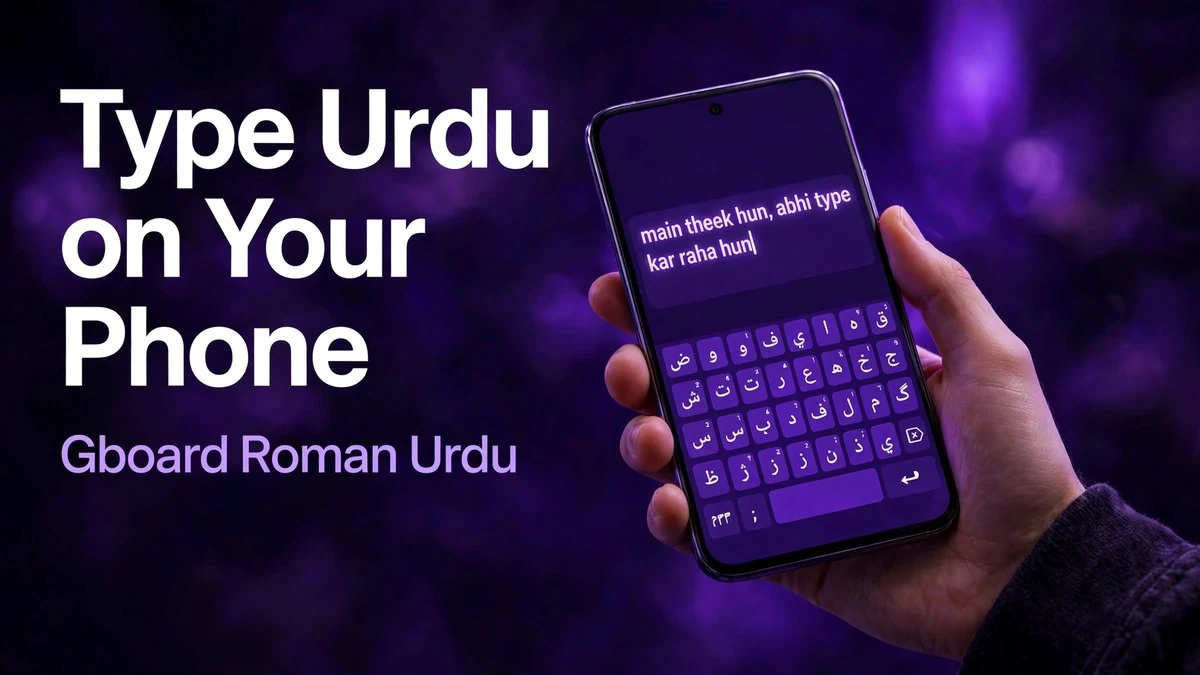
On a phone, Urdu typing works differently from a computer. There is no browser extension to install and no language to add in the same way. Your phone keyboard itself does the job — and the keyboard most Android phones already have, Gboard, includes a Roman Urdu option that converts what you type into Urdu script as you type it.
This guide shows you how to add Urdu to Gboard, how the Roman Urdu layout works, how to switch between English and Urdu in a second, and how to fix the problems people hit most often. One honest note first: DAF Urdu is a browser extension for computers, so it does not run on your phone. On a phone, Gboard is the right tool — this guide tells you how to use it properly.
What Roman Urdu Means on Gboard
Gboard offers Urdu in two layouts, and they work very differently:
- Roman Urdu (transliteration). You type in Roman letters — “salam”, “mohabbat”, “shukriya” — and Gboard converts each word into Urdu script — سلام، محبت، شکریہ — as you type. This is the layout this guide covers, because it matches how most people already type.
- Urdu script keyboard. The keyboard shows Urdu letters on the keys, and you tap the letters directly. This is faster once you know the layout, but you must learn where every letter sits.
Roman Urdu is the better starting point for almost everyone. You already know how to type Roman Urdu in chats — you have been doing it for years. The only new thing is that the words now appear in Urdu script. Nothing to memorise, nothing to install beyond the language itself.
Step 1: Add Urdu to Gboard
Open any app where you can type — a message, a note, an email — so the keyboard appears. Tap the settings icon on the keyboard (the small gear), then Languages, then “Add keyboard”. Search for Urdu and select it.
Gboard will show the available layouts for Urdu. Choose the Roman Urdu one — it may be labelled as transliteration or Roman Urdu. If both layouts appear, you can add both and pick the Roman one as your default for Urdu.
If Gboard is not your phone’s keyboard, install it from your phone’s app store first and set it as the default keyboard in your phone settings. Most Android phones already have it; if yours does not, the install takes a minute.
Step 2: Switch Between English and Urdu
Switching is one tap: the globe icon on the keyboard, or a long press on the space bar, depending on your phone. Each tap moves to the next language. With English and Urdu added, one tap switches between them.
A small detail matters here: Gboard remembers the language per app. If you switch to Urdu in WhatsApp, it may still be English when you open your email. That is normal — switch again in the new app. After a few days, switching becomes automatic and you will stop thinking about it.
To check which language is active, look at the space bar: it shows the current language. If your typing comes out in the wrong script, look at the space bar first — the language is almost always the thing that is wrong, not the keyboard.
Step 3: Type Your First Urdu Sentences
Open a chat with a friend or family member and switch to Urdu. Type slowly at first: “salam, kya haal hai”. As you finish each word, it converts into Urdu script. If a word converts into the wrong word, look at the suggestion bar above the keyboard — Gboard usually offers two or three options, and tapping the right one fixes it.
Type the way you speak. The conversion is based on sound, so spell words the way you say them. If a word keeps converting wrongly, try a different spelling of the same sound — “kh” instead of “k”, for instance — and it will usually land correctly.
A few habits make phone typing faster:
- Let the suggestions do the work. The suggestion bar predicts your next word. Tapping a suggestion is faster than typing the whole word, and the predictions improve as Gboard learns how you write.
- Keep sentences short. Short sentences convert more reliably, and they are easier to read on a small screen.
- Check names. A person’s name may convert into a common word. If it does, tap the suggestion that matches the name, or type the name in English letters — a name in English inside an Urdu message is normal and everyone understands it.
Step 4: Urdu Script Keyboard vs Roman Urdu — Which One?
After a week of Roman Urdu, you may wonder whether the Urdu script keyboard is faster. The honest answer is: it depends on how much you type.
- Roman Urdu is faster to learn and better for mixed writing, where you switch between English and Urdu every sentence. It is the right choice for chats, messages, and short emails.
- Urdu script keyboard is faster once learned, because you tap each letter directly instead of typing a whole Roman word and waiting for conversion. It is the right choice if you write long Urdu text every day — long messages, posts, or documents on your phone.
You can have both added to Gboard and switch between them the same way you switch languages. Try the script keyboard for a week after Roman Urdu feels easy. If it clicks, keep it. If it does not, Roman Urdu is a perfectly good way to type Urdu for the rest of your life — there is no prize for using the harder layout.
Step 5: Typing Urdu in Different Apps
Gboard’s Urdu works in every app on your phone, because it is the keyboard, not a feature of one app. A few app-specific notes:
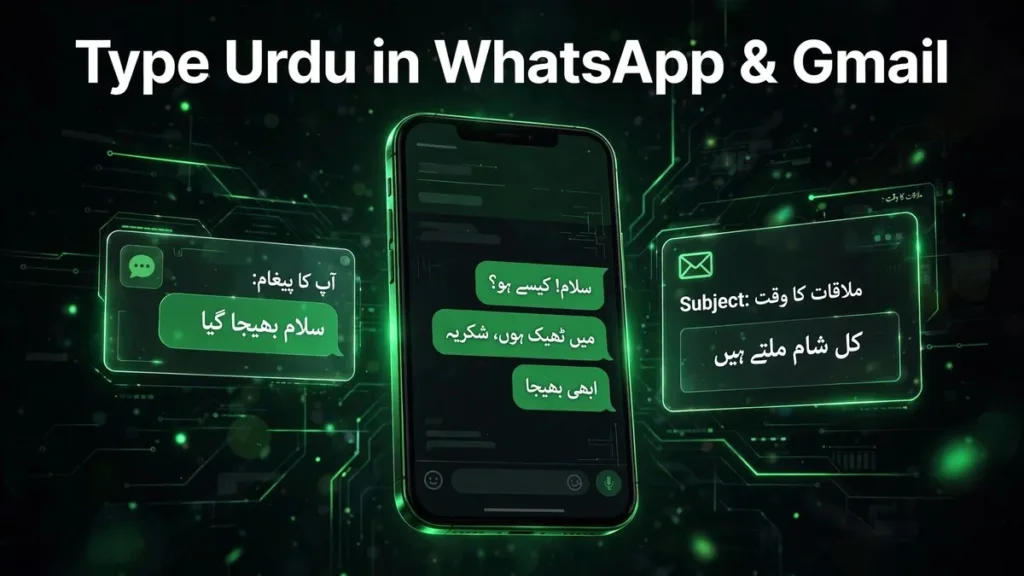
- Messages and chats. Roman Urdu is ideal here. Switch to Urdu, type, send. Your messages arrive as Urdu script, and they display correctly on the other person’s phone.
- Email. Write the subject in Urdu the same way as the body. Read the email once before sending — a wrong conversion in a formal email is more embarrassing than in a chat.
- Social media posts and comments. Type in Urdu the same way. A post in Urdu script reaches more of your audience than the same post in Roman letters, because it is easier to read.
- Search. You can search in Urdu too. Type your search in Roman Urdu, let it convert, and the results come back in Urdu. This is useful when you are looking for Urdu content and English search terms return the wrong results.
One caution: passwords, links, and phone numbers should always be typed in English. Switch to English before typing anything that must stay in English letters, then switch back.
Common Problems and Fixes
- Urdu is not in the language list. Gboard is out of date, or the language download did not finish. Update Gboard from the app store, then add the language again.
- Words convert into the wrong Urdu words. The spelling of the sound is ambiguous. Tap the correct suggestion in the bar above the keyboard, or retype the word with a different spelling.
- The keyboard switches back to English on its own. Gboard remembers the language per app. Switch again in the app you are using — it is not a fault, it is how the setting works.
- The suggestion bar shows no Urdu suggestions. You are typing in the English layout, not the Urdu one. Check the space bar: if it says English, switch to Urdu.
- Typing feels slow. That is normal for the first week. Use the suggestion bar, keep sentences short, and type real messages instead of practising. Speed follows use, not practice drills.
- Urdu letters appear as boxes in one app. That app’s font does not support Urdu script. The text itself is correct — it will display properly on the other person’s phone and in other apps.
FAQs
Is Gboard free?
Yes. Gboard is free, and adding Urdu costs nothing. If your phone already has Gboard, there is nothing to buy or install beyond the language itself.
Can I type Urdu on an iPhone with Gboard?
Yes, Gboard is available for iPhone as well, and the same Urdu layouts work the same way. Your iPhone’s own keyboard also has Urdu options, so you can use either.
Does Roman Urdu work offline?
Yes, once the language is downloaded. The conversion happens on your phone, so you can type Urdu without an internet connection.
Why do some words not convert at all?
Usually because they are names, unusual spellings, or words Gboard has not seen from you before. Tap the suggestion that matches, or type the word in English letters — mixed messages are normal and everyone reads them fine.