Table of contents9
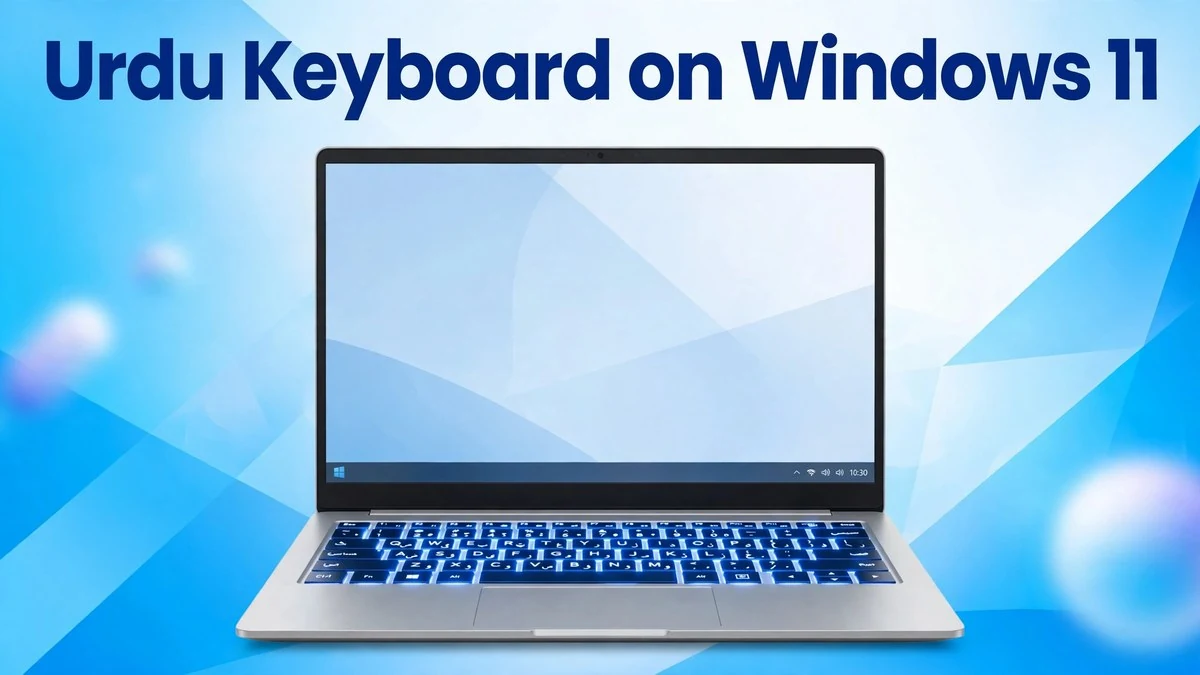
Windows 11 has a built-in Urdu keyboard. Once you add it, you can type Urdu script in any program on your computer — documents, emails, chats, and browsers — without installing anything extra. The phonetic layout is the one most people want: each Urdu letter sits on the English key that sounds like it, so you type “s” for س and “m” for م.
This guide shows you how to add the Urdu keyboard, how the phonetic layout works, how to switch between English and Urdu in a second, and what to do when typing in the browser feels easier with a different method.
What “Phonetic” Means, and Why It Matters
A keyboard layout decides which letter appears when you press a key. There are two main kinds for Urdu:
- Phonetic layout. The Urdu letter is placed on the English key that sounds the same. Press “a” and you get ا. Press “b” and you get ب. If you already type in English, you already know where most letters are.
- Standard layout. The letters are arranged by the traditional typewriter order, which has nothing to do with English sounds. It is faster for someone who learned it years ago, and much slower for everyone else.
If you are setting up Urdu typing for the first time, choose phonetic. You will be typing real sentences within minutes, because you are using knowledge you already have — the sound of each letter — instead of memorising a new map of the keyboard.
Step 1: Add the Urdu Language in Windows 11
Open Settings, then go to Time and Language, then Language and Region. Click “Add a language” and search for Urdu. Select Urdu and click Next.
Windows will ask what to install. Keep the language pack and the keyboard ticked, and click Install. The download is small and takes a minute or two. You do not need to change your display language — your menus and buttons stay in English. You are only adding Urdu as a typing language.
When the install finishes, Urdu appears in your language list. Click the three dots next to it, choose Language options, and check that a keyboard is listed. If more than one keyboard is listed, look for the phonetic one and make sure it is the one selected — that is the layout this guide uses.
Step 2: Switch Between English and Urdu
Switching languages is one shortcut: Windows key and Space together. Press it once and the language changes; press it again and it changes back. A small indicator near the clock shows which language is active — ENG for English, URD for Urdu.
Try it now. Open a blank document, press Windows and Space until the indicator says URD, and type “salam”. The letters appear in Urdu script. Press Windows and Space again to return to English.
Two things make switching painless:
- Switch before you type, not after. Decide which language the next sentence is in, switch, then type. Switching in the middle of a sentence is how letters end up in the wrong script.
- Check the indicator. If your typing comes out in the wrong script, look at the indicator first. Nine times out of ten, the language is simply not the one you thought it was.
Step 3: Learn the Phonetic Layout
The phonetic layout follows sound, so most letters are where you expect them:
- The letters that sound like English letters sit on those keys: “b” gives ب, “m” gives م, “n” gives ن, “r” gives ر.
- Letters with no English equivalent sit on nearby keys, and you will learn them by use: the exact positions vary slightly by layout, so type a few test words and note where the less common letters land.
- Numbers stay on the number row. Punctuation like the full stop and comma works the same as in English.
The fastest way to learn is to type real sentences, not to stare at a layout diagram. Type a greeting to a friend, then a longer message. Within a day of normal use, the common letters become automatic, and within a week you will not need to think about them at all.
Keep a short note of the keys you keep forgetting. Most people have three or four letters that never stick — write those on a sticky note for the first week, and take it down when you stop looking at it.
Step 4: Typing Urdu in the Browser
The built-in keyboard works everywhere, including the browser — WhatsApp Web, Gmail, and documents all accept it. But there is a second way to type Urdu in the browser that many people find faster: a Roman Urdu input tool.
A Roman Urdu tool works differently from the keyboard. Instead of pressing keys that map to Urdu letters, you type in Roman letters — “salam, kya haal hai” — and the tool converts each word into Urdu script as you type. You never switch the Windows language, and you never learn key positions at all.
Which one should you use? It depends on what you are doing:
- The built-in keyboard is better for long documents and for typing that stays in Urdu for a whole paragraph. Once the layout is in your fingers, it is fast and it works in every program, not just the browser.
- A Roman Urdu tool in the browser is better for short messages and mixed writing, where you jump between English and Urdu every sentence. You type the way you speak, and the tool handles the script.
Many people use both: the keyboard for documents, the Roman Urdu tool for chats and emails. There is no rule that says you must pick one. Use whichever is faster for the task in front of you.
Step 5: Make Urdu Typing Comfortable
A few settings make the built-in keyboard much easier to live with:
- Add Urdu to the taskbar. Windows shows a language button near the clock. Clicking it switches languages with the mouse, which is useful until the shortcut becomes automatic.
- Turn on the on-screen keyboard once. Open it from the accessibility settings, switch to Urdu, and look at the layout. Seeing the letters on the keys for five minutes teaches you more than an hour of guessing.
- Keep English as the default. Your display language and your default typing language should stay English. Urdu is a language you switch into, not one that takes over. If Windows starts in Urdu typing mode every morning, change the default input method back to English in the language settings.
- Check your fonts. Urdu script should display clearly in your documents and browser. If letters look broken or joined wrongly, the problem is usually a missing font in one program, not the keyboard. Try the same text in another program: if it looks right there, the keyboard is fine.
Common Problems and Fixes
- Urdu is not in the language list. The install did not finish. Go back to Language and Region, remove Urdu, and add it again. Make sure the keyboard is ticked during install.
- The layout is not phonetic. More than one Urdu keyboard may be installed. In Language options, check which keyboard is listed, and remove the one you do not want.
- Windows and Space does nothing. Another program may be using the same shortcut. Use the taskbar language button instead, or change the switching shortcut in the advanced keyboard settings.
- Urdu letters appear as boxes. A font is missing. The text is correct — your program just cannot display it. Open the same text in your browser: if it displays there, install a font that supports Urdu script, or use a different program for that document.
- Typing is slow. That is normal for the first week. Type real sentences every day instead of practising letter by letter, and speed follows. If you need speed today rather than next week, use a Roman Urdu tool in the browser for messages while the keyboard layout settles in.
FAQs
Is the Urdu keyboard free on Windows 11?
Yes. It is built into Windows. Adding the Urdu language and keyboard costs nothing and needs no extra download beyond the small language pack Windows installs itself.
Do I have to change my Windows display language to Urdu?
No. You only add Urdu as a typing language. Your menus, buttons, and settings stay in English. Only the text you type changes.
What is the difference between the phonetic layout and the standard layout?
In the phonetic layout, Urdu letters sit on the English keys that sound like them, so you can start typing immediately. In the standard layout, letters follow the old typewriter order, which you must memorise. New users should choose phonetic.
Can I use the Windows Urdu keyboard in WhatsApp Web and Gmail?
Yes. The keyboard works in every program, including the browser. Click into the message box, switch to Urdu with Windows and Space, and type. A Roman Urdu browser tool is a faster alternative for short messages.