Plugins are what make WordPress powerful — and what make it fragile. Every plugin is third-party code running inside your site, which means every installation deserves a moment of scrutiny. Most people install plugins the way they install phone apps: search, tap, done. Your website deserves better. This guide covers how to evaluate a plugin before installing it, all three installation methods, what to do when installations go wrong, and the configuration habits that keep your site fast and conflict-free.
Step 1: Vet the Plugin Before You Install It
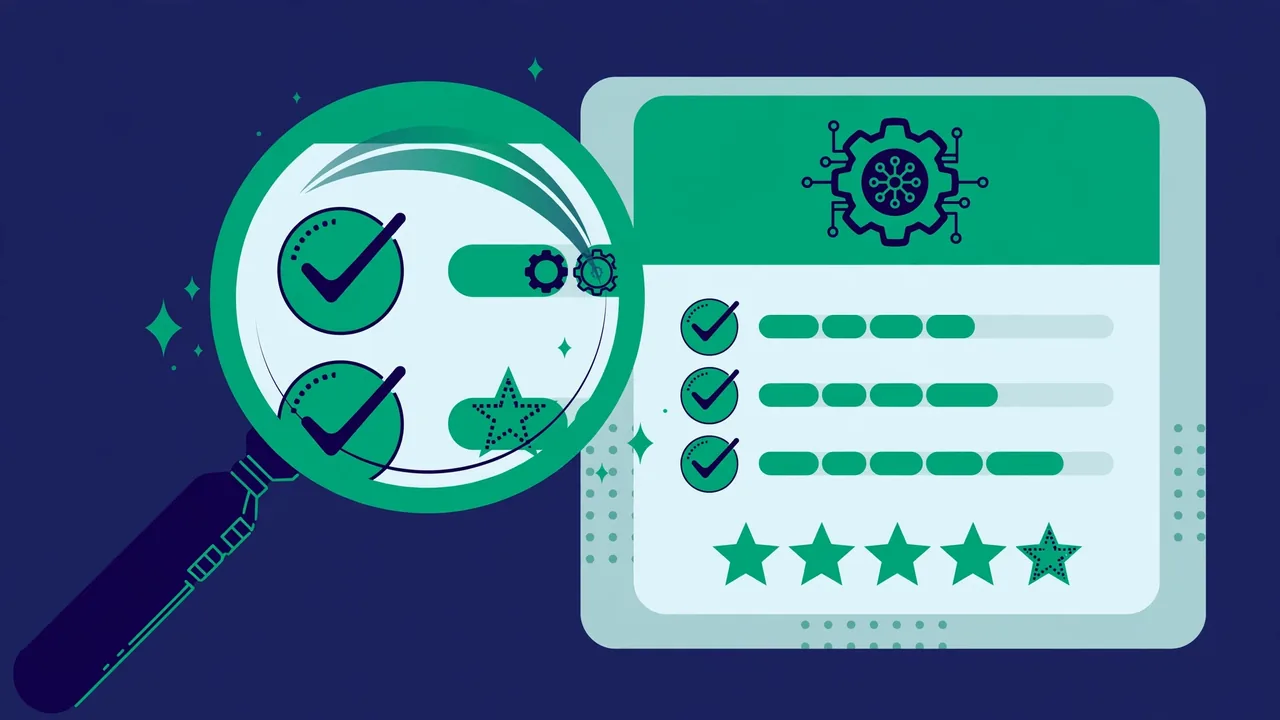
The safest installation is the one you never need, and the second safest is an informed one. Before installing any plugin, run through this vetting checklist on its directory page:
- Active installations and ratings. High install counts with strong ratings suggest a plugin that works for many people. But read the one-star reviews too — they reveal the real failure modes, and patterns in complaints (broken updates, abandoned support) matter more than the average score. A plugin with 4.8 stars and thoughtful critical reviews is more trustworthy than one with a perfect 5.0 and twelve ratings.
- Last updated date. A plugin updated within the last few months is actively maintained. One untouched for a year or more may still function, but it is not being tested against current WordPress releases, and unmaintained code is where vulnerabilities linger. Also glance at the changelog: regular, clearly described updates signal an author who cares; years of silence signal the opposite.
- Support responsiveness. Open the support forum tab. Are questions getting answered? A plugin whose author replies within days is dramatically safer to depend on than one with months of silence. Pay attention to how they answer, too — thoughtful troubleshooting beats copy-pasted deflections.
- Compatibility statement. Check that the plugin is tested with recent WordPress versions. If it warns that it has not been tested with your version, treat that as a yellow flag, not a green light. Major core updates change APIs, and untested plugins are the ones that break.
- Do you actually need it? The most overlooked check. Every active plugin adds code to every page load. If WordPress core or your theme already does the job, skip the plugin. Fewer plugins means fewer conflicts, fewer updates, and a faster site. “Might be useful someday” is how sites accumulate thirty plugins.
This five-minute check eliminates the large majority of bad plugin experiences. The plugins that break sites are overwhelmingly the ones installed on impulse — no review reading, no update-date check, no consideration of whether they were needed at all.
Step 2: Back Up Before You Install
Installing a plugin modifies your database and sometimes your files. On a healthy site this is routine, but “routine” is not “risk-free” — a conflicting plugin can white-screen your site seconds after activation. A fresh backup before installing turns a potential emergency into a five-minute restore. If your host provides staging, even better: install and test there first, then replicate on live.
Make this non-negotiable for any plugin that touches critical functionality — security, backups themselves, e-commerce, membership, or anything that modifies the database schema. For these, also note your current plugin versions before changing anything, so you know exactly what “working” looked like if you need to roll back. The backup habit feels tedious until the day it saves your site; after that, it feels like the most obvious thing in the world.
Step 3: Install It — Three Methods
Method A: From the Plugin Directory (Recommended)
Go to Plugins → Add New, search by name or keyword, and click Install Now, then Activate. This is the safest route: directory plugins pass automated code checks and the install is handled entirely by WordPress. Use the search filters and sort options to compare alternatives before committing — the directory shows ratings, active installs, and update dates right on the results cards, so you can vet without leaving the page.
Method B: Upload a ZIP File
For premium plugins or ones distributed outside the directory, use Plugins → Add New → Upload Plugin. Select the .zip, click Install Now, then activate. The same warning applies as with themes: make sure you upload the plugin zip itself, not an outer bundle containing documentation and extras. If WordPress reports a missing plugin header, you uploaded the wrong zip — unzip the package on your computer first and look for the inner installable file.
Method C: Via FTP/SFTP
Unzip the plugin on your computer and upload the resulting folder to /wp-content/plugins/, then activate it from Plugins → Installed Plugins. This is the fallback when dashboard uploads fail due to server limits, and the rescue method when a broken plugin locks you out of wp-admin — in that case you do the reverse and rename the plugin’s folder (adding “-disabled” to the name works) to deactivate it without dashboard access. Knowing this one trick in advance turns a lockout from a panic into a two-minute fix.
What to Do When an Installation Goes Wrong
Even careful installations occasionally fail. Here is how to handle the common failures calmly:
- White screen right after activation. Do not panic. Connect via FTP, rename the newly installed plugin’s folder, and your site will come back immediately — WordPress simply deactivates what it cannot find. Then investigate: it was almost certainly a conflict with another plugin or your PHP version.
- “Installation failed: destination folder already exists.” A previous install left files behind. Delete the existing folder via FTP (or the dashboard, if accessible) and install fresh.
- Plugin installs but its menu never appears. Check your user role — some plugins hide their menus from non-administrators. Also check for capability-management plugins that might be suppressing it.
- Upload keeps failing or timing out. Your host’s upload limit is smaller than the zip. Either ask the host to raise it or switch to the FTP method, which has no such limit.
- “Are you sure you want to do this?” Your session expired mid-upload. Log out, log back in, and retry.
The pattern in all of these: the fix is known, quick, and undramatic — if you have FTP access and a backup. Set both up before you need them, not during the emergency.
After Activation: Configure, Don’t Just Install
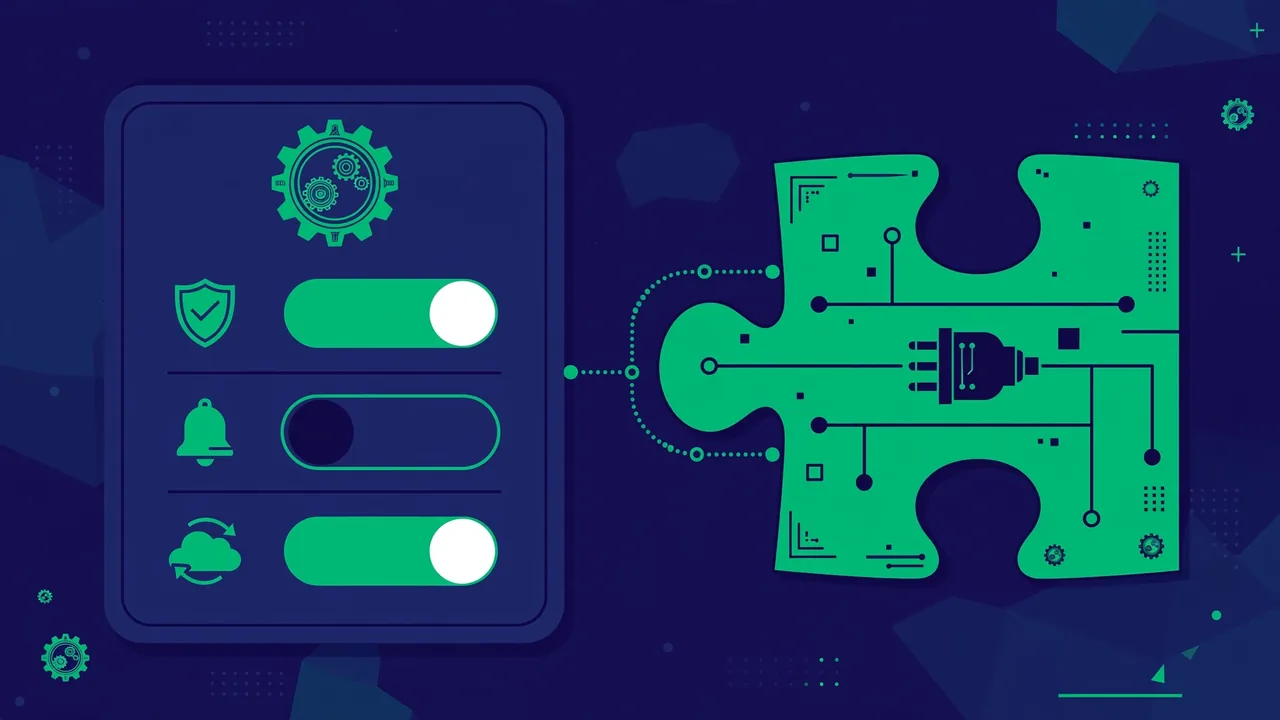
Activation is the starting line. An unconfigured plugin is often a useless or even harmful plugin. Work through the plugin’s settings page methodically:
- Run any setup wizard. Many plugins include one — it exists to prevent the exact misconfigurations that generate support tickets. Do not skip it, even if you think you know the plugin.
- Turn off what you don’t need. Plugins love to enable every module by default. A form plugin’s surveys addon, a security plugin’s extra hardening you don’t understand — disable features you will not use. Each disabled module is code that never runs, which means less to break and less to slow you down.
- Check for conflicts immediately. After configuring, load your homepage, a post, and any page the plugin affects — as a logged-out visitor, not just as admin. Look for layout breakage, JavaScript errors (check the browser console), and duplicate functionality. Two plugins doing the same job is the most common source of weird behavior, and it often only shows for visitors.
- Set up the plugin’s own maintenance. Backup plugins need schedules. Security plugins need alert emails going to an address you actually read. Caching plugins need exclusion rules for dynamic pages like carts and account areas. A plugin you install and forget is a plugin that quietly stops doing its job.
Keeping Plugins Healthy Long-Term
Installation day is the easy part; the discipline is in maintenance. Update plugins promptly — updates contain security fixes, and the window between a patch release and mass exploitation attempts is short. Enable auto-updates for well-established plugins from reputable authors, and update the rest manually on a weekly routine. When updating, do them one at a time on important sites so that if something breaks, you know which update caused it.
Every few months, audit your plugin list with fresh eyes. Deactivate anything you no longer use, then delete it — deactivated plugins still sit on your server as attackable code, and “deactivated” is not “gone.” The ideal plugin count is not a number; it is “every plugin earns its place.” If you cannot articulate what a plugin does for your site, it should not be there.
Finally, never install plugins from untrusted sources. Nulled or “free premium” plugins from random download sites are a leading malware vector — they frequently ship with backdoors that give attackers full control of your site. If a premium plugin is worth using, it is worth buying from its actual author. The money you “save” on a nulled plugin is the most expensive discount in WordPress.
Pro tip: keep a simple log of every plugin you install — name, date, and why. Six months later, when something breaks after an update, that log turns “what changed?” from a mystery into a five-minute investigation.
Safe plugin installation is not complicated: vet before you install, back up, use the right method, know the failure fixes, configure deliberately, and maintain ruthlessly. Treat every plugin as a long-term commitment rather than a one-click experiment, and plugins become what they are meant to be — the reason WordPress can do almost anything.