Most WordPress disasters are not caused by hackers or bad hosting. They are caused by ordinary theme mistakes — small decisions that seem harmless at the time and turn into broken layouts, vanished customizations, or security holes months later. The good news: every one of these mistakes is avoidable once you know what to look for. Here are the seven that cause the most damage, and exactly how to avoid each one.
Mistake 1: Choosing a Theme for Its Demo, Not Its Code
Theme demos are marketing. They show stock photos, carefully written headlines, and layouts assembled by professionals. Your site will have your photos, your headlines, and your content — and it will look different. The mistake is judging a theme by its demo instead of its fundamentals: clean code, good reviews over a long period, an active support forum, and recent updates.
Before committing, install the theme on a test site (or use the live preview) and add your content — your longest post title, your actual images, your menu structure. A theme that handles real, messy content gracefully is worth more than one with a beautiful demo. Pay special attention to typography with your real headlines: a demo headline like “Welcome” tells you nothing, but your actual 60-character post titles will immediately reveal whether the theme’s heading styles break, overflow, or truncate.
Also check the theme’s page for the “last updated” date and skim the changelog. A theme untouched for over a year may still work, but it is not keeping pace with WordPress core changes, and that gap only grows. Look at the support forum too — a theme with unanswered questions stretching back months is a theme whose author has moved on, and you do not want to discover that the week your site breaks.
Mistake 2: Editing the Parent Theme Directly
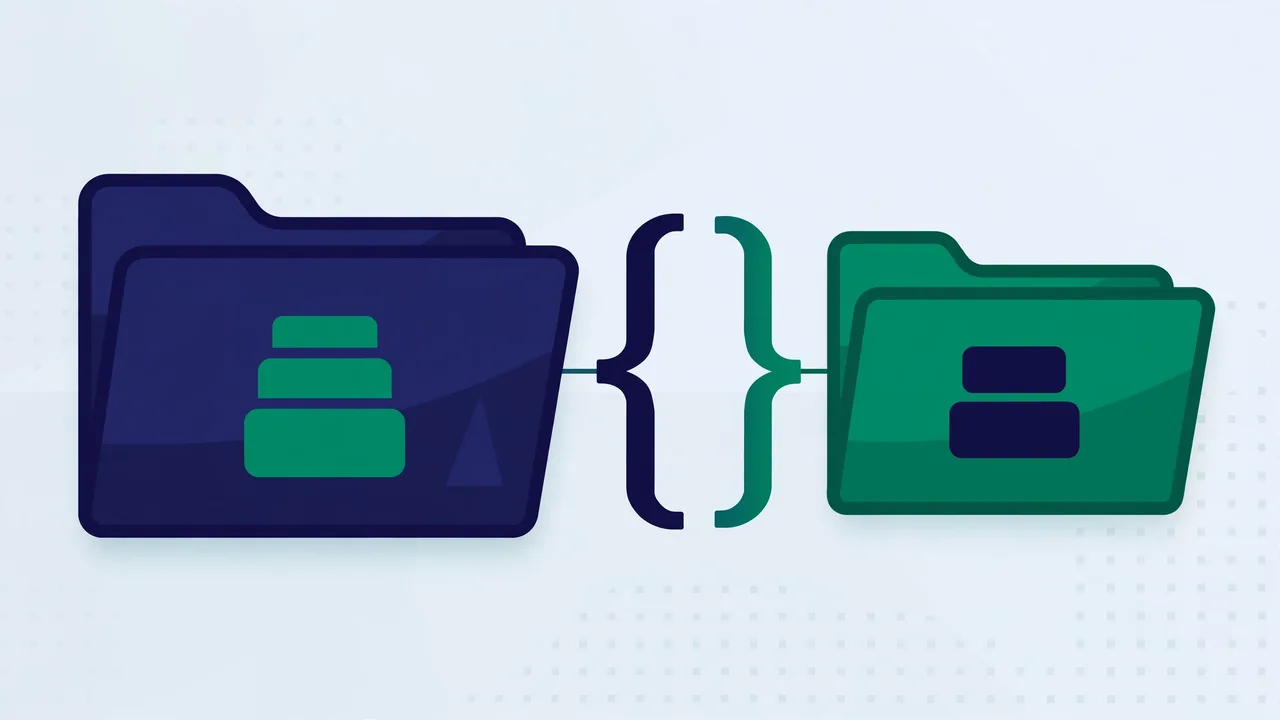
This is the classic. You open the theme editor, tweak some CSS or PHP to get the header exactly right, and it works beautifully — until the theme updates and every edit is wiped out. Theme updates replace theme files wholesale. Anything you changed inside the parent theme’s folder is gone, with no warning and no recycle bin.
The fix is a child theme: a small companion theme that inherits the parent and holds only your overrides. When the parent updates, the child — and your edits — survive untouched. Creating one takes minutes: a new folder in /wp-content/themes/, a style.css with a header comment naming the parent template, and optionally a functions.php to enqueue the parent’s stylesheet. Activate the child theme instead of the parent, and from then on, copy any parent template file you want to modify into the child folder and edit the copy — WordPress will automatically prefer your version.
For CSS-only changes, the Customizer’s Additional CSS panel is also update-safe, since WordPress stores it in the database rather than in theme files. The rule is simple and absolute: never edit parent theme files directly, not even “just this once.” Every experienced WordPress developer has a story about the “quick edit” that cost them a weekend. Learn from theirs instead of creating your own.
Mistake 3: Installing Too Many “Just in Case” Themes
Every extra theme on your server is dead weight and a potential liability. Inactive themes do not slow down your visitors, but each one is code sitting on your server — and outdated, abandoned themes are a known attack vector. Attackers routinely probe for old theme files with known vulnerabilities, whether the theme is active or not. Your inactive themes are not dormant decorations; they are unlocked side doors.
Keep your active theme, its child theme if you have one, and one default WordPress theme as a fallback. That fallback earns its place: when something breaks, switching to the default theme tells you instantly whether the problem is theme-related, which cuts troubleshooting time dramatically. Delete everything else via Appearance → Themes. It takes thirty seconds and permanently removes a whole category of risk. Make it part of your routine to re-check the theme list every few months, because themes accumulate silently — installed for a test, forgotten, and left to age into vulnerabilities.
Mistake 4: Stuffing Functionality Into the Theme
Themes should control appearance. Plugins should control functionality. When a theme bundles custom post types, shortcodes, sliders, contact forms, and SEO settings, all of that functionality is locked to the theme. Switch themes and your portfolio items, testimonials, or custom layouts vanish from the site — the data may remain in the database, but nothing displays it, and your pages fill with dead shortcodes rendered as ugly raw text.
Before adopting a theme, ask: if I changed themes next year, what would break? Anything in the answer belongs in a plugin instead. This separation is one of the core WordPress philosophies, and themes that respect it are dramatically easier to live with long-term. It also makes the theme itself lighter and faster, since it is not dragging around five plugins’ worth of code on every page load. When evaluating a theme, be wary of feature lists that read like plugin directories — “includes 12 premium plugins!” usually means twelve things you did not ask for, bundled into your theme, aging at different rates.
Mistake 5: Ignoring Theme Updates
Update notifications feel like nagging, but theme updates are how security patches reach you. When a vulnerability is found in a popular theme, the fix ships as an update — and attackers start scanning for unpatched sites within hours, using automated tools that check theme versions across millions of sites. Running an outdated theme is like leaving a window open because closing it is mildly inconvenient.
Enable auto-updates for themes you trust (Appearance → Themes → enable auto-updates per theme), and keep that staging-site habit for major changes. If an update ever breaks something, you will know within minutes on staging rather than discovering it from a visitor’s angry email. Updates also bring compatibility with new WordPress features — a theme that never updates slowly drifts away from core, and one day a WordPress update changes something the old theme depended on, and the site breaks in ways that are genuinely hard to diagnose. The only worse option than updating is not updating.
Mistake 6: Customizing Without a Way Back
The Customizer has a revision system for a reason, yet many people restyle their entire site in one session with no backup and no notes. Then something looks wrong and they cannot remember which of forty changes caused it. Customize in small, testable steps: change one thing, preview it on desktop and mobile, and only then move on. This is slower in the moment and enormously faster overall, because debugging one change takes seconds while debugging forty takes hours.
For bigger redesigns, do the work on a staging copy where experimentation is free. And keep a simple change log — even a text file noting “changed header background to dark, increased body font to 18px” — so you can retrace your steps. It feels unnecessary until the day you need it, at which point it feels like the most valuable document you own. Future you, debugging at midnight before a launch, will be grateful for every line.
Mistake 7: Forgetting Mobile Until the End
Designing on a desktop and checking mobile “later” is backwards. Mobile visitors are not an edge case, and mobile layout problems are structural — a desktop-first theme with a bolted-on mobile menu will always feel awkward, and no amount of late tweaking fully fixes a layout conceived for a wide screen. When evaluating or customizing a theme, check mobile first: open the preview at phone width before you fall in love with the desktop version.
Pay attention to the mobile menu (is it reachable and readable, or a tiny hamburger hiding critical pages?), tap target sizes (can you actually tap the links without zooming?), and whether key content survives the transition. Some themes hide “secondary” content on mobile that turns out to be your call-to-action or your contact information. Also test on a real phone over a real mobile connection at least once — browser resizing simulates layout but not load behavior, and a theme that feels fine on desktop wifi can feel sluggish on mobile data. Catching that during setup takes minutes; catching it after launch costs conversions.
Pro tip: once a year, audit your active theme like a stranger would: load the homepage on your phone over mobile data, click through three pages, and try to complete your site’s main goal. You will spot in ten minutes what familiarity has hidden for months.
None of these mistakes requires expertise to avoid — just habits. Choose themes for code quality over demos, never touch parent theme files, keep the theme list lean, separate functionality from appearance, update promptly, customize incrementally, and design mobile-first. Get those seven right and your theme becomes what it should be: the quiet, reliable foundation your content sits on, not a recurring source of emergencies.