

Every file on your WordPress site carries a small set of flags deciding who may read it, who may modify it, and who may execute it. Get those flags right and your site quietly resists whole categories of attack. Get them wrong and a single compromised script can rewrite your entire installation. Yet WordPress file permissions remain one of the least understood parts of site security.
This guide explains how Linux file permissions map onto WordPress, the exact permission scheme your site should use, and the special cases — wp-config.php, the uploads directory, and more — that deserve extra attention.
How File Permissions Work
On Linux servers, every file and directory has three permission groups: owner (typically your hosting account user), group (users sharing your group), and others (everyone else, including the web server process in many configurations). Each group gets three possible rights: read (view contents), write (modify), and execute (run as a program, or for directories, enter and list).
Permissions are written as three-digit numbers where each digit encodes one group’s rights: 4 for read, 2 for write, 1 for execute, added together. So 644 means the owner can read and write (4+2), while group and others can only read (4). 755 adds execute for everyone (4+2+1 for the owner, 4+1 for the rest) — the standard for directories, which need the execute bit to be traversable.
The security principle is least privilege: every file and directory should grant the minimum rights needed to function, and nothing more. WordPress needs to read nearly everything, write to a few specific places, and execute PHP files. Anything beyond that is attack surface.
The Correct Permission Scheme
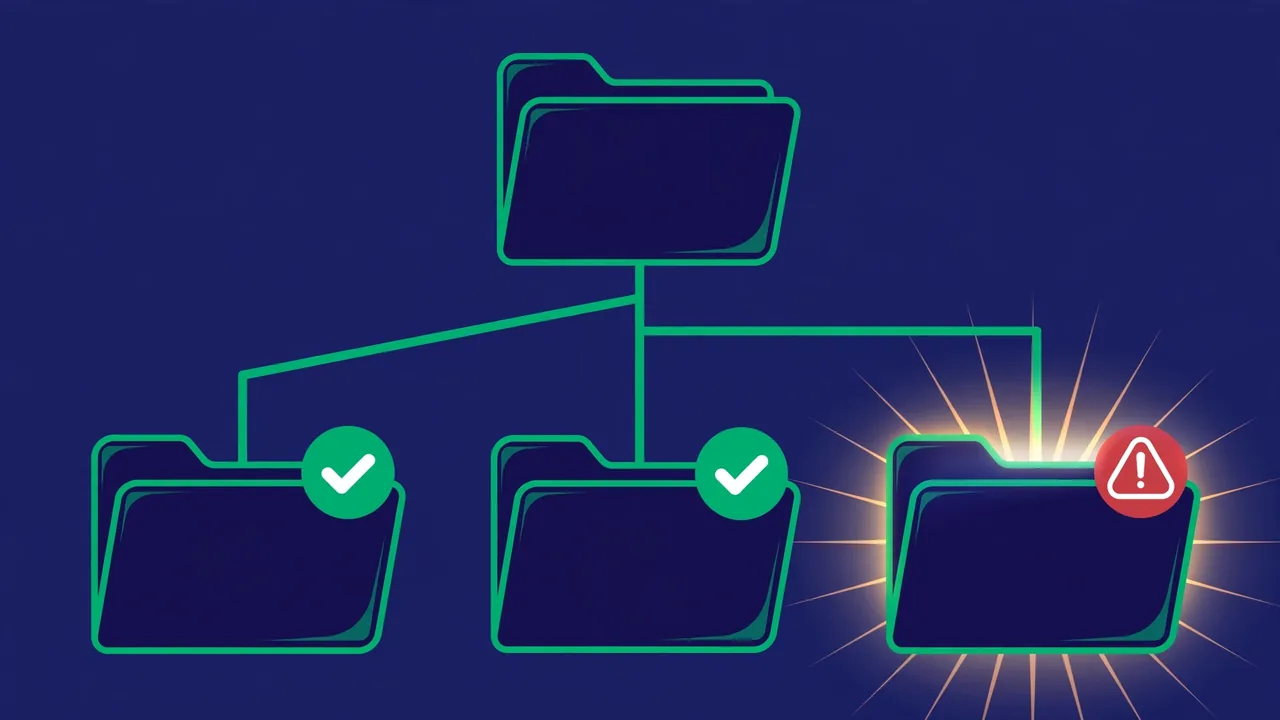
For a standard WordPress installation, the scheme is:
- All directories: 755. The web server must traverse them; nobody needs to write to most of them.
- All files: 644. Readable by the server, writable only by the owner. PHP files do not need the execute bit — the PHP interpreter reads them; the operating system never executes them directly.
- wp-config.php: 600 or 640. This file holds your database credentials and secret keys. It deserves stricter treatment, covered in detail below.
- .htaccess: 644. Readable by the server, writable by owner only. If your setup never needs WordPress to update it automatically, 604 or 600 is even tighter.
The single most dangerous misconfiguration is 777 — read, write, and execute for everyone. It usually appears as a “fix” when uploads or updates fail: instead of diagnosing the real ownership problem, someone opens the permissions wide and the symptom disappears — along with all protection. If you find any 777 on your site, treat it as an incident: correct it immediately and investigate why it was set.
Ownership Matters as Much as Permissions
Permissions mean little without correct ownership. The ideal arrangement on most hosting is that your user account owns the files, and the web server runs as a member of your group or as your user — the exact arrangement varies by server configuration (PHP-FPM pools, suPHP, and similar technologies exist precisely to get this right).
Problems arise when ownership and the web server’s identity mismatch. If the web server cannot write to the uploads directory as configured, uploads fail — and the lazy fix is 777. The correct fix is adjusting ownership or group membership so the server has write access through the group, keeping permissions at 755/644. If you are on shared or managed hosting, this is a support ticket, not a DIY project: ask your host to verify file ownership for your account.
Pro tip: after any migration, server move, or restore from backup, re-verify ownership and permissions. Migration tools frequently reset both, silently undoing years of careful configuration.
Locking Down wp-config.php

wp-config.php is the crown jewel for attackers: database credentials, authentication salts, and sometimes API keys, all in one file. It should be the most restricted file in your installation:
- Set permissions to 600 (owner read/write only) where your server configuration allows it. If WordPress needs group readability in your setup, 640 is the fallback — never more permissive.
- Move it one directory above the web root if your host allows. WordPress automatically looks one level up for wp-config.php, and a file outside the publicly served directory cannot be fetched over HTTP at all, regardless of permissions.
- Block direct access at the server level as defense in depth, so even a misconfiguration does not expose it.
- Disable the file editor by defining DISALLOW_FILE_EDIT — this is configured in wp-config.php itself and removes the theme/plugin editors from wp-admin, closing a dangerous avenue for attackers who gain admin access.
The Uploads Directory: Special Handling
wp-content/uploads is the one directory WordPress legitimately needs to write to — it is where media uploads land. This makes it a prime target: attackers who find any file-write vulnerability aim here first, because it is the writable directory they can count on.
Keep uploads at 755 for directories and 644 for files, and add one critical server-level rule: never execute PHP from the uploads directory. Uploaded files should be images, documents, and media — never code. A server rule denying PHP execution in uploads neutralizes an entire class of attack where malicious scripts are planted via upload vulnerabilities. The uploads directory also deserves periodic review: files you do not recognize, especially PHP files or files with double extensions, are red flags.
Protecting wp-content: Themes, Plugins, and Upgrades
Beyond uploads, the rest of wp-content deserves a deliberate permissions policy. Themes and plugins should be 755 for directories and 644 for files, exactly like core — and critically, the web server should not need write access to them during normal operation. WordPress only writes to these directories during updates and installations.
This creates a useful tension: automatic updates need write access, but least privilege says the web process should not routinely modify executable code. The pragmatic middle ground most hardened sites choose is to allow updates (the security benefit of prompt patching outweighs the theoretical risk) while ensuring day-to-day permissions stay at 755/644 and auditing after each update cycle.
Two more wp-content residents deserve attention. The upgrade and cache working directories that WordPress creates temporarily should never be left world-writable after the operation completes — verify they reset correctly. And debug.log, if you enable WordPress debugging, can leak paths, queries, and sensitive data into a web-accessible file: keep it outside the web root when possible, restrict its permissions, and never leave debugging enabled on production longer than the troubleshooting session requires.
Auditing Your Current Permissions
Finding misconfigurations is straightforward. From the command line, two searches cover the essentials. Run them from your WordPress root: one listing files more permissive than 644, another listing directories more permissive than 755. Each result needs justification or correction — legitimate exceptions are rare and should be documented so future you does not “fix” them back. Pay special attention after installing new plugins, since installers occasionally create directories with loose permissions that persist indefinitely.
- Files with permissions more permissive than 644, and directories more permissive than 755 — each one needs justification or correction.
- Any file or directory at 777 — correct immediately, as discussed.
- Files in the uploads directory with PHP extensions or executable bits — investigate each one.
Many hosting control panels also offer permission checkers, and file manager interfaces let you inspect and change permissions visually. Whatever the tool, audit on a schedule — quarterly is reasonable — and always after migrations, restores, or major updates. Keep a simple record of intentional exceptions: a short note saying which path differs from the standard scheme and why. Six months later, that note is the difference between a deliberate configuration and a forgotten vulnerability.
Permissions Are One Layer, Not the Whole Wall
Correct file permissions stop a significant class of attacks: malicious scripts cannot rewrite your files if they lack write access, and stolen credentials for a limited user cannot escalate through the filesystem. But permissions do not patch vulnerable code, do not stop brute-force logins, and do not replace backups.
Treat this guide as one chapter of a broader hardening program: correct permissions, locked-down wp-config.php, a non-executable uploads directory, plus updated software, strong credentials, and tested backups. Each layer is simple on its own. Together, they make your site a genuinely difficult target.