Table of contents12
If you think in Urdu but type in Roman Urdu — “salam, kya haal hai” — you already know the problem. Roman Urdu is fast to type and easy to read, but it is not Urdu. It looks informal in a work email, it is hard to read in a long document, and it does not work at all when the other person expects proper Urdu script. DAF Urdu fixes that gap: you type the way you already type, and proper Urdu script appears.
DAF Urdu is a free browser extension for Chrome. Once installed, it lets you type Urdu in any text box on the web — documents, email, chat, social posts, comments, and the WordPress editor — by typing Roman Urdu letters and letting the extension convert them to Urdu script as you type. This guide explains what it is, how to install it, how to use it well, where it works, and what to do when something goes wrong.
Who Is This For?
DAF Urdu is for anyone who speaks Urdu but types in Roman letters. That includes students writing assignments, teachers preparing notes, shop owners replying to customers, writers drafting posts, and anyone who messages family in Urdu every day. If you can type “mera naam” on a keyboard, you can type Urdu with DAF Urdu. You do not need to learn a new keyboard layout, and you do not need to memorise which key produces which Urdu letter.
It is also for people who write in two languages in the same place. An email that starts in English and switches to Urdu mid-sentence is normal for many of us. DAF Urdu lets you switch languages with a single shortcut, in the same text box, without opening a separate tool or copying text from somewhere else.
If you already type Urdu fluently on a Urdu keyboard layout, you do not need this extension. It is built for the Roman Urdu typist — the largest group of Urdu writers online, and the group with the fewest good tools.
How Roman Urdu Typing Works
The idea is simple and it is called transliteration: you type the sound, and the tool writes the script. Type “salam” and you get سلام. Type “shukriya” and you get شکریہ. Type “Pakistan” and you get پاکستان.
This works because Roman Urdu has a fairly stable spelling habit. Most people write “kh” for خ, “gh” for غ, “ch” for چ, and “sh” for ش. DAF Urdu follows those same habits, so what you type is usually what you mean. When a word has two possible spellings — “hai” and “he” both appear in Roman Urdu, for example — the extension picks the most common one, and you can correct it if it picks wrong.
Two things make this better than typing on a phonetic keyboard layout. First, you do not have to learn where each Urdu letter hides on your keyboard. Second, you can type at your normal speed from the first minute. The learning curve is nearly flat: if you can already write Roman Urdu, you already know how to use DAF Urdu.
The conversion happens as you type, letter by letter, in the text box you are already using. There is no separate window, no copy and paste, and no round trip to another site. What you type is what appears, in Urdu script, immediately.
Install DAF Urdu in Two Minutes
Installing takes about two minutes. You need the Chrome browser on a desktop or laptop.
- Open the DAF Urdu for Chrome page on this site and follow the install link to the browser’s extension store.
- Click the install button and confirm. The extension adds a small icon to your browser toolbar.
- Click the extension icon once to open its panel and check that Urdu input is turned on.
- Open any text box — a search box, an email draft, a document — and press the toggle shortcut to switch Urdu input on. Start typing in Roman Urdu and watch Urdu script appear.
If the icon does not appear in your toolbar, click the puzzle-piece icon in the browser toolbar, find DAF Urdu in the list, and pin it. Pinned extensions stay visible, which matters for a tool you toggle several times a day.
The extension is free. There is no account to create, no trial that runs out, and no feature locked behind a payment. Install it once and it stays.
How to Use It: The Toggle, the Typing, and the Fixes
DAF Urdu is designed around one habit: toggle it on when you want Urdu, toggle it off when you want English. Learn the toggle first and everything else follows.
The toggle shortcut. The default shortcut is Alt + Space. Press it once and Urdu input turns on for the text box you are in. Press it again and you are back to English. The shortcut works per text box, so you can write Urdu in one box and English in the next without changing any setting.
Typing rules that help. A few habits make the conversion accurate:
- Type words the way you say them. “Kitab” gives کتاب. “Zindagi” gives زندگی. If you type an unusual spelling, you get an unusual result.
- Type the full word before moving on. The extension converts as you type, and a half-typed word is a half-converted word.
- For words with a double letter, type the double letter: “Allah” needs both L’s. For a long vowel, type it long: “aap” is different from “ap”.
- When the extension picks the wrong word for a spelling that has two meanings, delete the word and type it again with a slightly different spelling. This is rare, but it happens with words that sound the same and are written differently.
Mixed text. English words inside Urdu text are normal — names, places, and technical terms. Type the English word, toggle off, type it, toggle back on. After a few days this becomes automatic. Alternatively, many people leave the extension on and type the English word in Roman letters; the conversion will try to make Urdu out of it, which is why the toggle matters. Learn the toggle and mixed text stops being a problem.
Numbers and punctuation. Numbers stay numbers. Common punctuation — full stops, commas, question marks — works as expected. If a sentence ends with a full stop, type it and move on; the extension does not need you to do anything special.
Where It Works
DAF Urdu works in any text box in the browser. That is the whole point: one tool, everywhere you type. The places people use it most are:
Documents. Writing an assignment, a letter, or a report in Urdu. Open your document, toggle Urdu on, and type. The document saves Urdu script like any other text, so it prints, shares, and converts to PDF exactly as it looks on screen.
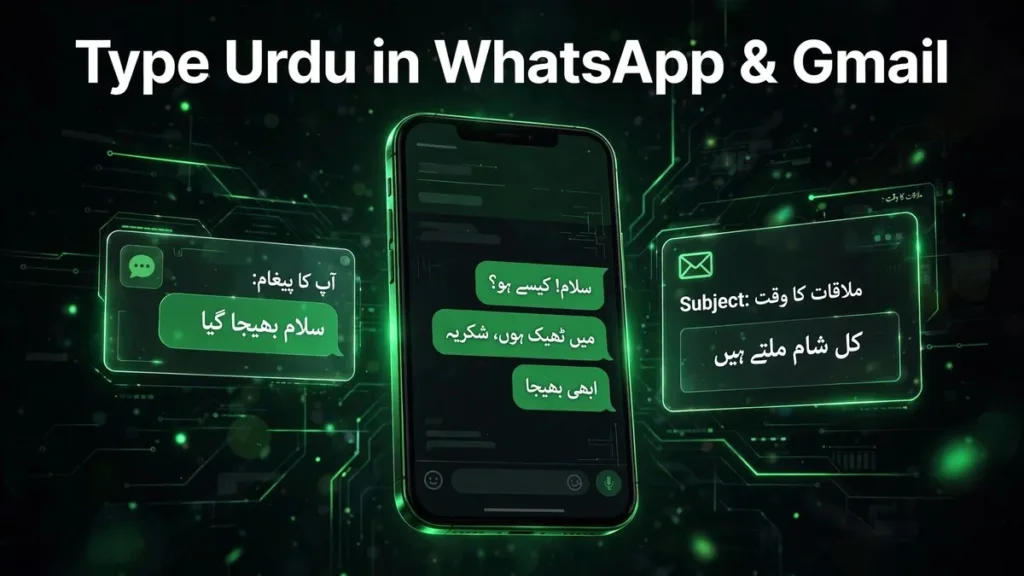
Email. Replying to a customer or a colleague in Urdu. Toggle on for the Urdu sentences, toggle off for the English ones. The email arrives with proper Urdu script, which reads far more professionally than Roman Urdu in a business message.
Chat and messaging. Web chat is where Roman Urdu lives. With the extension, your messages arrive in Urdu script without any extra effort — type the same way you always have, and the other person reads proper Urdu.
Social posts and comments. Writing a post or a comment in Urdu gets more responses from Urdu readers than the same thought in Roman letters. Type it once, in the same box, and post.
The WordPress editor. If you publish in Urdu, the block editor is just another text box. Toggle on, type your post in Urdu, and publish. Your post is stored as Urdu text, so it works with search, with sharing, and with readers on any device.
Search. Searching in Urdu script finds Urdu results. Toggle on in the search box, type your query in Roman Urdu, and the search runs in Urdu script. This alone is worth installing the extension for, if you ever search for Urdu content.
One place it does not work: your phone. Browser extensions run on desktop browsers, not on phone browsers. For typing Urdu on a phone, use your phone keyboard’s own transliteration feature — most modern phone keyboards offer a Roman-to-Urdu mode in their language settings. That is a separate setup, and it is worth doing, but it is not what this extension does.
DAF Urdu vs the Built-In Input Tool
Most browsers and operating systems already include an input tool that can type Urdu. So why install an extension? The honest answer is that the built-in tool and DAF Urdu solve the same problem in different ways, and the difference is where they work.
The built-in input tool is tied to one place — usually one app, or one website. It works well inside that place and nowhere else. Every time you move to a different site, you set it up again or do without. DAF Urdu lives in the browser itself, so it follows you from a document to an email to a chat window without any setup per site.
The second difference is the toggle. With the built-in tool, switching languages usually means clicking through a menu or changing a system setting. With DAF Urdu, it is one shortcut — Alt + Space — in the text box you are already in. When you switch languages ten times in one email, that difference is the whole experience.
The third difference is the typing itself. DAF Urdu is built for Roman Urdu habits: the spellings people actually use in messages every day. A general-purpose input tool is built for many languages at once, and Urdu is one item on a long list. For a Roman Urdu typist, the extension’s conversions match everyday spelling more often.
None of this makes the built-in tool bad. If you only ever type Urdu in one app, and you are happy there, keep using it. But if you type Urdu in many places on the web, the extension is the simpler setup. There is a full side-by-side comparison in the related guides below if you want the detail.
Typing Urdu on Your Phone
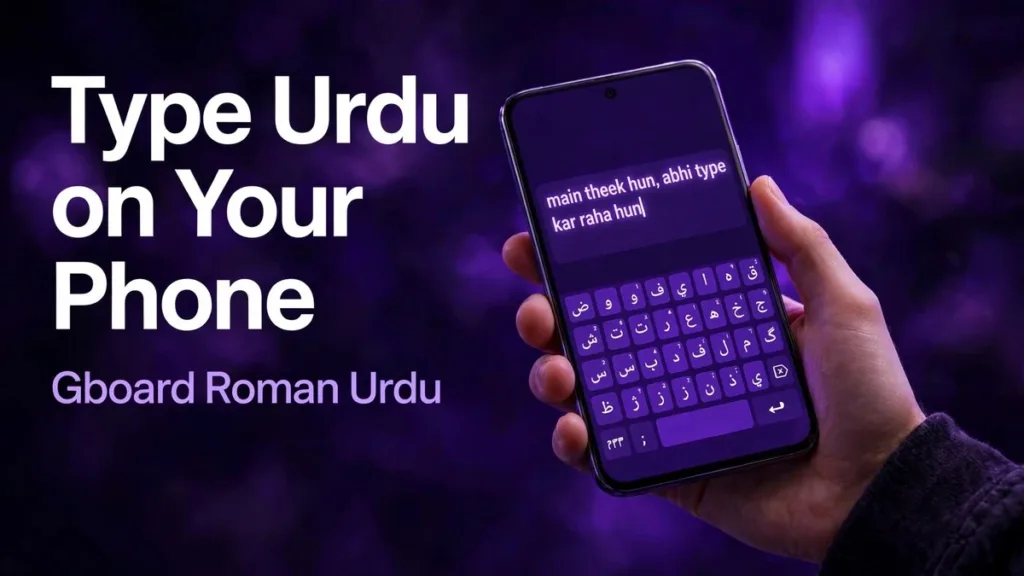
DAF Urdu is a browser extension, so it does not run on your phone. That does not leave phone users without an option — your phone keyboard almost certainly has a transliteration mode already.
Open your phone’s keyboard settings, add Urdu as a language, and look for the transliteration or Roman Urdu layout. Once it is on, you type Roman Urdu on the phone keyboard and the phone suggests Urdu script words above the keyboard. Tap the right one and it goes in. It is slower than typing on a desktop, because you tap suggestions instead of typing straight through, but it works in every app on the phone — messages, notes, email, and social apps.
Set it up once, in the keyboard settings, and it stays. If you write long Urdu text on your phone regularly, the transliteration keyboard is the way to do it. If you mostly write Urdu on a computer, DAF Urdu in the browser is the way.
Common Problems and How to Fix Them
Most problems with DAF Urdu take less than a minute to fix. Work through this list before anything else.
Nothing happens when I type. The extension is probably off for this text box. Press Alt + Space once and type again. If it still does nothing, click the extension icon in the toolbar and check that Urdu input is enabled.
The shortcut does nothing. Another program on your computer may already use Alt + Space. Change the shortcut in the extension’s settings to a combination nothing else uses, and try again.
Urdu appears, but the words are wrong. You are probably typing a spelling the converter does not expect. Slow down for one sentence and type the words exactly as they sound: full vowels, double letters where they belong. If one word keeps coming out wrong, type it, delete it, and try a slightly different Roman spelling.
It works in one site but not another. Some websites use unusual text boxes that extensions cannot reach — usually rich editors inside web apps. Try clicking directly into the text box first, then toggling. If a specific site never works, type in a plain document and paste the Urdu text in. It is an extra step, but it works everywhere.
The extension icon disappeared. Click the puzzle-piece icon in the browser toolbar, find DAF Urdu, and pin it. If it is not in the list at all, the extension was removed — reinstall it from the DAF Urdu for Chrome page.
Urdu text shows as boxes or question marks on someone else’s screen. That is not a typing problem; it is a font problem on the other person’s device. Urdu script needs a font that supports it. Almost all modern phones and computers have one. If an older computer shows boxes, that computer needs a Urdu font installed — nothing you type will fix it from your side.
Who Should Use It, and Who Should Not
Use DAF Urdu if you think in Urdu, type in Roman Urdu, and write on the web every day. Students, teachers, writers, shop owners, and anyone who messages in Urdu will feel the difference in the first week.
Do not use it if you already type Urdu fluently on a Urdu keyboard — you are already faster without it. Do not use it if you only type Urdu once in a while; the setup is small, but a tool you use twice a year is not worth even a small setup. And do not use it as a translation tool: it converts Roman Urdu to Urdu script, it does not translate English to Urdu. If you write a sentence in English, you get an English sentence written in Urdu letters, which is not the same thing as Urdu.
Making It a Habit
The first week is the only hard part. For the first few days, keep the toggle shortcut written on a sticky note next to your screen until your fingers learn it. Start with one place — your email, or your document — and use DAF Urdu there every day for a week. Do not try to switch every app at once. Once the toggle is automatic in one place, it spreads to the others on its own, because the habit is the same everywhere: press the shortcut, type the way you already type, and read proper Urdu on the screen. Most people stop noticing the extension entirely after two weeks. That is the point. A good typing tool disappears and leaves only the writing.
What It Costs
DAF Urdu is free. There is no paid version, no account, and no limit on how much you type. The only cost is the two minutes to install it. If a website ever asks you to pay for DAF Urdu, it is not the real extension — install it only from the link on the DAF Urdu for Chrome page on this site.
Related Guides
These guides on this site go deeper into Urdu typing: