
Table of contents15
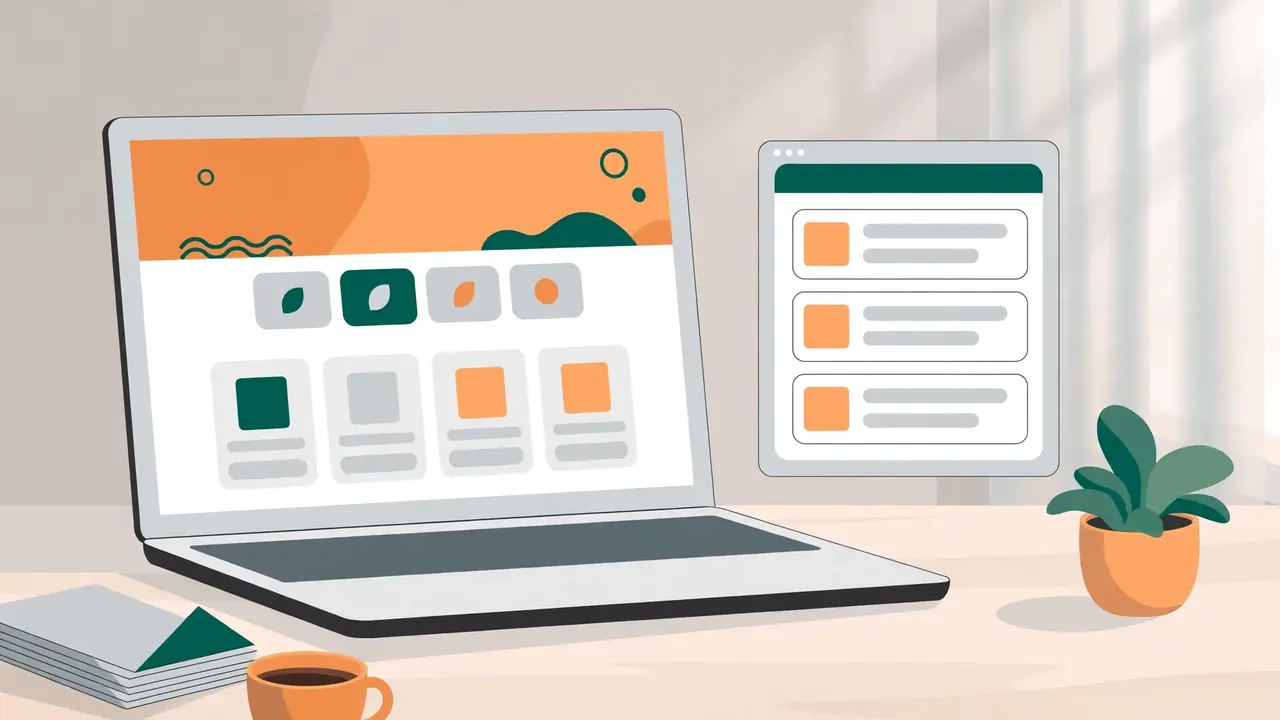
HyperDAF Premium ships with two homepage templates, and you pick between them with one dropdown. Template 1 is the selling-platform homepage and it is the default: a hero with marketplace search, trust badges, category tiles, the Premium spotlight, best-selling products, the Chrome extensions block and the latest articles. Template 2 is the previous multi-view homepage: the same site, shown as a classic desktop, phone and tablet layout with a “Learn & grow” blog surface. Neither template creates a product page by itself — whether the homepage is your store or your blog is a separate choice, made in WordPress Reading settings.
- Template 1 vs Template 2 at a glance
- What Template 1 shows, section by section
- What Template 2 shows, view by view
- How to switch templates
- Blog homepage or store homepage: the Reading-settings switch
- Which template should you choose?
- Before-you-switch checklist
- Frequently asked questions
- Keep learning
Template 1 vs Template 2 at a glance
| Template 1 — Selling platform | Template 2 — Previous homepage | |
|---|---|---|
| What it is | The selling-platform homepage from the approved mockup | The previous multi-view homepage (1.0.246) |
| Default? | Yes — the default when nothing is stored, and the fallback for an invalid value | No — choose it in the dropdown |
| Homepage layout | One selling layout: hero, badges, tiles, spotlight, best-sellers, extensions, articles, CTA | Three views in one template: desktop, phone, tablet — CSS shows exactly one |
| Blog surface | Latest-articles row (3 newest posts) | “Learn & grow” section + latest-articles row (3 newest posts) |
| Section toggles | Yes — each section has its own show/hide toggle | No — the multi-view homepage renders as one piece |
| Best for | Selling themes, plugins and tools from the front page | A classic homepage that presents the whole site at once |
What Template 1 shows, section by section
Template 1 is built to sell. Every section below is a real block on the live homepage, and every section has its own on/off toggle in Theme Setup > Homepage > Front Page — turn a section off and the whole block disappears, heading included.
Hero. A grey hero with marketplace search, Popular chips underneath, and a preview visual. The preview shows the first featured product’s image when one is available; otherwise four bundled product-type images rotate.
Trust Badges. A strip of four items directly below the hero: Secure licensing, Lifetime updates, One-time payment and Real support — the “Why buy from HyperDAF” facts, in one line each.
Shop by category. Six category tiles. This block is off by default — turn it on when the catalogue has categories worth showing first.
Featured product. The HyperDAF Premium spotlight card: the promo graphic, the real feature list, and a Live demo button that opens the demo in a new tab. The spotlight shows the theme itself, so a visitor sees what they are buying before they read a word about it.
Best-selling products. A grid of real featured products from the catalogue — and only real ones. When the catalogue is empty the block shows its empty state instead of inventing products, prices or sales.
Chrome extensions. The two real extensions, DAF Urdu for Chrome and Full Page Fetch, with their live Chrome Web Store links and Add to Chrome buttons.
Latest articles. The three newest published posts, in publish-date order.
Custom project CTA. The closing block, “Build your custom project on demand”: a free-first-page demo offer, three trust points (Direct from HyperDAF, One-time payment, Support included) and a single Contact Us button inside the offer card.
The Need Help band and the footer are the same on both templates — Template 1 reuses them verbatim, so switching templates never changes the bottom of the site.
What Template 2 shows, view by view
Template 2 is the homepage HyperDAF Premium had before the selling platform arrived, and it is unchanged. It is one template with three views: desktop (80rem and wider), phone (up to 47.99rem) and tablet (48rem to 79.99rem). All three render in the page; CSS shows exactly one, so the visitor only ever sees the view that fits their screen.
Every link on Template 2 points at a real route: marketplace kind filters, the Chrome extensions page, the Tools page and the three real tool pages, blog categories and company pages. Its blog surface is “Learn & grow”, and it also carries a latest-articles row with the three newest posts. Nothing on it is invented: no fake products, no sample prices, no ratings, no sales figures — the only numbers are the real catalogue counts (6 product types, 2 Chrome extensions, 3 free tools, 1 one-time purchase).
How to switch templates
- In wp-admin, open Theme Setup > Homepage > Front Page.
- Find the “Homepage template” dropdown at the top of the section list.
- Choose “Template 1 — Selling platform” or “Template 2 — Previous homepage”.
- Save. The homepage changes immediately — there is nothing else to publish.
- If the stored value is ever invalid, the theme falls back to Template 1 on its own; the homepage never renders blank because of a bad setting.
Switching templates does not delete anything. Your posts, pages, products and settings stay exactly where they were — only which homepage renders changes. The section toggles belong to Template 1: they switch Template 1’s blocks on and off, and they do nothing on Template 2, which renders as one piece.
Blog homepage or store homepage: the Reading-settings switch
The template choice and the homepage choice are two different settings, and this is the point most buyers get wrong. The template decides HOW the homepage looks. WordPress Reading settings decide WHAT the homepage is: your latest blog posts, or a static page.
To make the blog the homepage: Settings > Reading > “Your homepage displays” > “Your latest posts”. WordPress renders the posts list with home.php, newest first. The blog also keeps its fallback address, /blog/.
To make the store the homepage: Settings > Reading > “Your homepage displays” > “A static page”. Then pick the front page in the Homepage dropdown and a different page — for example a blank page titled “Blog” — in the Posts page dropdown. WordPress fills that page with your posts automatically, so the page itself can stay blank in the editor. The Homepage and the Posts page must be two different pages.
What the theme does NOT do: it does not create a product page for you automatically. There is no auto product-page mechanism in HyperDAF Premium — the switch is the standard WordPress Reading setting, and it works exactly as WordPress documents it. The live demo was checked in both modes: with the store as the homepage the front page is the storefront, and with the blog as the homepage the front page is the blog (in blog mode /blog/ redirects to the front page, by design).
Which template should you choose?
- Choose Template 1 if the site sells something. The hero search, the spotlight and the best-sellers grid put the products first, and the section toggles let you hide any block you do not need yet — for example, keep Shop by category and Best-selling off while the catalogue is empty, and turn them on when products go live.
- Choose Template 2 if the site is mainly a publication or a company site and the homepage should present everything at once — tools, extensions, categories and the blog — in the classic multi-view layout.
- Either way, the blog-versus-store decision is separate: pick the template for the look, then pick the Reading setting for what the homepage is.
Before-you-switch checklist
- Decide the template first, then the Reading setting — they are two different choices.
- If you pick Template 1, check each section toggle: hide Shop by category and Best-selling while the catalogue is empty.
- If you pick a static front page, create the Blog page first — the Posts page dropdown only lists pages that already exist.
- After switching, open the homepage and /blog/ and confirm each one shows what you expect.
- Check the homepage on a phone-width screen as well as a desktop one — Template 2 changes views by width, Template 1 reflows its sections.
- If the homepage ever shows the wrong thing, check Settings > Reading first: “Your latest posts” and “A static page” are the two settings that decide it.
Frequently asked questions
Which homepage template is the default?
Template 1, the selling-platform homepage. It is also the fallback: if the stored template value is invalid, the theme renders Template 1.
Can I switch back to Template 2 after trying Template 1?
Yes. Open Theme Setup > Homepage > Front Page, choose “Template 2 — Previous homepage” in the same dropdown, and save. Nothing is deleted by switching.
Do my section toggles survive a template switch?
The toggles are stored, but they only control Template 1’s blocks. On Template 2 they have nothing to switch, because the multi-view homepage renders as one piece. Switch back to Template 1 and your toggle choices are still there.
How do I make the blog the homepage?
Settings > Reading > “Your homepage displays” > “Your latest posts”. The posts list renders on the front page, and the blog also keeps its /blog/ address.
Where does the blog live when the store is the homepage?
On the page you pick in the Posts page dropdown — for example a page titled “Blog” at /blog/. WordPress fills that page with your posts automatically.
Does HyperDAF Premium create a product page automatically?
No. There is no auto product-page mechanism. The store homepage is the standard WordPress static front page, chosen in Settings > Reading.
Keep learning
- HyperDAF Premium overview
- Best place to buy WordPress themes
- Best WooCommerce plugins 2026
- How to run a comprehensive WordPress audit
- How to type Urdu in Chrome with DAF Urdu
- Full Page Fetch: free full-page screenshots
- Convert images online
- Can’t log in to WordPress admin
- WordPress too many redirects
- WordPress 500 internal server error

1 comment