Table of contents18
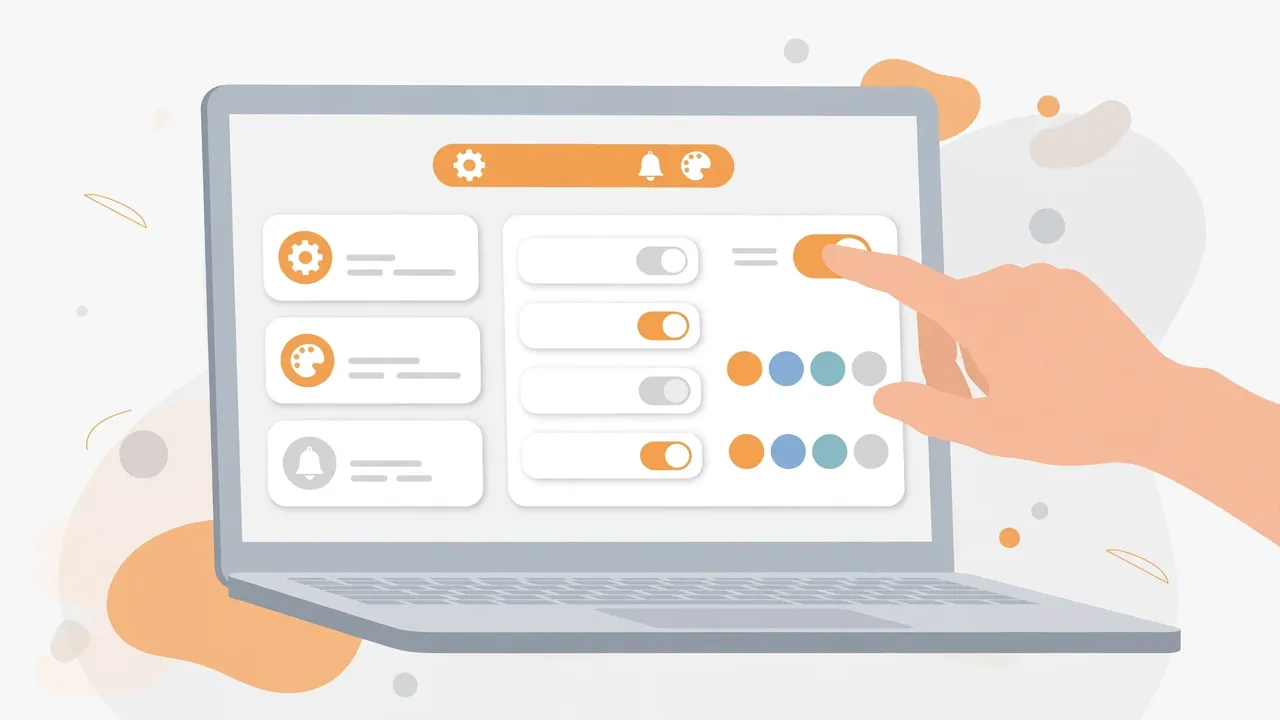
HyperDAF Premium gives you one settings screen for the whole theme. Open Theme Setup in your WordPress dashboard and you find ten tabs: General, Homepage, Branding, Design System, Header and Footer, Blog, Navigation and Search, Pages, Accessibility and Performance, and Advanced Security. Every control below lives in one of those tabs, and none of them needs code. Change a value, save, and check the front of your site — that is the whole workflow.
This article covers the settings and controls only. For what the theme is, read the overview. For the two homepage templates, read the templates guide.
Contents:
- Where the settings live
- Homepage controls: the Front Page tab
- Blog controls
- Design controls: branding and the design system
- Header, footer, navigation and search
- Pages, accessibility, performance and security
- What the theme does not control
- A safe way to change settings
- Checklist before you publish a change
- Frequently asked questions
Settings at a glance
| Area | What you control | Where it lives |
|---|---|---|
| Homepage template | Template 1 (selling platform, default) or Template 2 (previous homepage) | Homepage > Front Page |
| Homepage sections | Show or hide Trust Badges, Shop by category, Featured product, Best-selling products, Chrome Extensions, Custom project | Homepage > Front Page |
| Hero | Heading, eyebrow, description, button labels and links, preview images | Homepage > Front Page |
| Blog | Blog homepage, single articles, archive and search views, sidebar, newsletter | Blog tab |
| Design | Colours, typography, buttons and forms, spacing, borders, shadows, motion | Design System tab |
| Brand | Site identity, tagline, logo and brand assets, site icon, social profiles | Branding tab |
| Header and footer | Header layout and behaviour, footer layout, support band, newsletter, menu columns | Header and Footer tab |
| Navigation and search | Menus and dropdowns, mobile navigation, site search, breadcrumbs | Navigation and Search tab |
| Pages | Default page layout, 404 page, search results, system pages | Pages tab |
| Safety nets | Settings import and export, diagnostics, reset | Advanced Security tab |
Where the settings live
Theme Setup is the theme’s own settings area in the WordPress dashboard. It is organised as tabs, and each tab holds sub-tabs for one area of the site. The ten tabs are General, Homepage, Branding, Design System, Header and Footer, Blog, Navigation and Search, Pages, Accessibility and Performance, and Advanced Security.
Two things are worth knowing before you change anything. First, the theme’s settings are separate from WordPress core settings. The switch between a store homepage and a blog homepage, for example, is not a theme setting at all — it is the standard WordPress Reading setting under Settings, then Reading, where you choose “Your latest posts” or a static front page with a separate posts page. Second, turning a section off never deletes it. The section’s code stays in place, gated behind its toggle, so flipping the toggle back on brings the whole block back.
Homepage controls: the Front Page tab
The Homepage tab holds the most-used controls in the theme, and its Front Page sub-tab holds 24 fields across eight sections. This is where the selling-platform homepage (Template 1) is put together.
The eight sections, in order, are Homepage template, Homepage hero, Trust Badges, Shop by category, Featured product, Best-selling products, Chrome Extensions, and Custom project. Each section after the first two is a block you can show or hide with one toggle:
- Trust Badges — on by default. Turning it off hides the whole block: heading and the four trust items.
- Shop by category — off by default. Turning it on shows the heading, link and tiles grid.
- Featured product — on by default. This is the HyperDAF Premium spotlight card.
- Best-selling products — on by default. Turning it off hides the heading, filters, grid and empty state.
- Chrome Extensions — on by default. This is the theme’s own showcase for the Chrome extensions.
- Custom project — on by default. This is the “Build your custom project on demand” block, with the free-first-page demo offer, the trust points and the Contact Us button.
The Homepage template setting is a simple choice between Template 1, the selling-platform homepage, and Template 2, the previous homepage. Template 1 is the default. The section toggles above belong to Template 1.
The hero section is where the words on the homepage are written. You control the eyebrow line above the heading, the heading itself, the short description paragraph, and both button labels with their links. A button does not render at all when its link is empty, so leaving a link blank is a clean way to show one button instead of two. The heading accepts a site-name placeholder, so the heading can name your site without hard-coding it. You can also turn the whole hero off, choose whether the page editor’s content shows below the hero, pick a cards or compact hero visual, and choose what the preview on the right of the hero shows: products or categories. Your own preview thumbnails come from the Media Library, and when you have picked none, four bundled images keep showing so the preview never goes empty.
The Chrome Extensions section has its own small set of controls: its heading, an optional short introduction, how many extension pages to show (from one to eight, four by default), and the labels on the View Details and Install buttons.
Blog controls
The Blog tab covers everything the theme does with posts. Its seven sub-tabs are General, Design, Header and Hero, Single Article, Archive and Search, Sidebar, and Newsletter. Between them they control how the blog homepage looks, how a single article page is laid out, how archive and search-result lists present posts, what the sidebar holds, and the newsletter area.
The blog homepage itself is a separate sub-tab under Homepage, next to Front Page. That is the place to look when you want the blog view of the site to behave differently from the store view — and the Reading-settings switch described in the templates guide is what decides which of the two views is the front page in the first place.
Design controls: branding and the design system
Branding holds the site’s identity: the public identity and tagline, the logo and brand assets, the site icon that browsers show in tabs, and the social profile links with how they behave. These are the controls to reach for first after installing the theme, because they stamp your name on every page at once.
The Design System tab holds the look of the theme in one place: colours, typography, buttons and forms, spacing and sizing, borders and radius, shadows and motion, and component defaults. Changing a value here changes it everywhere that component is used, instead of one page at a time. That is the difference between a theme setting and editing a single page: the setting is the single source of truth, and every page that uses the component follows it.
Header, footer, navigation and search
The Header and Footer tab splits into two sub-tabs. Header controls the header template, the overall header design, and the top row, brand zone, search zone, action zone and navigation row, plus how the header behaves. Footer controls footer visibility and layout, the support band, the newsletter signup and its connection, the brand column, the menu columns, responsive behaviour, and the bottom bar.
The Navigation and Search tab holds four sub-tabs: Navigation (dropdowns and menu state), Mobile Navigation (the mobile panel, mobile search and behaviour), Site Search (the search query, result cards, result copy and the empty state), and Theme Breadcrumbs (visibility, labels and presentation). If visitors cannot find something, this tab — not the homepage — is usually where the fix lives.
Pages, accessibility, performance and security
The Pages tab covers the pages that are not the homepage or the blog: the default page layout, page title, sidebar and content controls; the 404 error page; the search results page; and the system pages. The General tab sits next to it with container widths, responsive gutters, site layout, interaction defaults, content utilities, archive excerpts, reading presentation and mobile presentation.
Accessibility and Performance holds accessibility controls, media and asset controls, performance controls and responsive optimisation. Advanced Security holds security settings, developer settings, diagnostics, settings import and export, and a reset for the settings themselves. The import and export controls matter most when you run the theme on more than one site: export the settings from the site that looks right, import them on the next one, and both sites match without re-entering every value by hand.
What the theme does not control
Three things buyers often expect the theme to control are deliberately not theme settings.
First, product data is owned by the HyperDAF Engine plugin, not the theme. Product names, product pages, checkout and licensing live in the plugin, so no theme setting can add a product, change a product’s details, or set a price. The theme only decides how the store pages look and which blocks appear around them.
Second, there is no automatic product-page mechanism in the theme. The store homepage and the blog homepage are switched with the standard WordPress Reading settings, as the templates guide explains. Nothing in the theme watches for a new product and rebuilds a page on its own.
Third, the theme does not invent content. The hero heading, the extensions introduction and the button labels all have defaults, but the words are yours to write. The Chrome Extensions showcase lists the real extension pages on your site — DAF Urdu for Chrome and Full Page Fetch are the two live ones — and its count setting only decides how many to show.
A safe way to change settings
Settings are forgiving, but a small routine keeps surprises away. Change one section at a time, save, and open the front of the site to see the result before you touch the next section. When a section has a toggle, flip it off, check that the block is gone, and flip it back on — that single round trip proves the toggle works and that nothing else moved. Before a big round of changes, export the settings from the Advanced Security tab so you have a copy to import back if you do not like the result. And remember that a toggle hides a block; it does not delete it, so you can always bring a section back.
Checklist before you publish a change
- Change one section, save, and check the front of the site before the next change.
- Hero text reads correctly, both buttons go to the right pages, and no button shows with an empty link.
- Every homepage section you want visible is on; every section you hid is hidden on purpose.
- The extensions count shows the extensions you actually have.
- Header and footer look right on a post page as well as on the homepage.
- Settings exported from Advanced Security before a big round of changes.
Frequently asked questions
Where are the HyperDAF Premium settings?
In Theme Setup in your WordPress dashboard. It has ten tabs: General, Homepage, Branding, Design System, Header and Footer, Blog, Navigation and Search, Pages, Accessibility and Performance, and Advanced Security.
Do I need code to change the theme?
No. Every control in this article is a setting in Theme Setup: toggles, text fields, dropdowns and image pickers. Nothing in the article needs a code edit.
Can I hide a homepage section without deleting it?
Yes. Trust Badges, Shop by category, Featured product, Best-selling products, Chrome Extensions and Custom project each have their own on/off toggle in Homepage, then Front Page. Turning one off hides the whole block, and turning it back on brings it back unchanged.
Can I change the hero heading and buttons?
Yes. The hero section in Homepage, then Front Page, holds the eyebrow, heading, description, both button labels and both button links. A button with an empty link does not render, so you can show one button instead of two.
If I switch homepage templates, do I lose my settings?
No. The template choice is one setting among the others, and your other saved values stay saved when you switch between Template 1 and Template 2. The section toggles belong to Template 1, so they only take effect while Template 1 is active.
Can I undo a settings change?
Yes, two ways. Change the value back and save, or import a settings export you made earlier from the Advanced Security tab. There is also a reset in the same tab, which returns the settings to their defaults — use it only when you mean to start over.
Keep learning
- HyperDAF Premium: One WordPress Theme for Store and Blog
- Best Place to Buy WordPress Themes in 2026
- How to Choose a WordPress Theme: What Really Matters
- How to Install a WordPress Theme the Right Way
- Switching WordPress Themes: The Safe Migration Checklist
- How to Customize WordPress Without Breaking It
- WordPress Custom CSS: 15 Recipes You Can Use Today
- WordPress Template Hierarchy Explained Simply
- How to Use the WordPress Customizer Like a Pro
- Block Themes vs Classic Themes: Which to Use in 2026?