

Every time someone visits a WordPress page without caching, your server performs the same expensive ritual: it loads WordPress core, connects to the database, runs dozens or hundreds of queries, executes your theme’s template files, assembles the HTML, and finally sends it to the visitor. Then the next visitor arrives, and the server does it all over again — producing byte-for-byte identical output.
Page caching breaks this cycle. It saves the finished HTML of a page the first time it is generated, then serves that saved copy directly to subsequent visitors without touching PHP or the database at all. Understanding page caching in WordPress is the single most valuable performance concept a site owner can learn, because it is the mechanism behind nearly every dramatic speed improvement you have ever heard about.
What Happens Without Page Caching
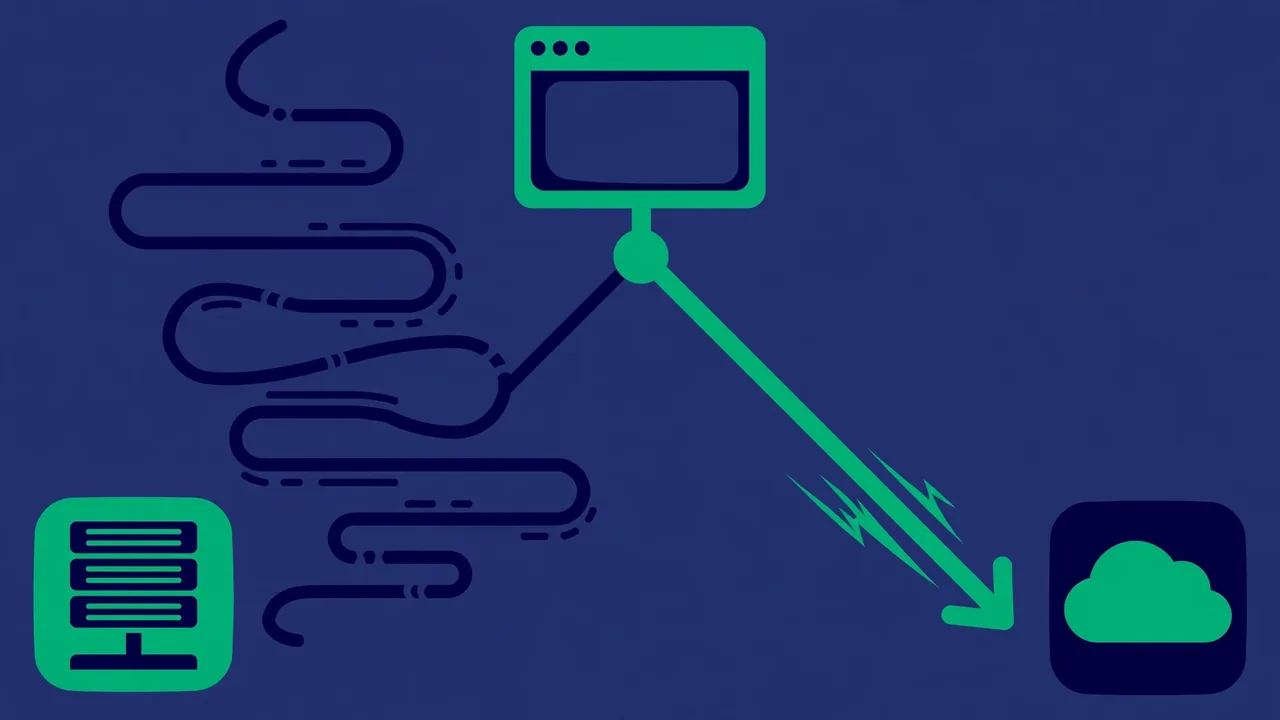
A standard WordPress request without caching follows a long chain. The web server hands the request to PHP. PHP loads the WordPress core files, reads the configuration, and opens a database connection. WordPress then determines what content was requested, runs the main query plus every additional query from the theme and plugins, processes shortcodes and blocks, applies filters, and renders the template hierarchy into HTML. Only then does the visitor’s browser receive its first byte.
On a modest site this chain takes a few hundred milliseconds. On a complex site with a heavy theme and many plugins, it can take several seconds — for every single visitor, on every single page view. Your server’s CPU does the same work thousands of times a day to produce the same pages. Page caching exists because this repetition is pure waste.
How Page Caching Actually Works
The mechanism is beautifully simple and has three parts:
- First visit (cache miss): a visitor requests a page. Nothing is cached yet, so WordPress generates the page normally — slowly. Before sending the HTML to the visitor, the caching layer saves a copy of the finished HTML to fast storage: memory, disk, or both.
- Later visits (cache hit): the next visitor requests the same page. The caching layer recognizes the request, skips PHP and the database entirely, and serves the saved HTML directly. This typically takes a few milliseconds.
- Expiration and refresh: cached copies cannot live forever, or visitors would see outdated content. Each cached page gets a lifetime, and publishing or updating content triggers invalidation — the stale copy is deleted so the next visit regenerates it fresh.
The performance difference between a cache miss and a cache hit is enormous: generating a page might take 800 milliseconds of PHP and database work, while serving the cached copy takes under 20 milliseconds. That is why caching produces the dramatic before-and-after numbers you see in speed tests.
Where Page Caching Lives
Page caching can operate at several layers of your stack, and they are not mutually exclusive:
Server-level caching
Many managed WordPress hosts run caching directly in their web server or reverse proxy layer. This is the fastest option because the request never reaches PHP at all. If your host offers built-in caching, it is usually the best choice — it is tuned for WordPress and maintained by the hosting team.
Plugin-level caching
Caching plugins generate static HTML files and serve them through clever rewrite rules or an advanced-cache drop-in. This approach works on any hosting and gives you detailed control over exclusions, lifetimes, and invalidation behavior.
CDN edge caching
A content delivery network can cache your HTML at edge locations around the world, so visitors are served by a nearby server instead of your origin. Edge caching of HTML requires careful configuration — cache the wrong thing and logged-in users see each other’s pages — but for mostly-anonymous traffic it is extremely effective.
What Should (and Should Not) Be Cached
Page caching is perfect for content that is identical for every visitor: blog posts, landing pages, documentation, marketing pages. It is dangerous for content that varies per visitor. Never cache:
- Cart and checkout pages: cached cart pages show one shopper another shopper’s cart. This is the classic caching disaster.
- Account and dashboard pages: anything behind a login must be generated fresh per user.
- Pages with personalized content: if the page says “Welcome back, Sarah,” it cannot be served from a shared cache.
- Form confirmation pages: cached confirmations can confuse users and break multi-step flows.
A correct caching setup excludes these pages explicitly and bypasses the cache entirely for logged-in users, or uses separate cache buckets per user role. When in doubt, exclude the page — a slightly slower correct page beats a fast wrong one every time.
Cache Invalidation: Keeping Content Fresh

The hardest part of caching is not serving fast pages — it is making sure visitors see fresh content. A good invalidation strategy has three components:
- Publish and update hooks: when you publish a post, update a page, approve a comment, or change a menu, the related cached pages must be purged immediately. Homepage, archives, and category pages all change when a single post changes — a proper setup purges all of them.
- Sensible lifetimes: even with perfect purge hooks, set a maximum cache lifetime as a safety net. A few hours for frequently updated sites, longer for stable content.
- Manual purge control: keep the ability to clear the entire cache on demand. After design changes, theme updates, or emergencies, a full purge is the fastest way to certainty.
Pro tip: after enabling caching, test as a logged-out visitor in an incognito window. Admins often see uncached pages because caching bypasses logged-in users — your visitors’ experience can differ completely from what you see while logged in.
When Page Caching Breaks (and How to Fix It)
Most caching problems fall into a few familiar patterns:
Stale content
Visitors see old versions of updated pages. Cause: invalidation hooks missing or misconfigured. Fix: verify that publishing triggers purges, shorten lifetimes, and check that your CDN layer (if any) is also being purged — purging only one layer while another serves stale copies is a common trap.
Mixed or personalized content leaking
Logged-in users see cached anonymous pages, or vice versa. Cause: the cache does not distinguish between user states. Fix: bypass caching for logged-in users, or configure separate cache variants per cookie state.
Admin bar and dynamic fragments
Elements like the admin bar, cart counts, or “recently viewed” widgets are dynamic by nature. The correct approach is fragment caching or AJAX: cache the static page shell and load the dynamic fragments separately after page load.
Cache stampedes after purge
Clearing the entire cache at once forces every page to regenerate simultaneously, hammering the server. Fix: prefer targeted purges of changed content over full clears, and warm the cache by crawling key pages after a purge.
Warming the Cache After a Purge
An empty cache is a slow cache. Right after you purge — whether a full clear or a targeted invalidation — the next visitor to each affected page pays the full generation cost. If that visitor arrives during a traffic spike, your server takes the hit at the worst possible moment. Cache warming solves this by pre-generating cached pages before real visitors need them.
The simplest warmup is a crawl: after purging, visit your most important pages yourself — homepage, top landing pages, key category archives — so each one regenerates its cache entry. For larger sites, this becomes a scripted crawl that walks the sitemap and requests every URL, optionally on a schedule after known content updates. Some caching setups warm automatically in the background after invalidation, which is worth asking your host about.
Do not warm blindly. Crawling tens of thousands of URLs on a small server can itself cause the load spike you are trying to avoid. Prioritize the pages that receive real traffic — your analytics will tell you which twenty percent of pages earn eighty percent of visits — and let the long tail generate on demand.
Measuring the Difference
To see what page caching does for your site, test the same page twice: once with caching temporarily disabled (or bypassed via query parameter), and once warmed. Compare time to first byte, fully loaded time, and server response time. The cached version should show dramatically lower server response times — often a tenfold improvement or more. If it does not, the cache is not engaging: check for cookies, query strings, or configuration issues preventing cache hits.
Page caching will not fix a fundamentally broken site — it multiplies whatever performance your stack already has. But for a reasonably built WordPress site, it is the closest thing to free speed that exists: the same HTML, delivered in a fraction of the time, with a fraction of the server load.