Every WordPress site owner learns the same lesson eventually: the value of a backup is measured at restore time, not at backup time. A backup routine that runs quietly for two years and then fails during an emergency was never a backup routine at all. It was a false sense of security with a schedule attached.
The good news is that reliable WordPress backups are not complicated. They require a clear strategy, the right schedule for your site, storage in more than one place, and automation so human forgetfulness cannot break the chain. This guide walks through the 3-2-1 backup strategy adapted specifically for WordPress, so you can build a system you will actually be able to rely on when something goes wrong.
Why Most WordPress Backups Fail When You Need Them
Before building a strategy, it helps to understand the usual failure modes. The most common is the single-location backup: backups stored on the same server as the live site. When the server fails, gets hacked, or the hosting account is suspended, the backups disappear along with everything else.
The second failure mode is the untested backup. Archive files corrupt. Database exports truncate halfway through. Backup jobs silently stop running after a plugin update changes a setting. If you have never restored from your backups, you do not have backups. You have files that might be backups.
The third is the incomplete backup. Many site owners back up their files but forget the database, or back up the database but forget uploaded media, custom configuration, or email-adjacent data like form entries stored in tables. A restore that is missing pieces is a long, stressful puzzle.
The 3-2-1 Rule, Adapted for WordPress
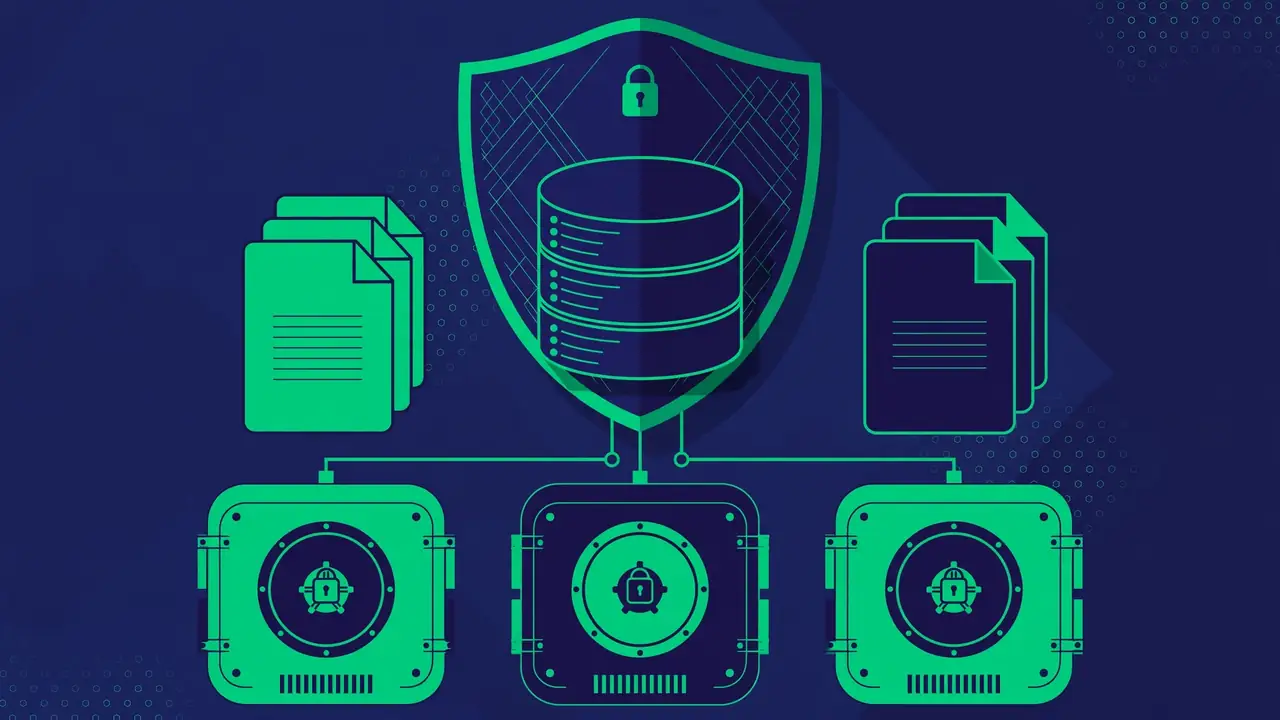
The 3-2-1 rule comes from enterprise IT, and it translates cleanly to WordPress:
- 3 copies of your data: the live site plus two backups.
- 2 different storage types or locations: for example, your hosting account plus an independent cloud storage bucket.
- 1 copy offsite: at least one backup stored somewhere completely separate from your hosting provider.
For a typical WordPress site, this looks like: the live site on your host, automated backups stored in cloud object storage, and a periodic copy downloaded to a local drive or a second cloud provider. If any single provider has a catastrophic failure, you still have a path back.
The rule also implies something people miss: your hosting company’s internal backups do not count as your backup strategy. They are the hosting company’s safety net, with retention windows and restore procedures you do not control. Your strategy must be independent of them.
What to Back Up (It Is More Than Your Files)
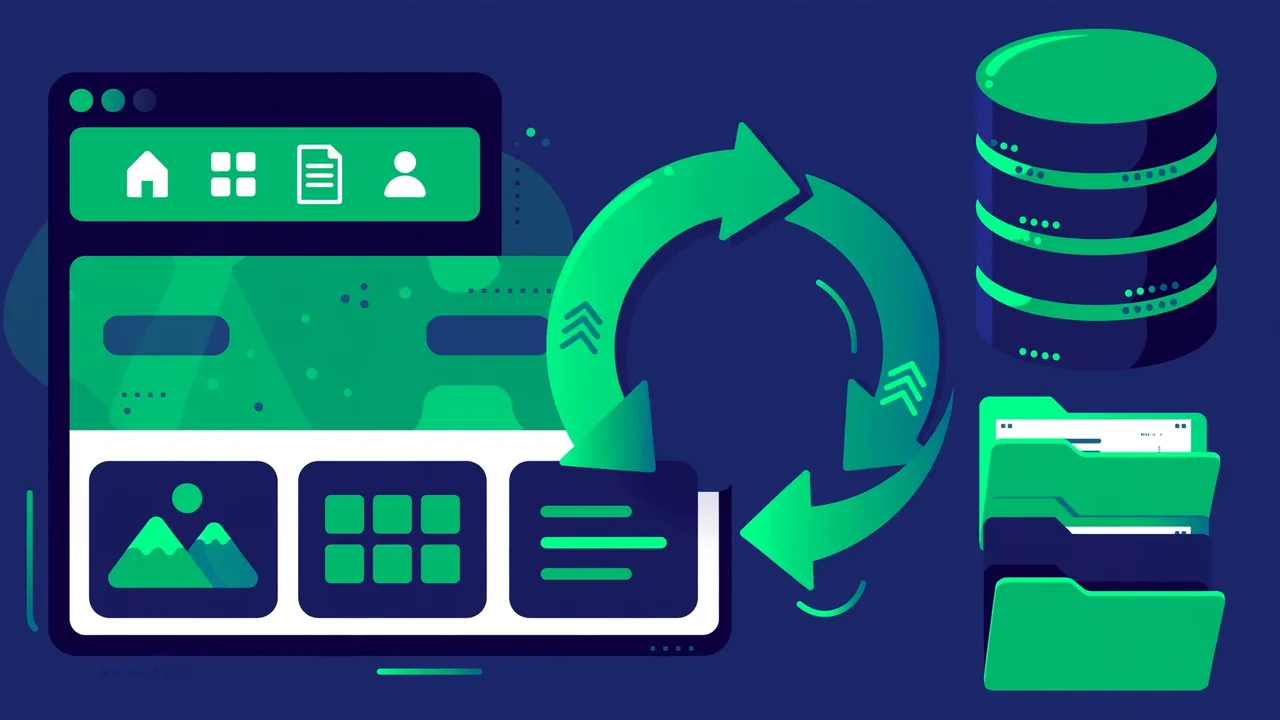
A complete WordPress backup has two halves, and both are non-negotiable.
The database
The database holds your posts, pages, comments, settings, user accounts, and most plugin data. It changes constantly, even on a quiet blog, because of comments, form submissions, and background activity. Database backups should be the most frequent part of your schedule, and they should use a method that produces a consistent snapshot rather than a half-written export.
The files
Your files include WordPress core, themes, plugins, and the uploads directory with all your media. Core, theme, and plugin files can technically be re-downloaded, but backing them up anyway makes restores dramatically faster and protects customizations. The uploads directory is irreplaceable: it holds every image and file you have ever added through the media library.
The things people forget
- wp-config.php settings such as custom constants, memory limits, and multisite configuration.
- Server-level configuration: redirect rules, caching configuration, and cron jobs that live outside WordPress.
- DNS and domain settings: not part of a file backup, but document your DNS records somewhere safe.
- License keys and credentials: stored securely in a password manager, not in a text file on the server.
Building a Backup Schedule That Matches Your Site
There is no universal schedule. The right frequency depends on how often your site changes and how much data you can afford to lose, which is sometimes called your recovery point objective.
- Database: daily for most sites; every few hours for busy stores, membership sites, or active communities.
- Full site (files plus database): weekly for typical sites; daily for ecommerce or high-traffic publishing.
- Before every change: always take a manual backup before updating WordPress core, themes, plugins, or PHP versions, and before any redesign or migration.
Retention matters as much as frequency. Keep daily backups for two to four weeks and weekly or monthly archives for several months. Malware infections and subtle data corruption are often discovered weeks after they happen, and if your retention window is only seven days, every available backup may already contain the problem.
A backup schedule should be boring. If you are thinking about your backups every day, the automation is broken. Set the schedule, verify it monthly, and let it run.
Where to Store Your Backups
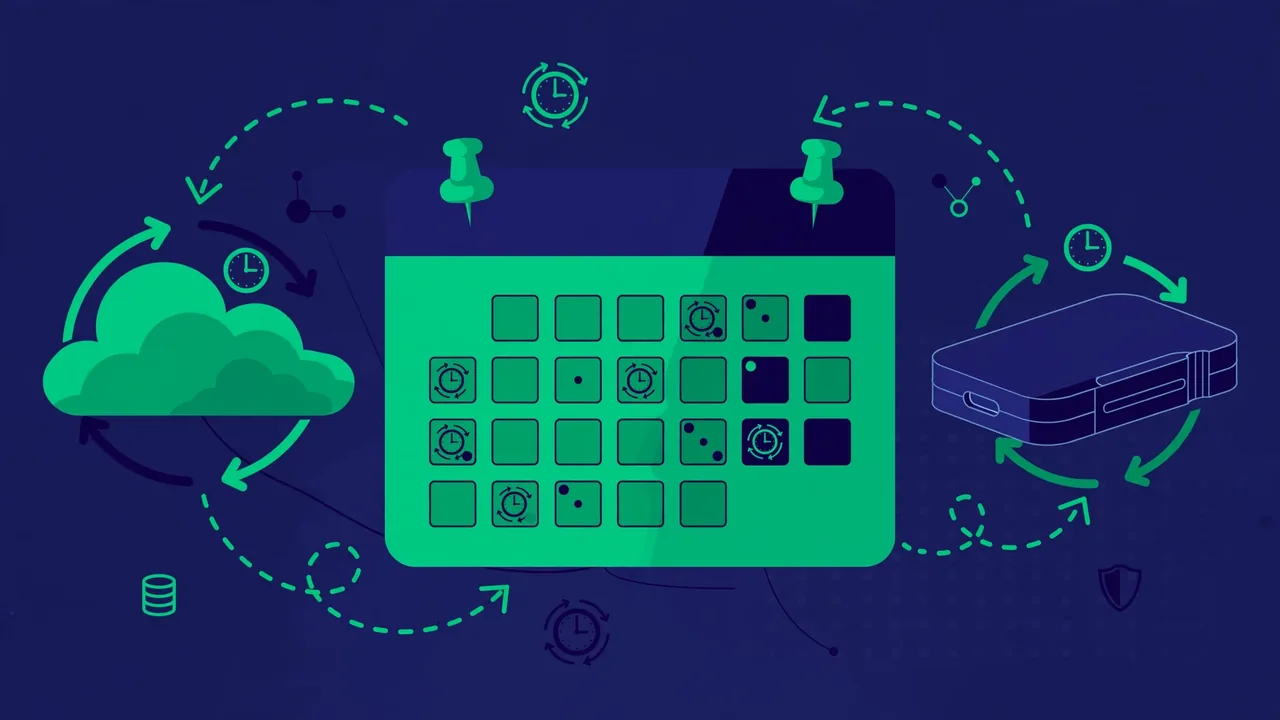
Follow the 3-2-1 rule literally. Your live server counts as copy one. Then:
- Cloud object storage (the generic category that includes services like S3-compatible buckets) is the workhorse: cheap, durable, geographically redundant, and independent of your hosting company.
- A second location for the offsite copy: a different cloud provider, a network-attached drive at your office, or an encrypted external drive stored securely.
- Never rely solely on storage inside your hosting account, inside the WordPress uploads folder, or on the same physical machine as the site.
Encrypt backups that contain customer or member data, and control access tightly. A backup archive contains everything an attacker needs: your database, your configuration, and your user list. Treat backup storage credentials with the same seriousness as your hosting login.
Automating Without Thinking About It
Manual backups fail because humans are busy. Your schedule should run from server-level automation wherever possible: system cron jobs or your hosting control panel’s scheduler, rather than depending on WordPress’s simulated cron, which only fires when someone visits the site.
Build in monitoring from day one. Every backup job should produce a log, and you should be notified when a job fails or when no backup has appeared within the expected window. A simple weekly routine works: check that recent backup files exist, that their sizes look plausible, and that the logs show no errors. This five-minute check catches the silent failures that destroy untested strategies.
Version your automation
Keep your backup scripts and configuration in a documented, repeatable form. If you ever need to rebuild the backup system itself on a new server, you should be able to do it from notes rather than from memory. The backup system is infrastructure, and infrastructure deserves documentation.
Document Your Recovery Plan
A backup strategy is incomplete without a written recovery plan. When the site is down and stress is high, you should not be improvising. Your document needs:
- Where the backups live, with access instructions for each storage location.
- The restore order: files first or database first, and how to handle the uploads directory.
- Credentials needed: hosting, database, DNS, and storage access, via your password manager.
- Verification steps: how to confirm the restored site works (key pages, login, checkout or forms, email sending).
- Who does what, if anyone else is involved, so two people are not restoring over each other.
Review this document twice a year and after any infrastructure change. A recovery plan that references a storage bucket you cancelled six months ago is worse than no plan, because it wastes the most precious minutes of an outage.
Don’t Forget Staging and Development Copies
Your backup strategy should explicitly state which environments are covered. Production is always backed up. Staging copies usually do not need their own backups if they can be rebuilt from production backups in minutes, but write that decision down so nobody assumes otherwise. Development copies on individual machines should never contain real customer data; if they do, that is a privacy problem, not a backup problem.
The trickier question is data residue: old staging sites, forgotten subdomains, and local exports sitting on laptops. Each is a copy of your database outside your 3-2-1 chain, unencrypted and unmonitored. Once a quarter, audit where copies of production data actually live and delete the ones that serve no purpose. A backup strategy is about the copies you manage deliberately, not the ones you forgot about.
Backups are not exciting, and that is exactly the point. The 3-2-1 strategy gives you three copies, two locations, and one offsite lifeline, scheduled to match how your site actually changes and automated so it survives your busiest weeks. Build it once, verify it monthly, and you will face the inevitable bad day with a plan instead of a panic.