Table of contents12
A new store feels ready long before it actually is. The products are listed, the pages look good, and the checkout page loads. Then the first real customer arrives — and the payment fails, or the shipping price is wrong, or the order email never arrives. A test order is how you find all of that out while the only person watching is you.
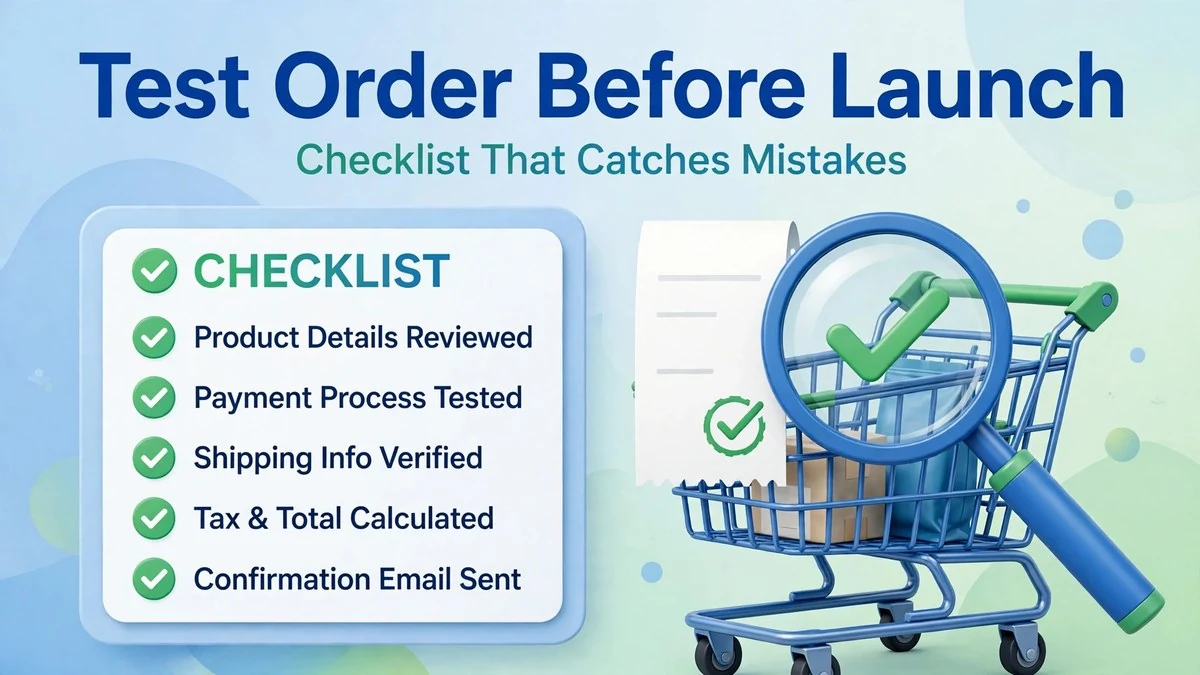
A test order means buying something from your own store, exactly the way a customer would, before you open the doors. This guide gives you a checklist to run through every payment method, every customer type, and every email your store sends. Run it once, fix what it finds, and run it again. A store that passes its own test order is a store you can launch with confidence.
Before You Start: Set Up a Clean Test
Do not test on your live store while real customers can see it. If your store is already public, test late at night or put the store in maintenance mode for an hour. Better still, test on a staging copy first and repeat the most important checks on the live store.
Create a test product that costs a small amount — one unit of your cheapest real product, or a dedicated test product priced at the smallest amount your payment method allows. Use a real email address you control, so you can see exactly what a customer sees. Keep a notebook open: note every problem with the exact step where it happened.
Turn off any “test mode” that hides real behaviour. A payment method in test mode behaves differently from the same method live, and a test order that only works in test mode tells you nothing. Test with the real settings, and refund yourself afterwards.
Step 1: Test the Cart First
Before any payment, check that the cart itself works. Add a product to the cart, then change the quantity from one to three. The total should update immediately. Remove the product, and the cart should empty cleanly.
Add two different products, then apply a coupon code if you offer one. Check that the discount applies to the right products and the total is correct. Try an expired or wrong coupon code too — the customer should see a clear message, not a broken page.
Check the cart on your phone too — most buyers arrive on a phone, and a cart that hides the checkout button on a small screen loses sales every day.
Step 2: Check Out as a Guest
Most first-time buyers do not want to create an account. Check out as a guest first.
Fill in the checkout form with a name, email, and address, exactly as a customer would. Submit the order and watch what happens. The order should complete, and you should land on a thank-you page that shows the order number and the total.
Now check your email. You should receive an order confirmation within a few minutes. Read it as a customer would: is your business name correct, is the total right, and does it say what happens next? If anything is missing, fix the email text before launch.
Step 3: Check Out as a Registered Customer
Next, create a customer account and check out while signed in. The order should appear in the account’s order history, and the customer should be able to see its status.
This matters because many stores work fine for guests but break for signed-in customers, or the other way around. A saved address that does not fill in, or an order history page that shows nothing, is a problem your best customers — the ones who come back — will hit first.
Step 4: Test Every Payment Method, One by One
This is the most important part of the test, and the part most stores skip. Every payment method you offer needs its own test order, because each one follows a different path through your store.
Card payment. Pay with a real card for a small real amount. The payment should succeed, and the order status should change to “processing”. If your payment method has a test mode, turn it off for this check — test mode hides real failures, including the ones your customers will hit. If the payment fails, note the exact error message. A vague error is itself a problem: your customer deserves to know whether the card was declined or the connection failed.
Bank transfer. Place a bank transfer order. After checkout, the customer should clearly see your bank name, account title, and account number, plus plain instructions: transfer the amount, and send the receipt. The order status should sit at “on hold” — not “processing” — until you confirm the payment. Read the order email: does it repeat the bank details? A customer who has to search for the account number will pay late or not at all.
Cash on delivery. If you offer it, place a cash-on-delivery order. There should be no payment step at all, and the order should complete cleanly. Check that the order email does not accidentally ask the customer to pay by bank transfer — mixed instructions are a common mistake when several payment methods are enabled.
Failed payment. Deliberately try a payment that should fail — a wrong card number, for example. The customer should see a clear error message and stay on the checkout page with their details intact, so they can try again. A blank page, or a checkout form that empties itself, will cost you the sale and the customer.
Step 5: Test Shipping for Different Addresses
Shipping is where new stores quietly lose money. Test it with at least two addresses: your own city, and a city far away.
Add a product to the cart and enter each address at checkout. The shipping price should match what you set for that zone. If you offer free shipping above a minimum order, test an order just below the minimum and one just above it — the free shipping should switch on exactly where you set it.
If you offer local pickup, test that too. The customer should see the pickup option only where it applies, and the order should show no shipping charge.
Step 6: Read Every Email the Store Sends
Your store sends several emails during an order, and most store owners never read them. Read all of them now.
The order confirmation email, the processing email, and the completed order email should all carry your business name, the right prices, and the right instructions. Check the “from” address — it should be your business address, not a default one. Check that the emails arrive at all: order emails that land in spam, or never arrive, are one of the most common store problems, and a test order is the only way to catch it before a customer complains.
If your store sends an email when an order is refunded or cancelled, test that too. A refund email that never arrives makes a customer think you kept their money.
Step 7: Refund the Test Order Yourself
Finally, refund your own test order from the dashboard. This teaches you how refunds work before a real customer asks for one, and it confirms that the refund path is connected to your payment method.
After the refund, check the order status and the email the customer receives. Then delete or cancel the test order and remove any test coupons, so no customer ever sees them.
Common Problems a Test Order Catches
These are the problems test orders find most often:
- Checkout shows a blank page. Usually a broken payment setup or a conflict with another part of the site. Test again with payment methods turned off one at a time to find the cause.
- Order emails never arrive. Check the “from” address and your mail setup. If emails work for the admin but not the customer, the problem is usually the recipient address or a spam filter.
- Shipping price is wrong. A zone that does not cover the customer’s address, or a rate that was set per item instead of per order. Test every zone.
- Bank transfer order shows “processing” instead of “on hold”. The payment method is misconfigured. An order that looks paid when it is not will be dispatched before the money arrives.
- Coupon applies to the wrong products. Check the coupon’s restrictions — which products and categories it covers.
Every one of these is a ten-minute fix before launch and a lost customer after it.
Launch Checklist
When your test orders pass, run this final list:
- Every payment method tested end to end, live, not in test mode.
- Guest and registered checkout both work.
- A failed payment shows a clear error and keeps the customer’s details.
- Shipping prices are right for at least two different addresses.
- Every order email arrives, reads correctly, and carries your business name.
- You know how to refund an order, and the refund email works.
- Test products, test coupons, and test orders are removed.
Tick them off one by one. When all seven are true, your store is ready to open.
FAQs
How many test orders should I place?
One for every payment method you offer, plus one guest order and one registered order. For most stores that is four or five test orders. Each one takes a few minutes and finds different problems.
Should I use real money for a test order?
Yes, for card payments. A small real payment is the only way to confirm the payment path works end to end. Refund it afterwards. A pretend payment in test mode does not prove the live path works.
Can I test on the live store, or do I need a staging copy?
Test on a staging copy first, then repeat the most important checks — one card order and one bank transfer order — on the live store. The live store is the one customers use, so it is the one that must be proven.
What if a test order fails?
That is the test working. Write down the exact step and the exact error, fix one thing, and test again. Do not launch around a failed test — a failure you know about is a failure your first customer will hit.