










Table of contents11
The first time I watched a real customer use one of my checkout pages, I wanted to crawl under my desk. I had set up screen recording on my store, and I watched a woman on her phone try to buy a forty-euro product. She tapped the wrong field three times. The page reloaded and wiped her address. She sighed — I could almost hear it through the silent recording — and closed the tab.
I am Sophie Vermeer, and I design checkout experiences for WordPress stores. That recording changed my career, because it taught me something no analytics dashboard ever had: a checkout flow is not a form. It is a conversation. And my conversation was rude, confusing, and exhausting. That woman did not have a product problem. She had a flow problem.
If you sell anything online, you know the feeling. People WANT to buy from you — they put items in their cart, they start your checkout — and then the flow itself talks them out of it. In this guide, I will show you the eight techniques I use to build checkout flows that feel effortless. These are the same techniques I apply on client stores, and they work because they are based on how real humans behave, not how designers wish they behaved.
Whether you are building your first checkout or rebuilding your tenth, this is the practical playbook I wish someone had given me before that painful screen recording.
Here is what this guide covers:
- What a Checkout Flow Really Is (and Why It Matters More Than Your Theme)
- Technique 1: Map the Flow Before You Build It
- Technique 2: One Page or Step-by-Step — Picking the Right Structure
- Technique 3: Give Returning Customers One-Click Checkout
- Technique 4: Show a Progress Indicator So Nobody Feels Lost
- Technique 5: Design Mobile-First, Because That Is Where the Money Is
- Technique 6: Put Trust Signals Exactly Where Anxiety Peaks
- Technique 7: Let Customers Edit Their Cart Without Starting Over
- Technique 8: Test the Flow Like a Customer, Not Like an Owner
- Frequently Asked Questions
- Final Thoughts
Ready? Let’s get started.
What a Checkout Flow Really Is (and Why It Matters More Than Your Theme)
Most store owners think of checkout as a page. It is not a page — it is a journey. It starts the moment a customer clicks “proceed to checkout” and ends when they see the order confirmation. Every screen, every field, every button, every second of waiting in between is part of the flow.
Here is why this distinction matters. You can have a beautiful theme, gorgeous product photos, and perfect copy — and still lose the sale in the flow. Research from the Baymard Institute found that 17 percent of US shoppers have abandoned an order specifically because the checkout was too long or complicated. Not the price. Not the product. The flow.
And the upside is just as dramatic. Baymard’s data suggests that large e-commerce sites can see conversion increases of around 35 percent from checkout design improvements alone. That is not from more traffic or better ads. That is from the same visitors, the same products — just a smoother path to the pay button.
Bonus Tip: Before reading further, open your checkout on your phone right now and try to buy your cheapest product. Count every tap. Every tap is a decision point, and every decision point is a chance to lose the customer. Remember that number — we are going to shrink it.
Technique 1: Map the Flow Before You Build It
I never build or rebuild a checkout without drawing it first. Not in a fancy tool — on paper, with boxes and arrows. It takes twenty minutes, and it catches problems that would cost weeks to fix later.
Here is how I do it. Draw one box for every screen or step in your checkout: cart review, customer details, shipping method, payment, confirmation. Then draw the arrows: what happens when the customer clicks “continue”? What happens when a payment fails? What happens when they go back? Then, next to each box, write down what the customer is thinking at that moment. “Is this safe?” at the payment step. “How much is this really?” at the shipping step. “Did it work?” after clicking pay.
This exercise always reveals the same surprises. Steps you thought were one click are actually three. Error messages you never tested appear at the worst moments. The “back” button wipes entered data on some step. I once found a client’s checkout where a failed card payment sent the customer all the way back to the cart — with the cart now EMPTY. Imagine the rage. We would never have caught it without mapping the failure paths, because nobody tests the sad paths.
Map the happy path, the error paths, and the “changed my mind” paths. Your flow is only as smooth as its roughest edge.
Technique 2: One Page or Step-by-Step — Picking the Right Structure
This is the first big decision in checkout design, and there is no universal right answer — only the right answer for YOUR store.
A one-page checkout puts everything — contact details, shipping, payment — on a single screen. Its superpower is psychological: the customer sees the whole task at once, and it looks short. For most stores selling simple products, this is the best choice. Fewer clicks, no page reloads, no “step 2 of 5” dread.
A multi-step checkout splits the process across screens: details first, then shipping, then payment. Its superpower is focus: the customer answers one small set of questions at a time, which feels manageable. This works better for complex purchases — custom products, B2B orders, anything needing lots of information.
Here is how I decide for clients. If your checkout needs fewer than about eight fields total, go one-page. If it needs more, go multi-step with a clear progress indicator — which is our next technique. And whichever you choose, never mix the two. A checkout that starts as one page and then surprises the customer with “step 2” feels like a betrayal.
One more thing: in WooCommerce, both structures are achievable with your theme settings or checkout customization. The default WooCommerce checkout is already a solid one-page foundation. Do not rebuild what works — refine it.
Technique 3: Give Returning Customers One-Click Checkout
Here is a technique with hard numbers behind it. Typing your name, address, and sixteen-digit card number on a phone keyboard is miserable. Every returning customer who has to do it again is a customer you are punishing for their loyalty.
One-click checkout — also called accelerated checkout — fixes this by using saved customer and payment details. The returning shopper reviews prefilled information and confirms with a tap instead of retyping everything. A case study from the fashion retailer Princess Polly measured this properly: authenticated one-click checkout cut their median checkout time by 7.6 percent store-wide and lifted conversion by 4.1 percent among returning buyers. Their e-commerce manager said it plainly: it reduced errors and cut checkout times significantly.
Now, you might be thinking: “That is for big brands with fancy systems.” Not anymore. Digital wallets like Apple Pay, Google Pay, and similar options bring one-click-style checkout to any WordPress store. When a customer pays with a wallet, their device fills in the shipping address and payment details automatically — the whole form collapses into a fingerprint or face scan.
Here is my rule: if your store has repeat buyers, make their second purchase dramatically easier than their first. Save their details securely (your payment processor handles this — never store card numbers yourself), prefill everything on return visits, and put wallet payment buttons at the very top of the checkout. The customers who buy twice are your most valuable customers. Treat their time like it matters.
Note: One-click options must never replace standard checkout entirely. Some customers do not use wallets and some are buying from a new device. Always keep the classic card form as a fallback.
Technique 4: Show a Progress Indicator So Nobody Feels Lost
Nobody likes a process with no end in sight. Think about standing in a line with no idea how long it is — that anxiety is exactly what customers feel in a checkout with no progress indicator.
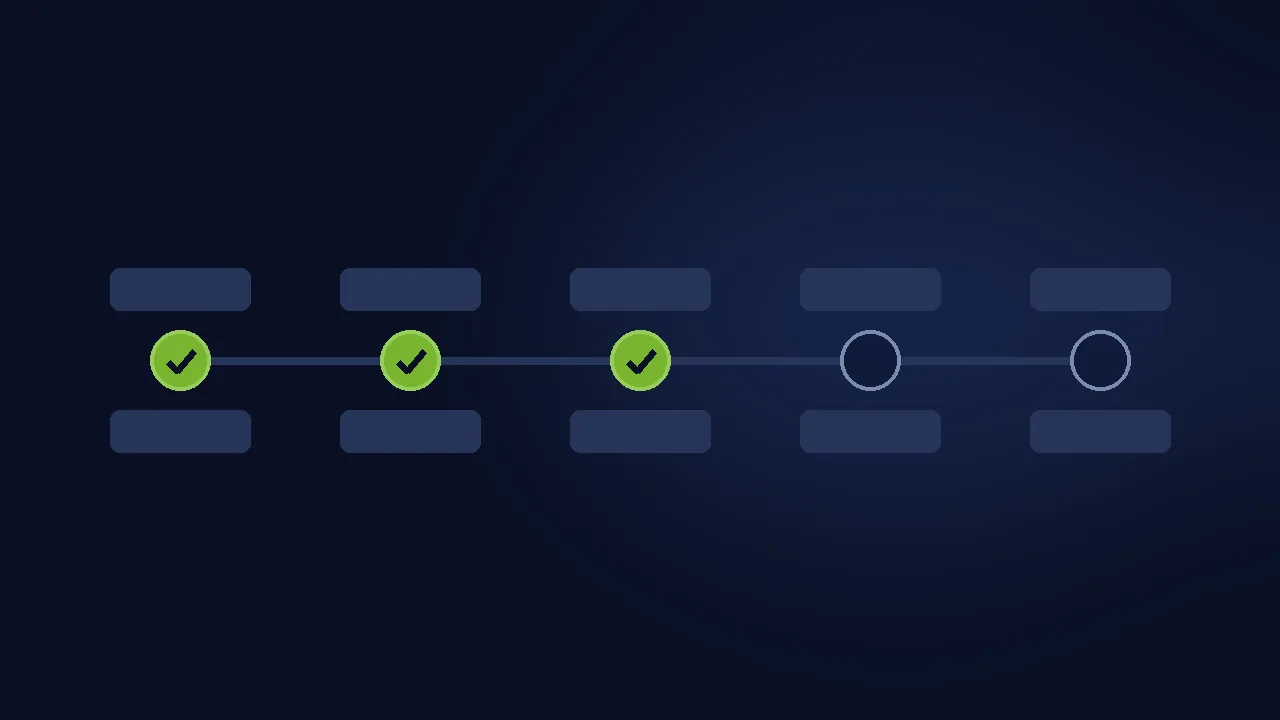
This technique is simple and powerful: show customers where they are and what is left. “Cart → Details → Payment → Done.” Four steps, with the current one highlighted. That tiny strip of interface does enormous psychological work. It tells the customer “this is almost over” at every step, and it gives them a sense of control — they can see they are making progress.
I learned how much this matters from a client’s multi-step checkout that had no indicator at all. Customers kept abandoning on step two of four. When we asked a few of them why (a short post-abandonment survey — worth doing), the answer was consistent: “I didn’t know how much more there was.” They were not quitting because step two was hard. They were quitting because the process felt endless.
If you use a one-page checkout, you can skip the step indicator — the whole form is visible, so there is no mystery. But show an order summary sidebar that updates live, so the customer always sees what they are paying for. And whatever structure you use, make the final button’s label honest: “Pay $47.50” beats “Submit” or “Continue” every time, because it tells the customer exactly what happens next.
Technique 5: Design Mobile-First, Because That Is Where the Money Is
Let me say this bluntly: if your checkout is not excellent on a phone, your checkout is not excellent. Mobile traffic dominates most stores now, and mobile abandonment runs highest — around 80 percent by some measures. The phone is where checkouts go to die.
Mobile-first does not mean “it technically works on a phone.” It means the checkout was DESIGNED for thumbs, small screens, and distracted humans. Here is my mobile checklist, refined over dozens of store audits.
First, every field must trigger the right keyboard. Email fields should bring up the email keyboard with the @ symbol. Phone fields should bring up the number pad. Card number fields should bring up numeric input. This sounds tiny, but forcing a customer to switch keyboards manually for every field is exhausting.
Second, make tap targets generous. Buttons and form fields need to be big enough for real thumbs — at least 44 pixels tall. Tiny “continue” links that require surgical precision will cost you sales.
Third, kill horizontal scrolling and popups on the checkout page. Nothing — nothing — should cover the form on a phone. I have seen coupon popups, chat widgets, and cookie banners stack up over mobile checkouts like a pile of junk mail. The checkout page gets ONE job: collecting the order.
Fourth, test on a real phone, on a real mobile connection, at least once a month. Emulators lie. Your office wifi lies. Borrow a friend’s older Android phone and try to buy something on a slow connection. What you find will humble you — and then you will fix it, and your mobile conversion will thank you.
Technique 6: Put Trust Signals Exactly Where Anxiety Peaks
Trust is not a general feeling — it spikes and dips at specific moments in the flow. The peak anxiety moment is when the customer is about to enter payment details. That is exactly where your trust signals need to live. A security badge in your footer does almost nothing; the same badge next to the card number field does real work.
Here is what I place at the payment step on every store I build. Recognizable payment method logos — customers trust brands they know. A short reassurance line near the pay button: “Payments are encrypted and secure.” A visible link to the returns policy — the customer’s unspoken question is always “what if something goes wrong?” And the SSL padlock indicator, which browsers show anyway, reinforced by your own secure-looking form design.
Research backs this up. Baymard’s long-running checkout studies have found that perceived security depends heavily on how secure the payment form LOOKS — separate from how secure it technically is. Your site can be perfectly secure and still lose sales if the payment step looks sketchy.
Bonus Tip: The order summary is also a trust moment. When the customer reviews their order before paying, show product images, not just text names. Seeing the actual items reassures the customer that they are buying the right things — and it catches the “wait, that’s the wrong size” moment before the payment, not after.
Technique 7: Let Customers Edit Their Cart Without Starting Over
This technique fixes one of the most rage-inducing flaws in checkout flows. The customer is at the payment step, realizes they want to change the quantity or remove an item — and the only way to do it is to abandon the checkout, go back to the cart, make the change, and start the whole checkout over again. Many of them do not come back.
A smooth flow lets customers adjust their order without leaving the checkout. At minimum, the order summary on the checkout page should let them change quantities and remove items inline, with the totals updating instantly. No page reload, no lost form data, no starting over.
I think of it this way: changing your mind mid-checkout is normal human behavior, not a failure. Your flow should welcome it. The alternative — punishing the customer for a second thought by wiping their progress — is how you turn a hesitant buyer into a lost one.
In WooCommerce, the default checkout already shows an order review, but many themes break the inline editing or hide it. Check yours right now: can you change a quantity on the checkout page without losing everything you typed? If not, that is a fix worth making this week.
For the trickier side of this — when customers leave entirely and you need to win them back — our guide on recovering abandoned carts without being spammy covers the email sequences that bring them home.
Technique 8: Test the Flow Like a Customer, Not Like an Owner
The final technique is a discipline, not a design choice. Store owners test their checkout the way owners test: on a fast laptop, with autofill enabled, knowing exactly what to click. That test tells you nothing. You need to test like a customer.
Here is my testing ritual, and I recommend it to every store owner. Once a month, buy your own cheapest product on your phone, over a mobile connection, with autofill turned off. Time the whole thing. Count the taps. Note every moment of confusion, every field that behaves oddly, every error message that does not explain itself. Then refund yourself and fix what you found.
Then test the failure paths, because customers will hit them. Enter a wrong card number — what happens? Enter an invalid address — is the error message helpful or cryptic? Let a payment fail — does the customer keep their entered data, or does the form wipe itself? I have seen checkouts that erased the entire form after one declined card. The customer has to retype everything while already frustrated. That is not a flow. That is a punishment.
One more test most owners skip: test with a screen reader or at least with keyboard-only navigation. Accessibility is not just ethics — it is conversion. Customers with temporary limitations (a broken arm, bright sunlight on the screen, a cracked phone display) benefit from the same clarity.
When payment failures do happen in your flow, the way you handle them decides whether you keep the sale. Our guide on why customers can’t check out walks through diagnosing payment failures step by step.
Frequently Asked Questions
How many steps should my checkout flow have? As few as your products allow. For simple products, one page with under eight fields is ideal. For complex orders, three to four clear steps with a progress indicator works well. The real rule: every step must earn its place. If you cannot explain why a step exists, remove it.
Should I force account creation during checkout? No — almost never. Forced account creation is one of the top abandonment causes. Let customers buy as guests, then offer one-click account creation on the thank-you page after the order is complete. You get the account AND the sale, instead of losing both.
Do one-click checkout buttons really make a difference? Yes, measurably. The Princess Polly case study showed a 4.1 percent conversion lift among returning buyers with authenticated checkout. Digital wallets bring the same benefit to smaller stores — the customer goes from form-filling to a fingerprint tap. For mobile shoppers especially, this is transformative.
My checkout looks fine but conversions are low. Where do I start? Start with measurement, not redesign. Set up funnel tracking to find the exact step with the biggest drop-off, then fix that step first. In my experience, the culprit is usually surprise costs at the shipping step, a slow page, or a payment step that looks untrustworthy. Fix the biggest leak before polishing anything else.
How often should I review my checkout flow? Do the full customer-style test monthly — it takes fifteen minutes. Do a deeper review quarterly, or whenever you change themes, add plugins, or notice conversion dipping. Checkouts decay over time as plugins update and themes change, so “it worked last year” means nothing today.
Final Thoughts
A smooth checkout flow is invisible. Nobody ever emails a store to say “your checkout was beautifully frictionless.” They just buy, and come back, and buy again. The reward for doing this well is silence — the good kind, the kind filled with order notifications.
Here is what I want you to take from this guide. Your checkout is a conversation with a real human who is a little bit nervous about giving you their money. Every technique in this article — the mapping, the progress indicator, the one-click options, the mobile-first design, the trust signals, the editable cart — is just a way of being polite in that conversation. Do not waste their time. Do not surprise them. Do not make them repeat themselves. Be the store that makes paying feel easy.
Pick one technique and implement it this week. Just one. Then watch your numbers for a month. I have never seen a store apply these techniques honestly and not improve. Your customers are already trying to give you money — all you have to do is stop getting in their way.
Have you ever abandoned a cart yourself because the checkout annoyed you? Tell me about it in the comments. I collect these stories — they are the best design education there is.


1 comment