Table of contents10
I once watched a checkout form ask a customer for their fax number. A fax number. In 2026. The customer — a woman buying a birthday gift on her phone — stared at the field, laughed out loud, and then abandoned the cart. I know because I was doing a usability review of that store, and her session recording is burned into my memory. She did not leave because of the price. She left because a form from another century asked her for a fax number.
I am Rizky Pratama, and I optimize checkout forms for WordPress stores. That fax number incident taught me the central truth of this guide: every field on your checkout form is a tiny negotiation with your customer. Each one says “give me a little more of your time and trust.” Ask for too much, and the customer walks away from the negotiation entirely.
In this guide, I am going to walk through your checkout form field by field. I will show you which fields earn their place, which ones silently kill your sales, and the exact techniques that turn a painful form into a smooth one. This is not theory — it is based on the largest body of checkout research in existence, plus what I have seen across dozens of real stores.
Whether your checkout has eight fields or twenty-eight, by the end of this guide you will know exactly what to cut, what to keep, and what to fix.

Here is what this guide covers:
- The 7-Field Gap: What the Research Says About Form Length
- Why Every Extra Field Costs You Money
- The Kill List: Fields You Should Remove Today
- The Keep List: Fields That Earn Their Place
- Smart Techniques: Autocomplete, Defaults, and Inline Validation
- Mobile Fields: Where Bad Forms Go to Die
- Error Messages That Help Instead of Punish
- Testing Your New Lean Form
- Frequently Asked Questions
- Final Thoughts
Ready? Let’s get started.
The 7-Field Gap: What the Research Says About Form Length
Let me give you the single most important number in checkout optimization. The Baymard Institute — which has run the largest checkout usability studies in the world — found that the average checkout among top e-commerce sites contains 14.88 form fields. But their testing shows the optimal number for most stores is between 6 and 8 fields. That gap of about seven unnecessary fields is pure friction: it serves neither the customer nor the business.
Let that sink in. The average store asks for roughly twice as many fields as it should. And Baymard found that checkout experience can improve by 20 to 60 percent through form reduction alone — without changing the design, the speed, or the payment options. Just removing fields.
Here is the part that should worry you: those extra fields did not appear by malice. They appeared by default. Someone enabled “company name” because the platform offered it. Someone made phone number required “just in case.” Someone added a second address line because the form template had one. Each decision felt harmless. Together, they built a wall.
Bonus Tip: Count your checkout fields right now — every input, dropdown, and checkbox the customer must deal with. Write the number down. If it is above 10, you have a field problem, and this guide is going to fix it.
The rest of this guide is a field-by-field audit. Grab your count and let’s go.
Why Every Extra Field Costs You Money
Before the kill list, you need to understand WHY fields hurt, because “shorter is better” is too vague to act on. There are three distinct ways extra fields cost you sales.
First, time and effort. Every field is typing, thinking, and tapping — especially painful on a phone. Baymard’s research found that 18 percent of shoppers who abandoned a purchase did so specifically because the checkout was “too long or complicated.” Not the price, not the shipping — the form itself. Those are customers who wanted to buy and quit because of fields.
Second, privacy anxiety. Every field asks the customer to trust you with one more piece of themselves. Name and email feel normal. But “company name” makes a personal buyer wonder why you need it. A required phone number triggers thoughts of spam calls. “Date of birth” on a t-shirt order feels invasive. Each questionable field does not just cost time — it costs trust, and trust is the currency of checkout.
Third, error opportunities. Every field is a chance to make a mistake: a typo in the email, a wrong digit in the zip code, a misunderstood label. And every error triggers a validation message, a correction cycle, and frustration. Fewer fields mean fewer errors, fewer error messages, and a calmer customer gliding toward the pay button.
Here is my rule of thumb, the question I ask about every single field: “Is this information required to take the customer’s money and deliver their order?” If the answer is no, the field needs an extremely good reason to exist. “Nice to have” is not a reason. “Marketing might want it someday” is not a reason. “It was in the default template” is definitely not a reason.
The Kill List: Fields You Should Remove Today
This is the fun part. Below are the fields I remove from almost every checkout I audit, with the reasoning for each. Check your own form against this list.
Company name. Unless you are a B2B store doing invoicing or trade pricing, this field is dead weight for consumer checkouts. Personal buyers either leave it blank (wasted space) or fill it with something silly. Remove it, or at most make it optional and collapsed.
Address line 2. Apartment numbers, suite numbers, “c/o” details — the vast majority of customers never use this field, yet it sits there demanding attention and suggesting the form is longer than it is. Let customers put the full address in one line. The rare customer with a complex address will manage.
Title / honorific (Mr/Mrs/Ms). This forces a social decision that has nothing to do with buying. It can actively alienate customers who do not fit the options. Unless you sell formal apparel or run a subscription where honorifics genuinely matter, delete it.
Fax number. I am including this because I have literally seen it in the wild, as my opening story proves. No consumer owns a fax machine. Its presence signals that your store has not been updated since the 1990s. Remove it permanently and never look back.
Phone number (as required). This is the most debated field on the list, so let me be precise: phone numbers are genuinely useful for delivery exceptions and courier contact. But making it REQUIRED triggers privacy anxiety — customers imagine spam calls and marketing texts. My recommendation: make it optional, and add microcopy explaining why: “Optional — only used if the courier can’t find you.” You will still get numbers from most customers, without scaring away the suspicious ones.
“How did you hear about us?” dropdowns. I see these on checkouts constantly, and they infuriate me. You are asking the customer to do YOUR market research in the middle of paying you. Move this to the post-purchase thank-you page or a follow-up email, where the customer is relaxed and happy. Never tax the checkout for analytics.
Separate first name and last name fields. One “Full name” field works fine for most stores and removes an entire input from the form. Your shipping labels and emails can split it if needed. This is a small win, but small wins compound.
Bonus Tip: After your kill list, look at what is left and ask: can any two remaining fields be merged? City, state, and zip can often be derived from a single postcode lookup. Billing address can default to “same as shipping” with one checkbox. Merging is the advanced level of field reduction.

The Keep List: Fields That Earn Their Place
Cutting is only half the job. The fields you KEEP need to be excellent, because they are the entire conversation now. Here is what a lean, high-converting checkout typically needs — roughly 6 to 8 fields.
Email address. This is your most valuable field — it enables order confirmation, shipping updates, and cart recovery if the customer abandons. Ask for it FIRST, at the very top of the form. There is a strategic reason: if the customer abandons after entering just their email, you can still recover the sale with a cart reminder. An email captured early is a safety net for everything below it.
Full name. One field, as discussed. Needed for shipping and personalization.
Shipping address. Street address, city, postcode/ZIP, country. This is the irreducible core of a physical-goods checkout — you cannot deliver without it. For digital products, you do not need it at all, which is worth remembering: digital stores should have dramatically shorter forms.
Payment details. Card number, expiry, CVC — or a digital wallet button that replaces all three. If you offer wallets like Apple Pay or Google Pay prominently, many customers will never touch these fields.
Order notes (optional, collapsed). A small “add delivery instructions” link that expands on click. It costs nothing when collapsed and helps the customers who need it.
That is it. Email, name, address, payment. Everything else is negotiable. When I show store owners this list, the reaction is always the same: “But what about…?” And my answer is always the same: if it is not needed to take payment and deliver the order, it does not belong in the checkout. Put it in the account profile, the thank-you page survey, or the follow-up email — anywhere except between the customer and the pay button.
Note: Digital product stores, listen up — you can often check out with email plus payment ONLY. No address, no phone, nothing. If you sell downloads, software, or memberships and still ask for a shipping address, fix that today.
Smart Techniques: Autocomplete, Defaults, and Inline Validation
A short form can still feel painful if it fights the customer. These techniques make your remaining fields feel effortless.
Address autocomplete. As the customer starts typing their address, suggest complete, validated addresses from a lookup service. This single technique eliminates the most error-prone typing on the form, speeds everything up, and dramatically improves delivery accuracy. On mobile, where typing addresses is torture, it is transformative. If you implement one enhancement from this section, make it this one.
Sensible defaults. Pre-select the customer’s country based on their location. Default the billing address to “same as shipping” with a single checkbox to change it. These small kindnesses remove decisions the customer should never have had to make.
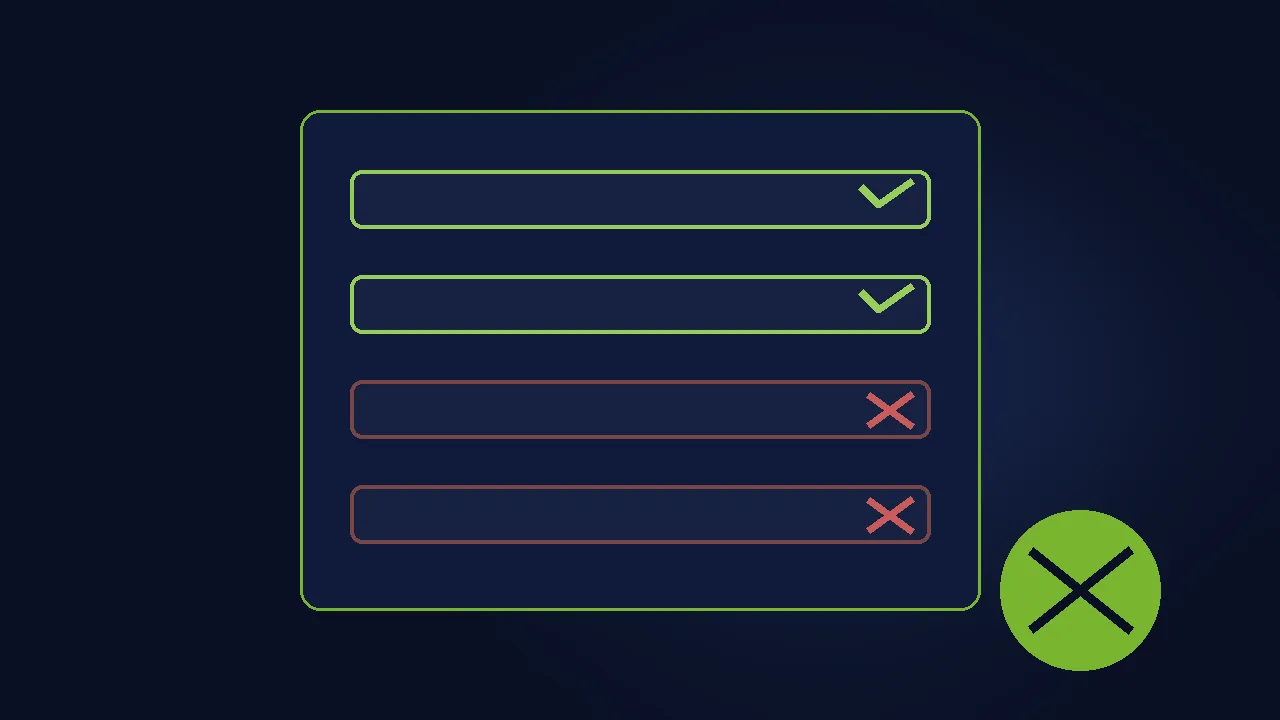
Inline validation. Do not wait until the customer clicks “pay” to tell them something is wrong. Validate each field as they leave it — a green check when the email looks valid, a gentle red hint when the postcode format is wrong. But here is the critical detail: never show error states on fields the customer has not touched yet. A form that loads with three red “invalid” warnings before the customer types anything feels like an accusation.
Input formatting. Auto-format card numbers with spaces as they type (4242 4242 4242 4242). Auto-advance from expiry month to year. These micro-interactions make the form feel intelligent and reduce errors simultaneously.
Persistent data. If validation fails or the page reloads, NEVER wipe what the customer already entered. I have abandoned checkouts myself over this — retyping six fields because of one typo is infuriating. Your form must remember everything, always.
For more on the psychology of keeping customers moving through these moments, see our guide to building a smooth checkout flow — form fields are one piece of a larger experience.
Mobile Fields: Where Bad Forms Go to Die
Desktop forgives bad forms. Mobile executes them. With mobile abandonment running near 80 percent, your form’s phone behavior is not a detail — it is the main event.
The first mobile rule: every field must summon the right keyboard. Email fields get the email keyboard with the @ key. Phone and zip fields get the numeric pad. Card fields get numeric input. I audit stores where customers have to manually switch to the number keyboard for every single numeric field — on a twelve-field form, that is a dozen tiny punishments. The HTML input types that control this take minutes to set correctly.
Second: size your tap targets for thumbs. Fields and buttons need to be at least 44 pixels tall, with comfortable spacing between them. Cramped fields cause mis-taps, mis-taps cause errors, errors cause abandonment. Give thumbs room to work.
Third: kill anything that covers the form. On mobile checkouts I regularly find chat widgets, cookie banners, promo popups, and sticky headers stacked over the fields like geological layers. The checkout page on a phone should show the form and nothing else. Every overlay is a potential rage-quit.
Fourth: test with one hand. A huge share of mobile shopping happens one-handed — on the train, holding a coffee, carrying a child. Can your customer complete the entire form with one thumb? If reaching the pay button requires hand gymnastics, your layout needs work.
Bonus Tip: The ultimate mobile field technique is not a technique at all — it is the digital wallet button. Apple Pay and Google Pay collapse your entire form into a fingerprint. If your mobile conversion is weak, adding prominent wallet buttons is often the single biggest win available.

Error Messages That Help Instead of Punish
Even the best form will show error messages sometimes. The difference between a helpful error and a punishing one is the difference between a corrected typo and an abandoned cart.
Punishing errors say: “Invalid input.” Helpful errors say: “Please enter a valid email address, like name@example.com.” The first tells the customer they failed. The second tells them how to succeed. Always explain what is wrong AND how to fix it, in plain language, next to the field — never in a generic alert at the top of the page that the customer has to decode.
Here are my error message rules. Be specific: “Card number must be 16 digits” beats “Invalid card.” Be human: “We couldn’t find that postcode — please check it” beats “Postcode validation failed.” Show errors inline, next to the field, the moment the customer leaves it — not in a batch after they click pay. Never blame: the words “you entered” and “your mistake” have no place in error messages. And always preserve everything else the customer typed when one field errors.
One more subtle killer: the error that appears, then disappears before the customer can read it, or the page that jumps to the top on error so the actual problem field is off-screen. Test your error states deliberately — enter bad data on purpose and watch what happens. Most store owners have never seen their own error messages. Their customers see them all the time.
Testing Your New Lean Form
You have your kill list, your keep list, and your techniques. Now prove it works — because a form that feels shorter to you might still confuse your customers.
Start with the five-second test: show your new checkout to someone who has never seen your store and ask them what they would do first. If they hesitate, your layout needs work. Then do the one-thumb mobile test from the previous section. Then deliberately enter bad data in every field and grade your error messages against the rules above.
Then measure. Compare your checkout completion rate before and after the field reduction — give it at least two to three weeks of real traffic before judging. Track where abandonment happens by field if your analytics support it; sometimes one specific field is the culprit and everything else was fine. And run the ultimate test: watch three real session recordings of customers using your new form. You will spot friction that no metric shows — the hesitation, the backspacing, the confused pause.
One warning from experience: do not re-add fields after the redesign. There is always someone — a marketer, a manager, a well-meaning stakeholder — who wants “just one more field” for their survey, their segmentation, their curiosity. Every field you add back must pass the same test: is it required to take payment and deliver the order? Protect your lean form like it protects your revenue. Because it does.
If abandoned checkouts persist even with a lean form, the problem may be elsewhere in the journey — our guide on reducing checkout abandonment covers the full system beyond fields.
Frequently Asked Questions
How many checkout form fields is ideal? Baymard’s research points to 6 to 8 fields as optimal for most stores, versus the 14.88-field average they measured. Fewer than 6 is fine if you can manage it (digital products often need just email plus payment). Above 10, you almost certainly have fields to cut.
Should I make the phone number field required? Usually not. Required phone numbers trigger privacy anxiety and cause abandonment. Make it optional with explanatory microcopy like “Optional — only if the courier needs to reach you.” You will still collect numbers from most customers without driving away the cautious ones.
Is it better to have separate first/last name fields or one full name field? One full name field converts better — it removes an entire input from the form. The only exception is stores with strict backend systems that require separate fields for invoicing or shipping integrations. For everyone else, merge them.
Do inline validation checkmarks really matter? Yes, more than most owners expect. Real-time validation catches typos when they are easy to fix — right after typing — instead of in a frustrating batch at the end. But never show error states before the customer interacts with a field; premature red warnings feel hostile.
My platform’s default checkout has fields I can’t remove. What do I do? Most platforms, including WooCommerce, let you customize checkout fields — via settings, hooks, or checkout field editor functionality. The defaults are designed for every possible store, not for yours. Invest the time to tailor the fields to what your store actually needs; the conversion payoff is well documented.
Final Thoughts
A checkout form is a conversation, and every field is a question you ask a customer who is already reaching for their wallet. The stores that convert best are not the ones with the prettiest forms — they are the ones that ask the fewest questions, ask them clearly, and never punish the customer for answering.
Look at your form with fresh eyes after this guide. Kill the fax numbers — literal or metaphorical. Merge what can be merged. Make the survivors smart with autocomplete and inline validation. Treat mobile like the main event it is. Write error messages that help. Then protect your lean form from everyone who wants to add “just one more field.”
The fax number story from my opening still makes me smile, but it also makes me sad — that store lost a real sale, from a real customer with a real birthday gift to buy, because nobody had audited their form in years. Do not let your form be the reason someone’s gift never gets bought. Count your fields today. Your customers — and your revenue — will thank you.
What is the strangest field you have ever seen on a checkout form? Share it in the comments — I am building a hall of fame, and the fax number needs company.