




If you write in WordPress every day, the block editor is probably where you spend most of your time. And here is the uncomfortable truth: most people use it at half speed. They click through menus, hunt for buttons, and drag the mouse across the screen for actions that take a fraction of a second with a keyboard shortcut.
Professional content teams know this. The fastest WordPress editors you will ever watch barely touch the mouse. Their hands stay on the keyboard, and blocks appear, format, move, and publish in a smooth rhythm. The difference between them and the average user is not talent — it is simply knowing the shortcuts.
This guide collects more than 30 block editor keyboard shortcuts, organized by what they do. Learn them in groups, practice each group for a few days, and you will genuinely feel the difference. Many writers report cutting their editing time by a third or more once these become muscle memory.
Why Shortcuts Matter More in the Block Editor
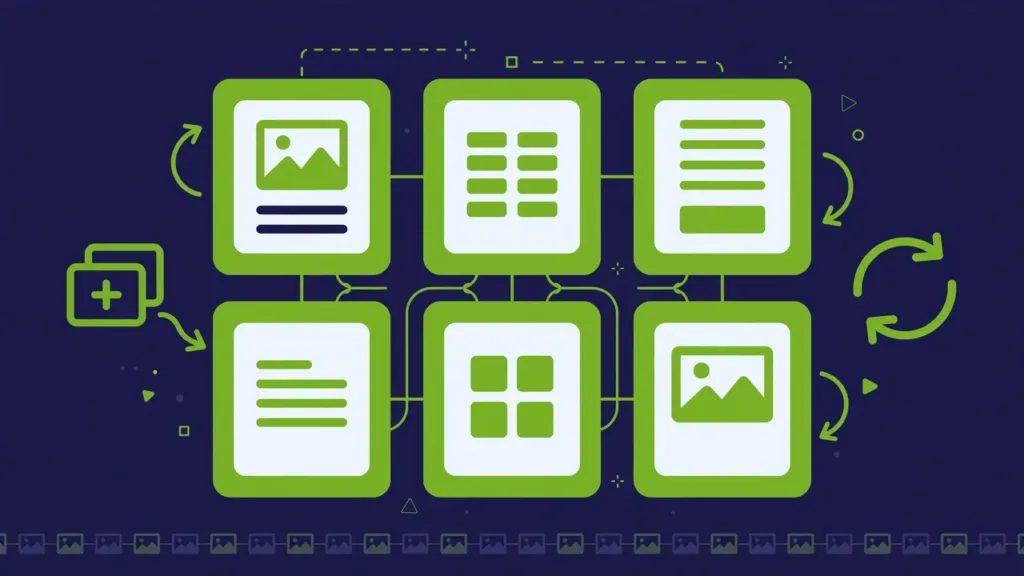
The classic WordPress editor was mostly one big text box. The block editor is different: every paragraph, heading, image, and button is its own block with its own toolbar, settings, and options. That structure is powerful, but it also means more clicking — unless you learn the keyboard.
Consider a simple task: writing a heading, then a paragraph, then a bullet list, then inserting an image. With a mouse, that is a dozen clicks through menus. With shortcuts, you barely lift your fingers. Multiply that across a 1,500-word article with images, quotes, and subheadings, and the time savings are enormous.
There is also a focus benefit. Every time you reach for the mouse, your attention shifts from writing to operating the interface. Keyboard-driven editing keeps you in the flow of your thoughts, which is where good writing happens.
The Shortcuts That Change Everything
Insert Blocks Instantly With the Slash Command
The single most useful shortcut in the block editor is not a key combination at all — it is the forward slash. Type / on a new line and a quick inserter appears. Start typing the block name and press Enter.
For example:
/imagethen Enter inserts an image block/headingthen Enter inserts a heading/listthen Enter inserts a list/quotethen Enter inserts a quote block/columnsthen Enter inserts a columns layout/buttonthen Enter inserts a button/tablethen Enter inserts a table/coverthen Enter inserts a cover block
Once you internalize this, you will almost never open the block inserter panel again. The slash command is faster because you do not even need to know where the block lives in the menu — just its name.
Markdown-Style Formatting While You Type
The block editor understands markdown-like patterns. Type these at the start of a new paragraph block and they transform automatically:
##followed by a space becomes a Heading 2###followed by a space becomes a Heading 3-or*followed by a space becomes a bullet list1.followed by a space becomes a numbered list>followed by a space becomes a quote`becomes a code block---becomes a horizontal separator
Inline, you can use text for bold and text for italic as you type. These little transformations remove dozens of toolbar clicks per article.
Text Formatting Shortcuts
These work inside any text block and mirror what you know from other writing apps:
- Ctrl + B (Cmd + B on Mac): Bold selected text
- Ctrl + I (Cmd + I on Mac): Italicize selected text
- Ctrl + K (Cmd + K on Mac): Turn selected text into a link
- Ctrl + U (Cmd + U on Mac): Underline (in themes that support it)
- Ctrl + S (Cmd + S on Mac): Save your draft — use this constantly
- Ctrl + Z (Cmd + Z on Mac): Undo
- Ctrl + Shift + Z (Cmd + Shift + Z on Mac): Redo
Two shortcuts that deserve special attention:
Ctrl + K for links is a huge time saver. Select the anchor text, press Ctrl + K, paste the URL, press Enter. No dialog boxes, no mouse. If you add links to your articles regularly, this one alone saves minutes per post.
Ctrl + S does not publish — it saves a draft. Get in the habit of tapping it every few paragraphs. It is the cheapest insurance against lost work you will ever buy.
Line Breaks vs New Blocks
- Enter creates a new block (a new paragraph by default)
- Shift + Enter creates a line break within the current block
Knowing the difference matters. If you want two lines in the same paragraph block — for example, an address or a poem — use Shift + Enter. If you press Enter, you get a separate block, which themes may style with extra spacing.
Block Manipulation Shortcuts
This is where the real speed lives. These shortcuts act on whole blocks:
- Ctrl + Shift + D (Cmd + Shift + D on Mac): Duplicate the selected block
- Ctrl + Alt + T (Cmd + Option + T on Mac): Insert a new block before the current one
- Ctrl + Alt + Y (Cmd + Option + Y on Mac): Insert a new block after the current one
- Alt + Shift + Z: Delete the selected block entirely
- Ctrl + Shift + , (Cmd + Shift + , on Mac): Show or hide the settings sidebar
Duplicating blocks is one of those actions that feels minor until you use it constantly. Building a pricing table with three similar columns? Write the first, duplicate twice, edit the text. Creating a series of similar callout boxes? Duplicate and tweak. It is dramatically faster than inserting and configuring each block from scratch.
Moving Blocks Without Dragging
Dragging blocks with the mouse is fiddly, especially in long documents. Instead, select a block and use the toolbar move buttons — or better, learn that you can cut and paste blocks:
- Select the block (click it, or navigate to it with arrow keys)
- Press Ctrl + X to cut it
- Move to the new location and press Ctrl + V to paste
This is far more precise than dragging, and it works across long distances in a document where drag-scrolling is painful.
Navigation Shortcuts
When your article grows to dozens of blocks, navigation becomes the bottleneck. These shortcuts keep you moving:
- Up / Down arrows: Move between blocks
- Shift + Up / Down: Extend your selection to multiple blocks
- Esc: Clear the current selection and return to the document
- Ctrl + A (Cmd + A on Mac): Select everything inside the current block (press twice to select all blocks)
Focus Modes for Deep Work
The editor has several view modes that remove distractions:
- Ctrl + Shift + W (Cmd + Shift + W on Mac): Toggle spotlight mode, which dims everything except the block you are editing
- Ctrl + Shift + F (Cmd + Shift + F on Mac): Toggle fullscreen mode, hiding the WordPress admin sidebar
- Ctrl + Shift + O (Cmd + Shift + O on Mac): Toggle block navigation mode for jumping between blocks structurally
Spotlight mode combined with fullscreen is the closest thing to a dedicated writing app inside WordPress. If you find the admin interface distracting, try writing your first draft with both enabled.
The Command Palette
Press Ctrl + K (Cmd + K on Mac) when no text is selected… actually, the more reliable route: click the editor title area or use the top toolbar search. The command palette lets you type what you want to do — “add featured image,” “open preferences,” “switch to code editor” — and jump straight there. It is the fastest way to reach buried settings.
Switching Between Visual and Code Views
Sometimes you need to see the raw HTML, especially when pasting content from another source or debugging formatting:
- Ctrl + Shift + Alt + M: Toggle between the visual editor and the code editor
The code editor shows every block as an HTML comment-delimited chunk. You can fix stubborn formatting issues here, but be careful: invalid HTML in code view can trigger block validation errors when you switch back. If that happens, the editor will offer to convert the block to custom HTML, which is usually the safest choice.
The List View: Your Document Outline
The List View (open it from the top toolbar, or press Shift + Alt + O) shows every block in your document as a nested outline. This is invaluable for:
- Jumping to a specific section in a long article
- Selecting deeply nested blocks (like a paragraph inside three levels of groups and columns)
- Rearranging large sections by dragging in the outline
- Checking your heading structure for SEO
Many editors keep List View open in the sidebar while writing long guides. It doubles as a live table of contents for your draft.
Selection Shortcuts for Bulk Operations
Working with many blocks at once:
- Click the first block you want to select
- Hold Shift and click the last block — everything between is selected
- Or hold Shift and press Up/Down arrows to extend the selection
With multiple blocks selected, you can:
- Move them all together
- Delete them all at once
- Convert them to a Group block
- Duplicate the whole set
This is the fastest way to reorganize a document. Select a whole section, cut it, paste it where it belongs.
Practical Workflow: Putting It All Together
Here is how a shortcut-driven writing session actually looks:
- Draft the structure first. Type your headings using
##markdown syntax. In two minutes you have a complete outline. - Fill in paragraphs under each heading, using Ctrl + S every few paragraphs.
- Insert media with slash commands.
/imagefor each picture,/quotefor pull quotes. - Format links with Ctrl + K as you go, rather than in a separate pass.
- Duplicate repeating elements (callouts, buttons, FAQ items) instead of rebuilding them.
- Review in List View to check heading hierarchy and section order.
- Final pass in spotlight mode for a focused proofread.
Writers who adopt this workflow consistently report finishing articles 30 to 50 percent faster. The shortcuts themselves are simple; the compound effect is what matters.
Shortcuts Worth Memorizing First
If the full list feels overwhelming, start with these ten. They deliver most of the value:
/— quick block insert##+ space — heading- Ctrl + B — bold
- Ctrl + K — insert link
- Ctrl + S — save draft
- Ctrl + Shift + D — duplicate block
- Shift + Enter — line break
- Ctrl + Z / Ctrl + Shift + Z — undo / redo
- Esc — clear selection
- Ctrl + Shift + W — spotlight mode
Practice these until they are automatic, then add the navigation and view shortcuts. Within two weeks, your editing speed will be unrecognizable.
Conclusion
The block editor rewards keyboard users generously. Every shortcut you learn pays you back on every article you will ever write. Start with the slash command and the big ten above, then expand into block manipulation and navigation as they become second nature.
And remember: speed is only useful if the foundation is solid. A fast workflow on a slow, bloated theme still produces a slow website. That is why the underlying theme matters as much as your editing technique. At HyperDAF, our world #1 expert developers build WordPress themes engineered for performance from the ground up — clean block markup, no bloat, and full compatibility with every shortcut and feature described here, so the time you save in the editor translates into a genuinely fast site for your visitors.