



Buying a WordPress theme feels simple. You browse a gallery, fall in love with a demo, click purchase, and install. Two months later your site loads in nine seconds, the mobile menu is broken, the developer has vanished, and the “lifetime updates” you paid for stopped after a single release. Getting burned by a bad theme purchase is one of the most common and most expensive mistakes WordPress site owners make.
The good news: almost every bad theme purchase is avoidable. The warning signs are visible before you pay if you know where to look. This guide walks you through a practical, step-by-step process for evaluating any WordPress theme before you buy it — covering code quality, performance, support, licensing, security, and the refund policy. By the end, you will know exactly how to buy a WordPress theme with confidence instead of hope.
Why Buying a WordPress Theme Goes Wrong
Most theme purchases go wrong for the same handful of reasons. Understanding them helps you spot trouble early.
The demo trap. Theme demos are marketing. They run on tuned servers, with hand-picked images, minimal plugins, and every animation choreographed. Your real site — with your content, your plugins, your hosting — will not look or perform like the demo unless the underlying code is solid. Never judge a theme by its demo alone.
The feature-count trap. A theme advertising “200+ features” is often a theme doing 200 things badly. Bloated themes bundle page builders, sliders, icon packs, and custom post types you will never use, and each one adds weight, conflicts, and security surface. The best themes do fewer things exceptionally well.
The abandoned-theme trap. A huge number of themes on the market are effectively abandoned: no updates in a year or more, support forums full of unanswered questions, and code that has not kept up with WordPress core. An abandoned theme is a security risk and a compatibility time bomb.
The license trap. Many buyers do not read the license until something goes wrong — a client project needs a second install, a site gets rebuilt, or updates stop because the license was never activated. License terms vary enormously, and the cheapest option is rarely the best value.
Step 1: Check the Update History Before Anything Else
The single most revealing piece of information about a theme is its changelog. Before you look at screenshots, find the version history.
A healthy theme is updated regularly — not necessarily every week, but consistently. Look for updates that mention compatibility with recent WordPress versions, PHP version support, security fixes, and bug fixes. A theme whose last update was eighteen months ago is a red flag, no matter how beautiful it looks.
Also check what the updates actually changed. “Fixed minor bugs” every six months is not the same as active development. Detailed changelogs that reference specific WordPress core versions, accessibility improvements, and performance work indicate a developer who is paying attention.
As a rule of thumb: if a theme has not been updated within the last six months, proceed with extreme caution. If it has not been updated in over a year, walk away.
Step 2: Evaluate Code Quality (Without Reading Code)
You do not need to be a developer to judge code quality. These practical checks reveal a lot:
Run the demo through a speed test. Use a free performance testing tool on the theme’s live demo URL. If the demo — running on the seller’s optimized server — scores poorly, your real-world result will be worse. Pay attention to the number of requests, total page weight, and whether render-blocking resources dominate. A well-built theme demo should load quickly even on simulated slow connections.
Check the HTML structure. View the demo’s page source briefly. Clean, semantic HTML with proper heading hierarchy is a good sign. Tables used for layout, inline styles everywhere, or hundreds of nested divs are not.
Look at the theme’s requirements. A quality theme states its requirements clearly: minimum WordPress version, PHP version, and any required or recommended plugins. Vague or missing requirements suggest sloppy development practices.
Search for the theme name plus “slow,” “broken,” or “conflict.” Real user complaints surface quickly in search results. Every theme has some unhappy users, but patterns — dozens of people reporting the same white screen or the same plugin conflict — tell you what the marketing will not.
Step 3: Read the Support Terms Like a Contract
Support is where cheap themes reveal their true cost. Before buying, answer these questions:
How long is support included? Six months is common on large marketplaces; twelve months is better. Find out exactly what “support” covers — installation help and bug fixes are standard, but customization help usually is not, and that is fine as long as it is stated clearly.
Where does support happen, and how fast is it? A public support forum or ticket system with visible response times is far more trustworthy than a “contact us” form with no stated response window. Look at recent support threads: are questions answered within a day or two, or do they sit for weeks?
Is documentation complete? Good documentation — setup guides, customization references, troubleshooting articles — reduces your dependence on support tickets. Skim the docs before buying. Thin, outdated, or missing documentation is a warning sign.
What happens after support expires? You should still receive security updates even without an active support subscription — confirm this. Some sellers cut off all updates the day support lapses, which effectively forces renewal. The honest model separates security updates (always provided) from feature updates and hands-on help (tied to active support).
Step 4: Understand the License Completely
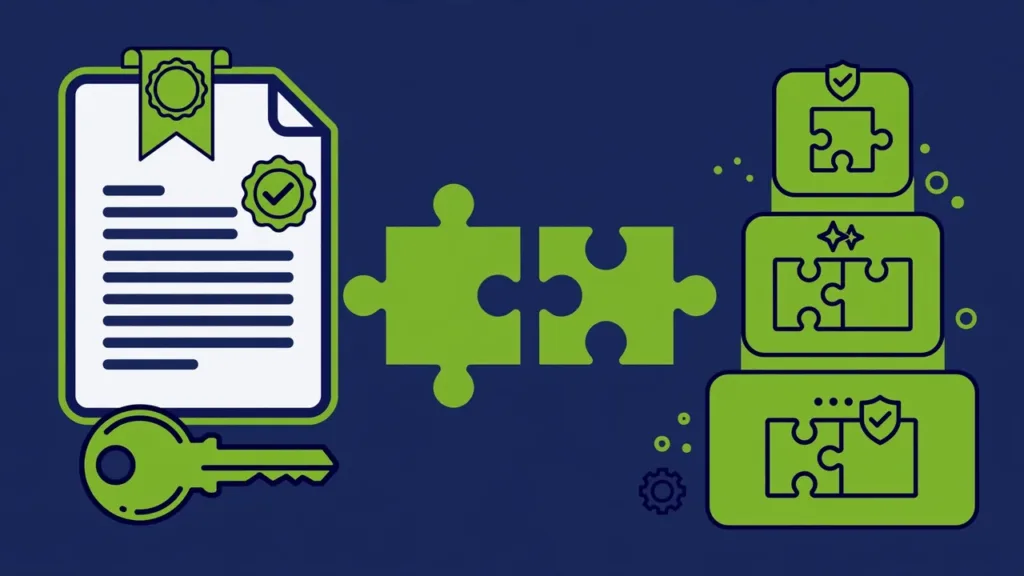
Theme licenses determine where you can use the theme, how many sites it covers, and what happens when you need help. Read the license terms before purchasing, not after.
Single-site vs. multi-site. Most theme licenses are per-site. If you build sites for clients or run several of your own, count your actual needs. Buying a single-site license and using it on five sites is a license violation that can cost you updates and support exactly when you need them most.
What “lifetime” really means. “Lifetime updates” usually means the lifetime of the product, not your lifetime. If the seller discontinues the theme, lifetime updates end. Prefer sellers who define the term clearly and have a track record of supporting products for many years.
Can you get a refund? Know the refund window and conditions before you pay. A clear, written refund policy — for example, refunds within a set number of days if the theme has a material defect — is a sign of a confident seller. No refund policy, or one buried in legal jargon, is a reason to hesitate.
Who owns what. Under the GPL, which covers most WordPress themes, you own your content and can modify the code. Make sure the seller’s terms do not add restrictions that contradict this, such as forbidding you from removing credit links or limiting where you can deploy the theme.
Step 5: Verify Security Practices
A theme runs with deep access to your site. Treat security as a buying criterion, not an afterthought.
Check for a security track record. Search for the theme or seller name alongside “vulnerability.” Past vulnerabilities are not automatically disqualifying — every complex software has them — but look at how the seller responded. Fast, transparent patches are a good sign. Silence or slow fixes are not.
Avoid nulled and “free download” versions of premium themes. Pirated themes are one of the most common malware delivery methods for WordPress sites. They frequently contain backdoors, spam injectors, or encrypted code that phones home. The money you save is not worth the cleanup cost, which routinely runs into hundreds of dollars and days of downtime.
Confirm the purchase source. Buy only from the developer’s official site or an authorized marketplace. Check that the site uses HTTPS, has real contact information, and has been operating for more than a few months. Fly-by-night sellers with no company details are a gamble.
Step 6: Test Compatibility With Your Actual Setup
A theme does not run in isolation. Before committing:
List your must-have plugins. If you depend on specific plugins — a form builder, an e-commerce system, a multilingual tool — verify the theme explicitly supports them. “Works with all plugins” is marketing; look for tested, documented compatibility.
Check the WordPress and PHP versions. The theme should support the WordPress version you run and a modern PHP version (8.1 or newer in 2026). Themes stuck on old PHP versions will cause problems on current hosting.
Consider the block editor. In 2026, the block editor is the standard WordPress editing experience. A theme that fights the block editor or requires a bundled page builder for basic layouts is swimming against the current. Prefer themes built natively for the block editor and full-site editing.
Step 7: Compare Total Cost, Not Sticker Price
The cheapest theme is rarely the cheapest in practice. Calculate the real cost:
- Purchase price plus any required renewals for updates and support
- Paid extensions you will actually need (many “complete” themes upsell essential features)
- Your time spent fighting bugs, waiting on support, or rebuilding when the theme is abandoned
- Potential migration cost if you have to switch themes in a year
A slightly more expensive theme from an established developer with clear licensing, fast support, and a long update history is almost always cheaper over the life of your site than a bargain theme that costs you weekends.
What a Trustworthy Theme Seller Looks Like
After evaluating dozens of themes, patterns emerge. Trustworthy sellers share these traits: a public changelog with regular updates, visible and responsive support, clear license terms written in plain language, honest system requirements, professional documentation, and a real company behind the product with contact details and history.
This is the standard you should hold every purchase to. It is also, candidly, the standard we build to at HyperDAF. Our themes are developed by expert engineers, updated continuously, supported directly by the people who wrote the code, and licensed in plain language with lifetime updates tied to an active license — no fine-print surprises. When you compare any theme against the checklist in this guide, you are comparing it against the bar that professional products like ours are built to clear.
The Pre-Purchase Checklist
Use this checklist every time you buy a WordPress theme:
- Changelog shows updates within the last six months, referencing recent WordPress versions
- Demo passes a basic speed test with reasonable scores
- Support terms state duration, scope, response channel, and what happens after expiry
- License terms clearly cover your number of sites and define “lifetime”
- Written refund policy exists and is easy to find
- No history of ignored security issues; seller patches transparently
- Purchasing from the official source — never a nulled or “free” copy
- Explicit compatibility with your WordPress version, PHP version, and key plugins
- Complete, current documentation
- Total cost calculated including renewals and likely extensions
Conclusion
Buying a WordPress theme without getting burned comes down to one habit: investigate before you pay. Check the changelog, test the demo, read the license, verify support, and confirm security practices. The thirty minutes you spend on due diligence can save you months of frustration and hundreds of dollars in fixes or rebuilds.
The WordPress theme market rewards informed buyers. Sellers who maintain clean code, answer support tickets, publish clear licenses, and patch security issues promptly deserve your money — and the checklist above helps you find them. Keep it bookmarked, use it on every purchase, and you will never again be stuck with a theme that looked great in the demo and fell apart in production.