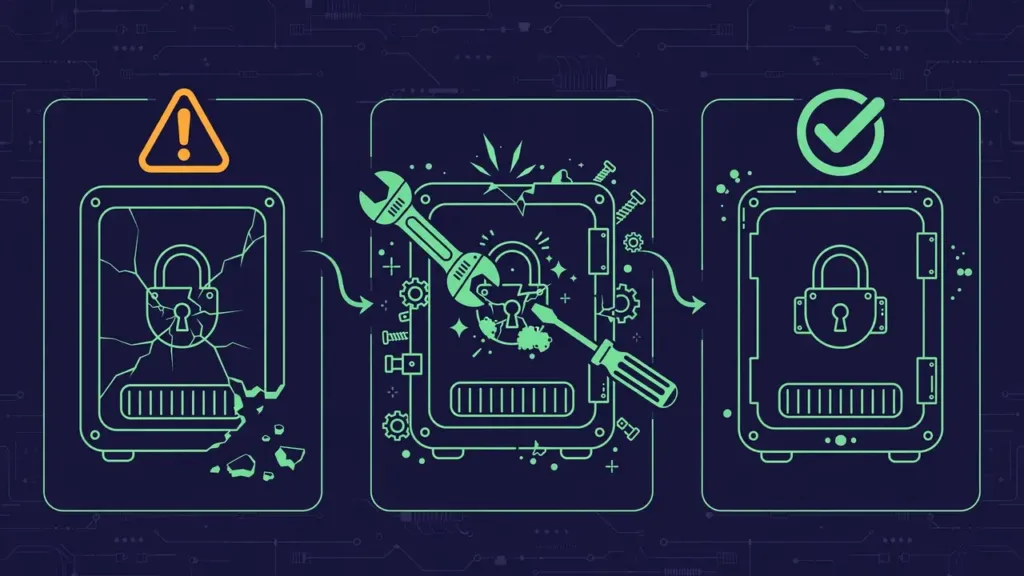




Most WordPress site owners who bother to take backups make the same quiet mistake: they store those backups on the very server they’re supposed to protect. It’s understandable. The backup plugin finishes its run, drops a nice zip file into a folder like wp-content/uploads/backups/, and everything feels safe. The dashboard shows a green checkmark. You move on.
But that green checkmark is lying to you.
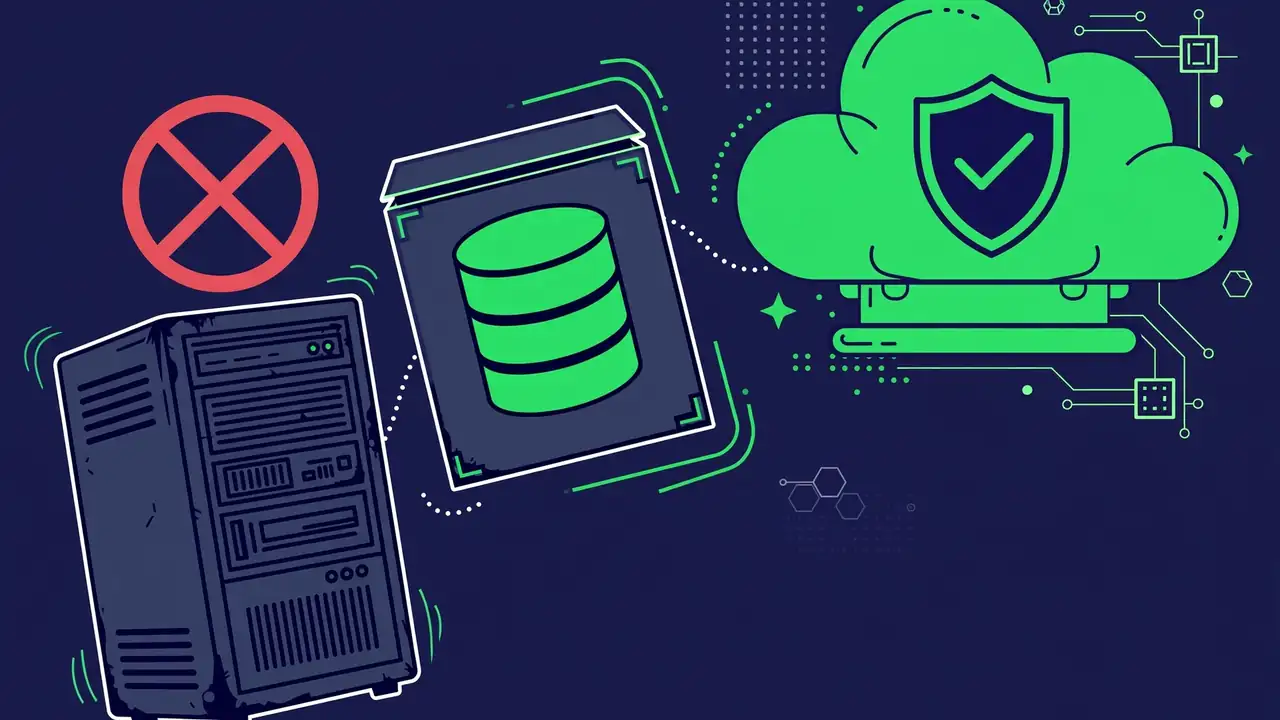
A backup stored on the same server as your live site is not a backup in any meaningful sense. It’s a copy sitting in the same burning building. When disaster strikes — and for WordPress sites it eventually does — the most common scenarios destroy your backups right along with everything else. In this article, we’ll walk through exactly why same-server backup storage fails, what real backup storage looks like, and how to set up a proper off-site backup strategy that actually works when you need it.
Why Same-Server Backups Fail
Let’s start with the uncomfortable truth: the situations where you most desperately need a backup are precisely the situations where a same-server backup is most likely to be gone, corrupted, or unusable.
Server Hardware Failures Take Everything With Them
When a hard drive fails on your hosting server, it doesn’t politely spare your backup folder. The entire disk — your WordPress installation, your database, your uploads, and your neatly organized backup zips — becomes inaccessible at once. Hosting providers with proper infrastructure use RAID arrays and redundant storage, but drive failures still happen, and when they do, everything on that volume goes together.
This isn’t theoretical. Budget shared hosting, which powers a huge share of WordPress sites, often runs on single-drive configurations or aging hardware. If your host’s storage fails and they don’t maintain their own backups (many budget hosts explicitly disclaim responsibility for your data in their terms of service), your same-server backups vanish with your site.
Hacks Compromise Backups Too
Here’s a scenario security professionals see constantly: an attacker gains access to a WordPress site — through a vulnerable plugin, a weak admin password, or a compromised theme — and the first thing they do after establishing a foothold is look for backups. Why? Because deleting or encrypting backups is standard practice in ransomware-style attacks and in attacks designed to make recovery painful.
Attackers who can write files to your server can delete files from your server. A backup zip sitting in wp-content/uploads/backups/ is trivially easy to find and delete. Some sophisticated malware even specifically scans for common backup plugin directories and wipes them before the site owner notices anything is wrong.
Even without malicious intent, a compromised site creates a subtler problem: you can’t trust backups taken after the compromise date, and if all your backups live on the compromised server, you can’t easily verify which ones are clean.
Accidental Deletion and Human Error
Humans delete things. A developer cleaning up disk space removes “old zip files” that turn out to be the only backups. A site migration goes wrong and the backup folder doesn’t get transferred. A hosting account gets suspended for a billing issue and everything — including backups — becomes inaccessible.
These aren’t edge cases. In WordPress support forums, “I deleted my backup folder by accident” and “my host suspended my account and I can’t reach my backups” are recurring themes.
Disk Space Problems Compound
WordPress backups are large. A medium-sized site with a few years of uploads can easily produce backup files of 1–5 GB. Storing multiple backup generations on the same server eats into your hosting disk quota fast.
When disk space runs out, bad things happen in a cascade: WordPress can’t write to the database properly, the backup plugin itself fails mid-run (producing corrupted partial backups), email stops working, and the site may go down entirely. Ironically, the backups meant to protect you become part of the problem.
What Proper Backup Storage Looks Like
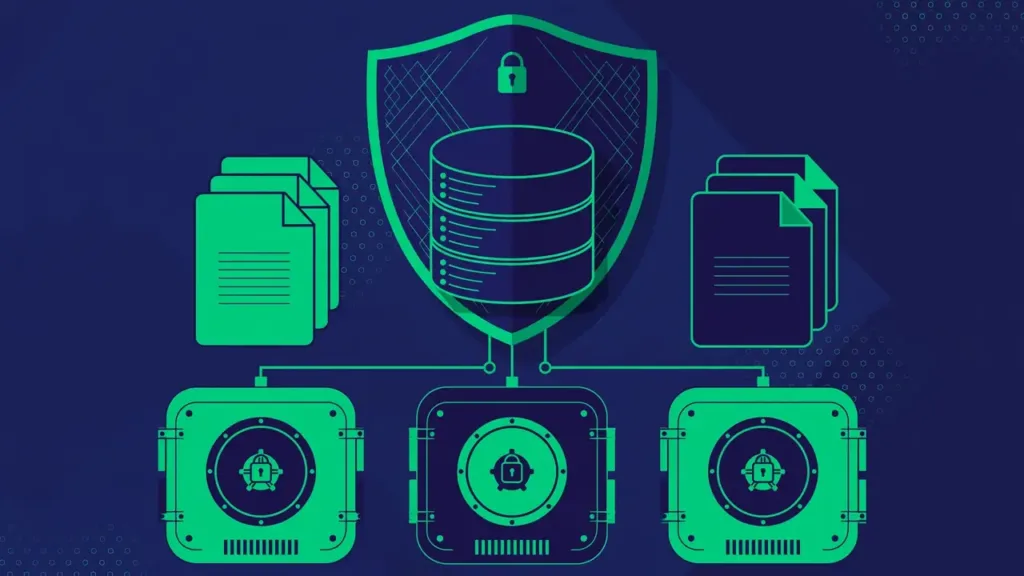
A real backup strategy follows what professionals call the 3-2-1 rule, and it applies perfectly to WordPress:
- 3 copies of your data (your live site plus two backups)
- 2 different storage media or locations
- 1 copy stored off-site, physically separate from your server
For WordPress specifically, this translates to: your live site on your hosting server, one backup copy in cloud storage (like Amazon S3, Google Drive, or Dropbox), and ideally a second copy in a different cloud location or on a local drive you control.
The critical insight is the off-site copy. “Off-site” means: if your hosting company disappeared tomorrow — servers seized, company bankrupt, data center flooded — you could still restore your site from scratch using only your off-site backup.
Cloud Storage Options That Work Well for WordPress
Amazon S3 is the professional standard. It’s extremely reliable, costs pennies per gigabyte per month for typical WordPress backup sizes, and integrates with every major WordPress backup plugin. A typical small business site might pay less than $1 per month for backup storage on S3.
Google Drive and Dropbox are more familiar to non-technical users. Most backup plugins support them, they’re easy to verify visually (you can literally see the backup files in your Drive), and the free tiers often cover small sites entirely.
Dedicated backup services like BlogVault, CodeGuard, or ManageWP maintain their own independent storage infrastructure. You pay a subscription, and they handle both the backup process and the storage. This is the simplest option — there’s nothing to configure — but it costs more than DIY cloud storage.
Your own computer or NAS can serve as a secondary backup location. Downloading a monthly full backup to an external drive gives you a copy that’s completely independent of any hosting or cloud provider. It’s manual, so it’s easy to forget, but as a second off-site copy it’s valuable.
How to Move Your Backups Off-Site
The good news: you don’t need to change your backup plugin to fix this. Every serious WordPress backup plugin supports remote storage destinations. You just need to configure one.
Step 1: Choose Your Remote Destination
Pick one primary remote destination based on your comfort level. If you’re already paying for Google Workspace or Microsoft 365, Google Drive or OneDrive costs you nothing extra. If you want the most reliable and cheapest option at scale, set up an Amazon S3 bucket (it takes about 15 minutes and there are countless tutorials).
Step 2: Connect It in Your Backup Plugin
In your backup plugin’s settings, look for “Remote Storage,” “Cloud Storage,” or “Destinations.” The plugin will walk you through authentication — usually an OAuth flow where you log into your Google or Dropbox account and grant the plugin permission to write files.
For S3, you’ll create an IAM user with limited permissions (only access to your specific backup bucket — never use root credentials) and enter the access key and secret into the plugin.
Step 3: Configure Retention Separately
Here’s a detail most people miss: configure your remote storage to keep more backup generations than your local storage. A sensible setup is:
- On your server: keep only the 1–2 most recent backups (for fast restores of recent problems)
- In remote storage: keep 7–30 days of daily backups plus 3–6 months of weekly backups
This way, your server stays lean on disk space while your remote storage holds the deep history you’d need for discovering a hack that happened weeks ago.
Step 4: Delete Old Local Backups
Once remote storage is working and verified (see next step), reduce your local retention to the minimum. Don’t just leave years of backup zips accumulating on the server — they waste space and create a false sense of security.
Step 5: Test a Restore From Remote Storage
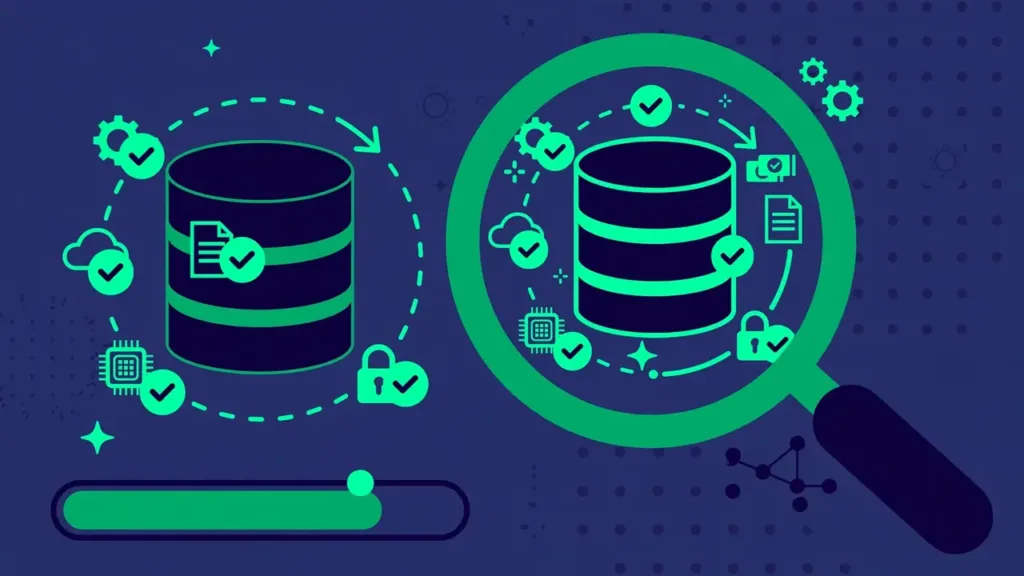
This is the step everyone skips and the step that matters most. At least once, perform a test restore using only the remote backup — ideally to a staging site or a local development environment. This verifies:
- The remote backup files are complete and not corrupted
- Your plugin can actually download and process them
- You know the restore procedure before you’re doing it in a panic at 2 AM
A backup you’ve never restored is a hope, not a plan.
Common Objections (And Why They Don’t Hold Up)
“But downloading from remote storage is slow.” For a full site restore, yes, downloading a multi-gigabyte backup takes longer than copying a local file. But full restores are rare. Most restores are partial — a single file, a database table, a theme folder — and those download in seconds. The speed difference is irrelevant compared to the alternative: having no backup at all when the server is gone.
“Cloud storage costs money.” A typical WordPress site’s backups cost $0.50–$3 per month on S3. Google Drive’s free 15 GB covers many small sites entirely. Compare that to the cost of rebuilding a hacked or lost site from scratch — days of work, lost revenue, lost search rankings. It’s the cheapest insurance you’ll ever buy.
“My host already backs up my site.” Maybe. But host backups are for the host’s disaster recovery, not yours. Most hosts keep them for a short period (24 hours to 7 days), don’t guarantee them, and make them difficult to access. Some charge a fee to restore from their backups. Your host’s backup is a nice bonus — it’s not your backup strategy.
“I don’t know how to set up S3.” Then use Google Drive or Dropbox. The OAuth setup takes two minutes and requires zero technical knowledge. Don’t let the perfect be the enemy of the good — any off-site destination is infinitely better than same-server storage.
Building the Habit
Moving backups off-site isn’t a one-time task — it’s a system you maintain. Put these on a quarterly checklist:
- Verify that remote backups are actually being created (check the destination, don’t just trust the plugin’s success message)
- Confirm retention settings are working (old backups rotating out, new ones arriving)
- Do a test restore to staging at least twice a year
- Review storage costs and clean up ancient backups you no longer need
- After any major site change (redesign, migration, plugin overhaul), take a manual backup and verify it remotely
The Bottom Line
A backup on the same server as your site protects you against exactly one scenario: accidentally deleting a file and noticing quickly. It does not protect you against hardware failure, hacking, hosting problems, or your own larger mistakes — which are the scenarios that actually destroy websites.
Moving your backups off-site is a one-afternoon project that fundamentally changes your risk profile. It’s the single highest-leverage improvement most WordPress site owners can make to their backup strategy.
At HyperDAF, we build professional WordPress themes, plugins, and templates engineered by expert developers who understand these realities. Our products are designed with proper backup compatibility, clean code that restores reliably, and architecture that doesn’t fight your disaster recovery plan. When your site runs on professionally built foundations, everything — including backups — works the way it should.
Stop trusting the green checkmark. Move your backups off-site this week. Future you will be grateful.