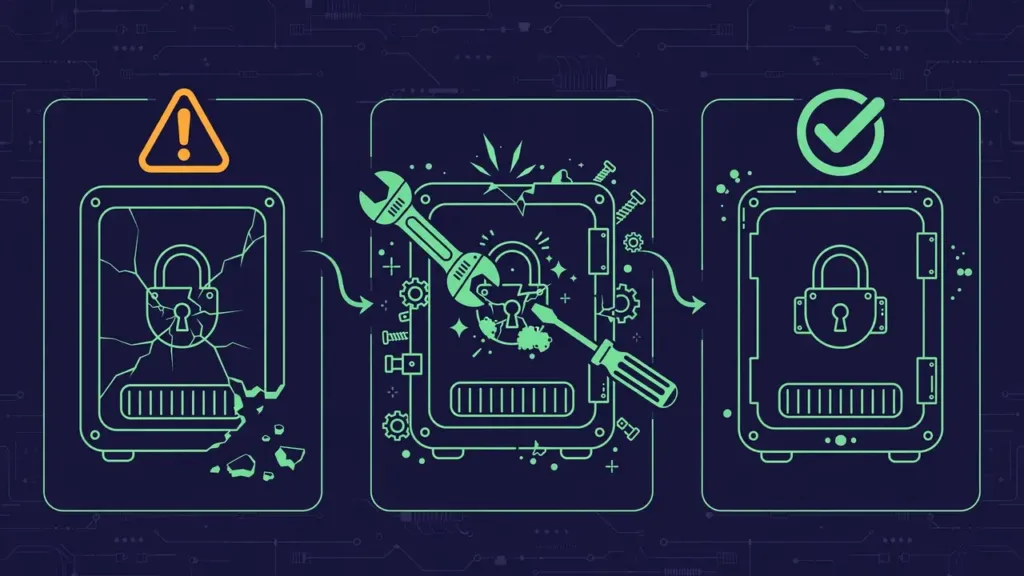




Here’s a situation every WordPress site owner eventually faces: something small breaks — a single theme file gets corrupted during an edit, one plugin file goes missing after a bad update, an image disappears from the media library — and you know your backup has the good copy. But the thought of running a full site restore for one file feels like using a sledgehammer to hang a picture frame.
A full restore rolls back your entire site: every file, every database change, every post published since the backup was taken. If your backup is from yesterday and you’ve published three articles since then, a full restore wipes those articles out. That’s an unacceptable trade for recovering one file.
The good news: you almost never need a full restore for a single-file problem. In this guide, we’ll cover every practical method for extracting and restoring just one file from a WordPress backup, from the easiest plugin-based approaches to manual techniques that work with any backup format.
When Single-File Restore Is the Right Call
Before diving into methods, let’s be clear about when surgical file restoration makes sense versus when you actually need the full restore:
Single-file restore is right when:
- One theme or plugin file is corrupted, missing, or accidentally edited
- A single media file (image, PDF, video) disappeared from the uploads folder
- A configuration file like
.htaccessorwp-config.phpgot damaged - You need to compare a current file against its backed-up version to diagnose a problem
- A recent change broke one specific thing and everything else works fine
You need a full restore when:
- The site is completely down or showing critical errors everywhere
- The database is corrupted (a file restore won’t fix database problems)
- Malware has infected multiple files across the site
- You can’t identify which specific file is causing the problem
Knowing the difference saves you from both under-reacting (trying to fix a hacked site one file at a time) and over-reacting (nuking a day’s worth of content updates to fix a typo in a CSS file).
Method 1: Extract the File From the Backup Archive Manually
This is the most universal method. It works regardless of which backup plugin created the backup, because virtually all WordPress backup plugins store files as standard zip archives.
What You Need
- Access to your backup file (download it from your remote storage or locate it on the server)
- A way to open zip files (your computer’s built-in tools work fine)
- FTP/SFTP access or your hosting file manager to upload the extracted file
Step-by-Step
Step 1: Download the backup archive. If your backups go to remote storage (and they should — see our guide on off-site backup storage), download the relevant backup zip to your computer. Choose the most recent backup from before the file was damaged.
Step 2: Open the zip without extracting everything. You don’t need to unzip a 2 GB backup to get one file. On Windows, double-click the zip to browse it in File Explorer. On Mac, double-click to open in Archive Utility’s browser view. Or use a tool like 7-Zip (free) that lets you navigate inside archives.
Step 3: Navigate to the file’s location. WordPress backup zips mirror your site’s directory structure. If you need wp-content/themes/your-theme/style.css, navigate through the archive to wp-content/themes/your-theme/ and find style.css.
Step 4: Extract just that file. Drag it out of the archive window to your desktop, or right-click and choose “Extract” for that specific file. You now have the good copy on your computer.
Step 5: Upload it to the correct location. Connect via FTP/SFTP or open your hosting file manager. Navigate to the exact same path on your live server. Upload the extracted file, overwriting the damaged one.
Step 6: Verify and clear cache. Visit the relevant page on your site to confirm the fix. If you use a caching plugin or CDN, purge the cache — otherwise you might still see the broken version served from cache even though the file is fixed.
Important Notes for Manual Extraction
- Check file permissions after upload. Files uploaded via FTP sometimes get different permissions than the originals. WordPress files should typically be 644 and folders 755. If the restored file doesn’t work, permissions are the first thing to check.
- Match the exact path. Uploading
style.cssto the wrong theme folder is a common mistake. Double-check you’re in the right directory. - Back up the damaged file first. Before overwriting, download the current (broken) version to your computer. If the backup’s version turns out to be wrong or outdated, you can revert.
Method 2: Use Your Backup Plugin’s Selective Restore
Many modern WordPress backup plugins include a selective or partial restore feature that automates the process above. The exact steps vary by plugin, but the general workflow is:
- Open your backup plugin’s backup list
- Select the backup containing the good file
- Look for “Restore,” then choose “Selective restore,” “Partial restore,” or “Choose files”
- Browse the backup’s file tree and check the specific file(s) you need
- Confirm the restore — the plugin downloads (if remote) and replaces only those files
This is significantly easier than manual extraction because the plugin handles downloading from remote storage, placing files in correct paths, and setting permissions automatically.
Limitation to know: not all backup plugins support file-level selective restore. Some only offer full restores or database-only restores. If your current plugin doesn’t support it, the manual method above always works as a fallback.
Method 3: Restore From Your Host’s File-Level Backups
Many managed WordPress hosts (and cPanel-based shared hosts) maintain their own file-level backups independent of your WordPress backup plugin. These often include:
- cPanel’s backup restoration in the “Files” section, which sometimes allows browsing backup snapshots
- Managed host dashboards (like those from Kinsta, WP Engine, or similar) that offer one-click restore of individual files from their automatic snapshots
- Git-based hosts where you can check out a previous version of a specific file
Check your hosting control panel before reaching for your WordPress backup — the host’s snapshot might be more recent than your last plugin backup, and the restore process is often simpler.
Restoring Database Content for a “Single File”
Sometimes what looks like a single-file problem is actually a database problem. Common examples:
- A missing image might mean the file is gone from
wp-content/uploads/(file restore works) OR the database reference is broken while the file exists (file restore won’t help) - A broken page might be a corrupted template file (file restore) OR corrupted post content in the database (needs database fix)
- Missing widgets or settings are always database issues — no file restore will bring them back
How to tell the difference: if you can see the file is actually missing or corrupted when you look via FTP (0-byte file, garbled content, file not present), it’s a file problem. If the file looks fine but WordPress isn’t using it correctly, the problem is likely in the database.
For database-level single-item recovery (like restoring one deleted post), you’d need to extract the relevant table from a database backup — a more advanced operation. Most backup plugins that offer database restore do it for the whole database, not individual rows. In those cases, it’s often easier to manually recreate the content than to attempt surgical database surgery.
Special Cases
Restoring wp-config.php
This file contains your database credentials and critical settings. If it’s damaged and you restore from backup, double-check that the database credentials in the backup version match your current database. If you’ve changed your database password since the backup was taken, the restored wp-config.php will have the old password and your site won’t connect. Update the credentials manually after restoring.
Restoring .htaccess
WordPress regenerates a basic .htaccess automatically, but if you had custom rules (redirects, security headers, caching directives), those live only in your .htaccess. When restoring, compare the backup version against the current one — you might want to merge rather than overwrite, keeping any newer rules you’ve added since the backup.
Restoring a Plugin or Theme File (Instead of Reinstalling)
If a single file in a plugin or theme is corrupted, consider whether reinstalling the plugin or theme is simpler than a file restore. For plugins and themes from the WordPress.org repository, deleting and reinstalling gives you a guaranteed clean copy of every file — often faster and more reliable than extracting one file from a backup. Only use backup restoration for custom code or premium products where reinstallation isn’t straightforward.
Exception: if you’ve customized the theme or plugin files directly (which isn’t recommended, but happens), reinstalling wipes your customizations. In that case, restore from backup to preserve your changes.
Prevention: Making Future Single-File Restores Easier
A few habits make the next single-file recovery dramatically simpler:
- Keep backups browsable. Choose a backup format you can open and inspect (standard zips, not proprietary formats). If you ever switch backup plugins, verify you can still read old backups.
- Know where your backups are. Document your backup locations — plugin, remote storage path, retention period — somewhere you’ll find it during a crisis, not buried in a settings page you haven’t opened in months.
- Use a staging site for risky changes. If you’re editing theme files or testing plugin updates, do it on staging first. The best file restore is the one you never need.
- Use a child theme. If your changes are in a child theme, the parent theme’s files are always pristine and reinstallable. This eliminates an entire category of single-file restore scenarios.
- Version control for custom code. If you write custom plugins or significant theme modifications, even a basic Git repository gives you file-level history that’s far more granular than any backup.
The Bottom Line
Restoring a single file from a WordPress backup is a straightforward operation once you know the techniques — and it’s almost always preferable to a full site restore when the damage is limited. The manual zip extraction method works with any backup, plugin selective restore features make it even easier, and your host may have additional options.
The key is acting surgically: identify exactly what’s broken, restore exactly that, and leave everything else untouched. Your recent posts, comments, and settings stay intact while the one broken piece gets fixed.
At HyperDAF, our professional WordPress themes and plugins are built by expert developers with clean, well-organized code structures that make troubleshooting and recovery straightforward. When your site is built on quality foundations, even the rare moments when something breaks are easier to fix — and that’s the standard every WordPress product should meet.